Proper Typing Posture: A Shoulders to Fingertips Checklist and a 30 Second Self Check
Proper typing posture is not about sitting up like a statue. It is a handful of small angles from your shoulders to your fingertips, and each one changes how hard your hands work on every key. If you type most of the day, those angles repeat across thousands of words a day.
Below is a checklist you can scan in a minute, a 30 second self check, and the keystrokes that pull you out of a good typing position.
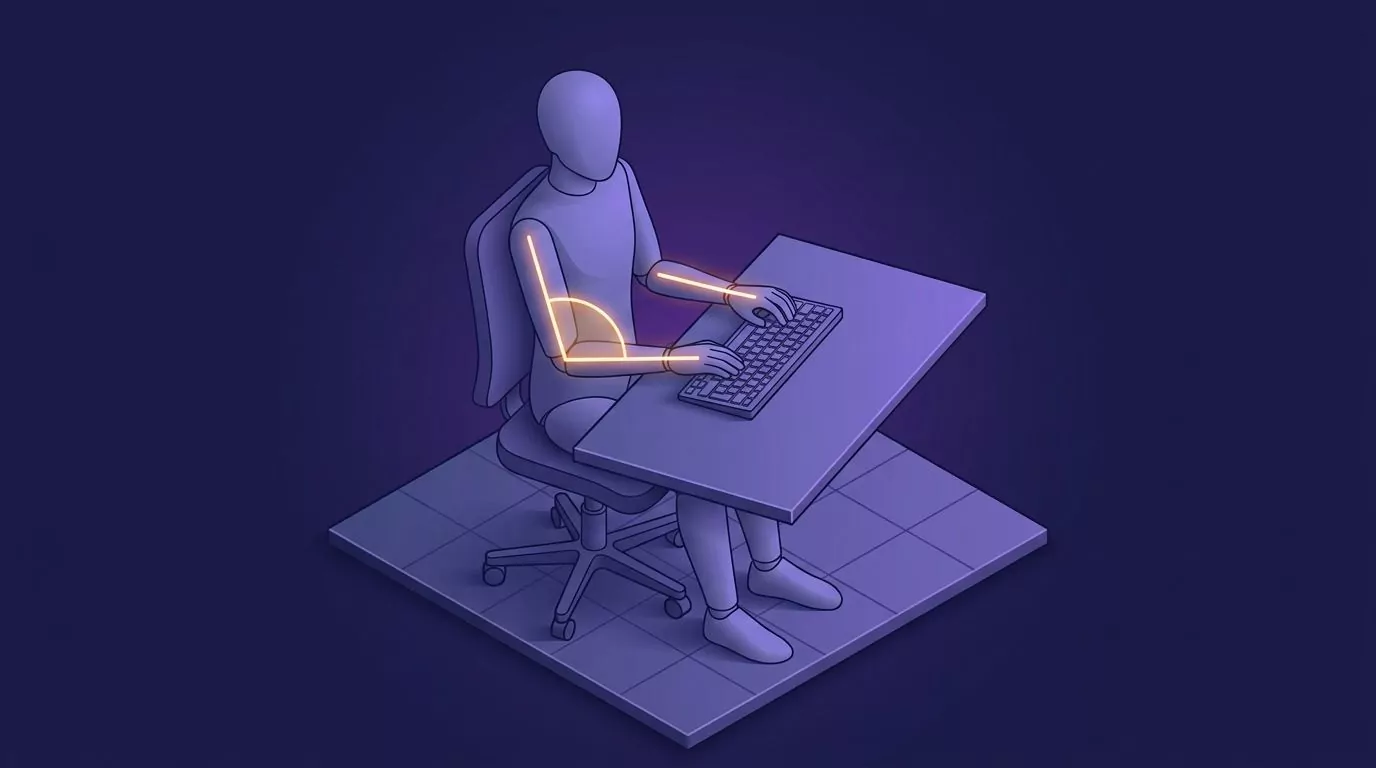
The proper posture for typing looks like this: shoulders relaxed, elbows close to your sides and bent about 90 to 110 degrees, forearms roughly level, and the keyboard at or just below elbow height, flat or tilted slightly away. Wrists stay straight, hands float with fingers gently curved, feet are supported, and you change position often.
The proper typing posture checklist, from shoulders to fingertips
Scan this table from the top down. Each row gives one thing to look for, a fast check, and the usual mistake.
| Body part | What right looks like | Quick check | Common mistake |
|---|---|---|---|
| Shoulders | Down and relaxed | Shrug, then let go | Creeping up toward your ears |
| Elbows | Close to your sides, bent about 90 to 110 degrees | Elbows near your ribs | Winging out, or bent tighter than a right angle |
| Forearms | Roughly level, or sloping slightly down | Forearm and keys form one line | Sloping up to a high desk |
| Keyboard height | At or just below elbow height | Hands reach the keys with no shrug | Desk above elbow height |
| Keyboard tilt | Flat, or tilted slightly away from you | Back feet folded in | Back feet flipped out |
| Wrists | Straight in both directions | Knuckles in line with the forearm | Bent up, or sideways toward the little finger |
| Hands and fingers | Floating over the home row, fingers curved | Hands lift without moving the arms | Palms planted on the desk |
| Head and eyes | Balanced over your shoulders | Chin level | Leaning in to read |
| Feet | Supported on the floor or a footrest | Thighs roughly level | Dangling or tucked under |
| Back | Against the backrest | Low back touches the chair | Perched on the seat edge |
Shoulders, elbows and forearms
Let your shoulders drop and keep your elbows close to your sides. Bend them to about 90 to 110 degrees: a little open beats a tight right angle, and OSHA's guide to good working positions gives 90 to 120.
Should your elbows sit at exactly 90 degrees? Treat 90 as the low end, not the goal. Forearms should be roughly level or slope slightly down; if they slope up, the keyboard is too high.
Keyboard height and tilt
Put the keyboard at or just below elbow height. Cornell University's ergonomics team describes the ideal as a keyboard below seated elbow height, sloped gently away from you, with you sitting slightly reclined.
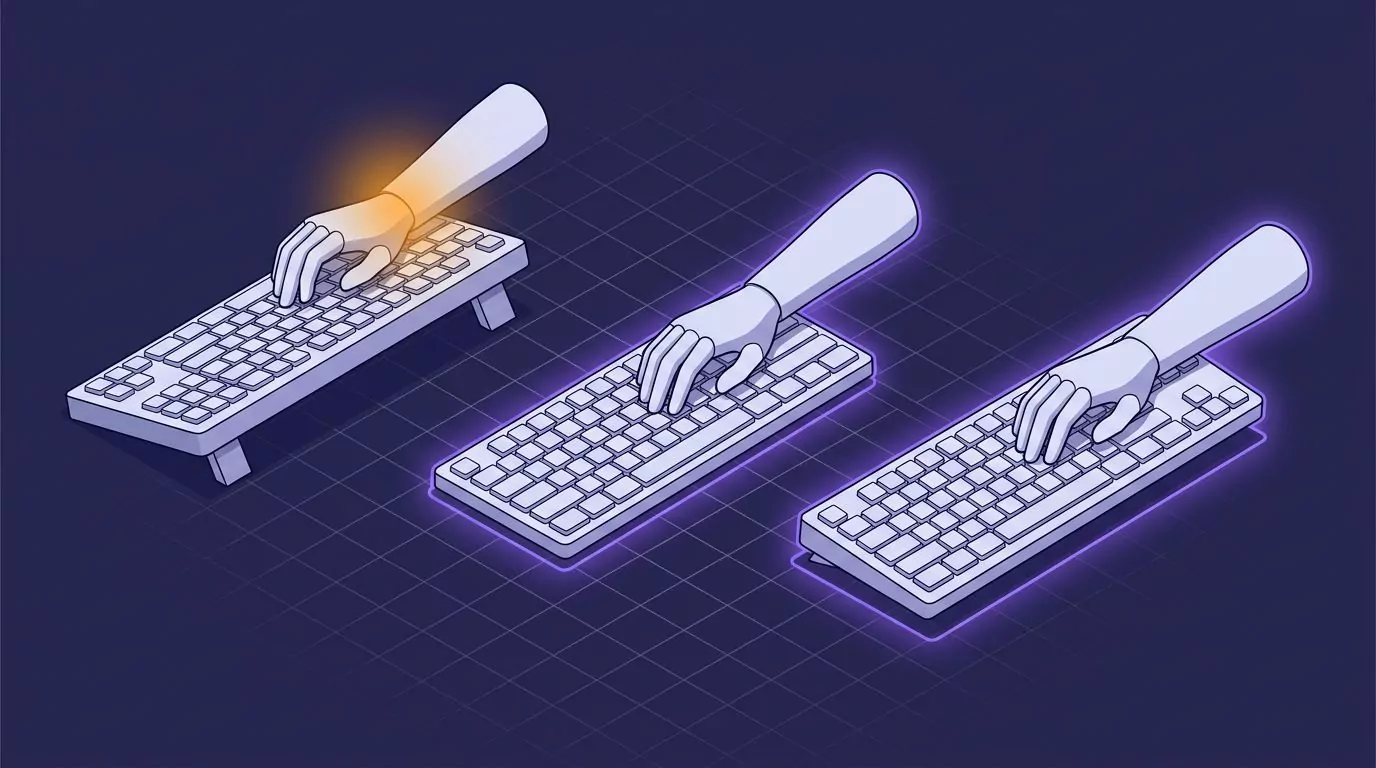
Is it better to have your keyboard propped up or flat? Flat, or tilted slightly away, is the right default. Fold the little feet at the back away, because OSHA's keyboard guidance notes that extended back legs can bend the wrist upward.
MyHealth Alberta adds that some people prefer the keyboard flat or tilted slightly down at the top. Change the tilt only to keep your wrists straight. On a laptop, long sessions go better with a separate keyboard.
Wrists and proper hand position for typing
The proper wrist position for typing is straight in both directions. From the side, the back of your hand lines up with your forearm. From above, there is no sideways bend toward the little finger.
Let your hands float over the home row, fingers gently curved, and press each key only as hard as it needs. That light touch, plus a neutral wrist position, is most of what proper typing technique means for comfort.
The 30 second self check
Run this now, and again whenever you change chairs, desks or keyboards.
- Let your arms hang. Sit back and drop your shoulders.
- Bend your elbows. Keep them at your sides until your forearms are roughly level.
- Lift your forearms to the keys. Elbows stay close.
- Check where your hands land. They should meet the home row with no shrug, reach or bent wrist.
- Type one sentence. Your wrists stay off the desk edge and your shoulders stay down.
If a step fails, change one thing at a time:
- Shoulders rose: raise the chair or lower the keyboard.
- Wrists bent up: fold the keyboard feet away.
- Arms reached forward: move the keyboard closer.
Should you rest your wrists while typing?
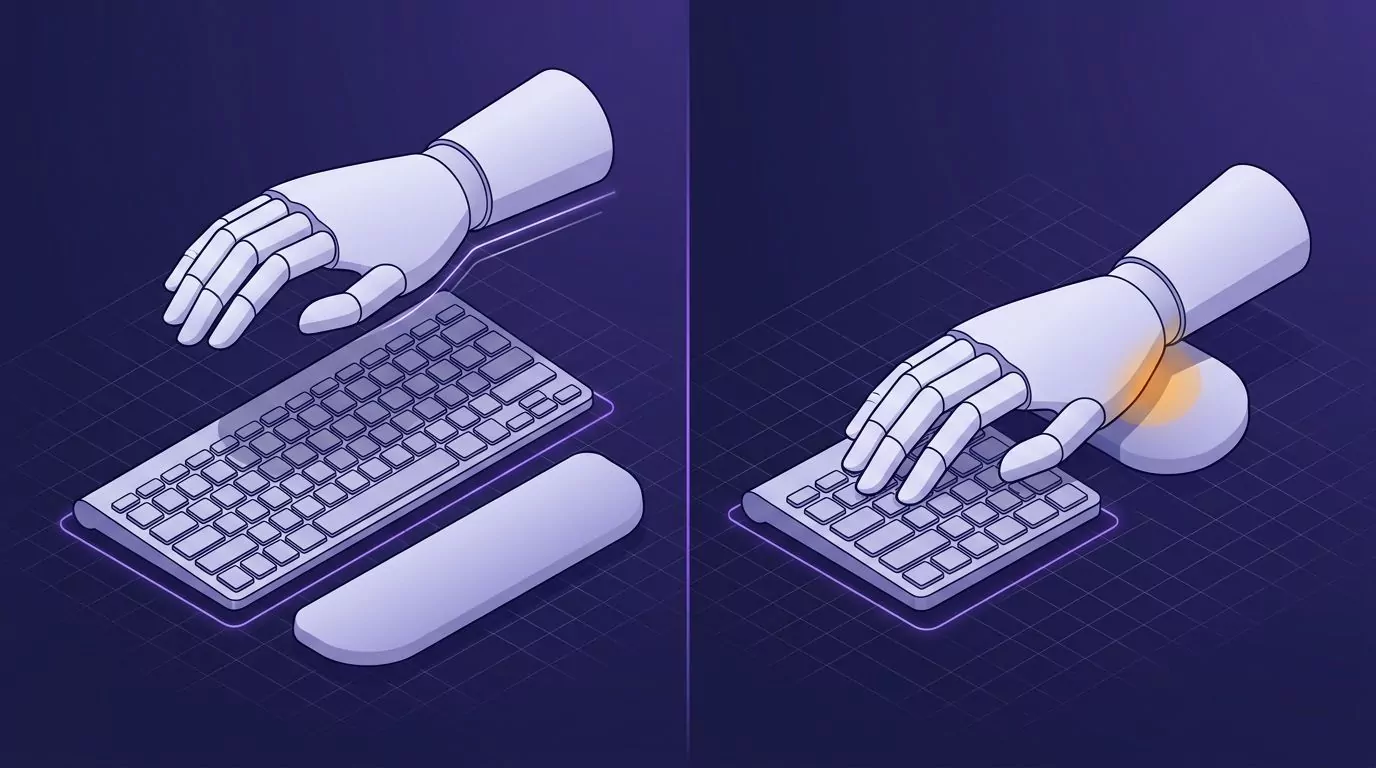
Advice splits here. Some guides say never rest your wrists, while others sell wrist rests as posture aids. The middle path is simple: float your hands while you type, and rest them during pauses.
When you rest, put the heel of your palm on the pad, not the wrist. MyHealth Alberta's typing posture page says wrist pads are for brief rests, not for use while typing, and suggests resting the palm or heel of the hand.
Whatever you rest on should be soft and rounded. OSHA's keyboard guidance flags wrist rests with sharp, hard front edges, and a bare desk edge is no better.
The keystrokes that pull you out of position
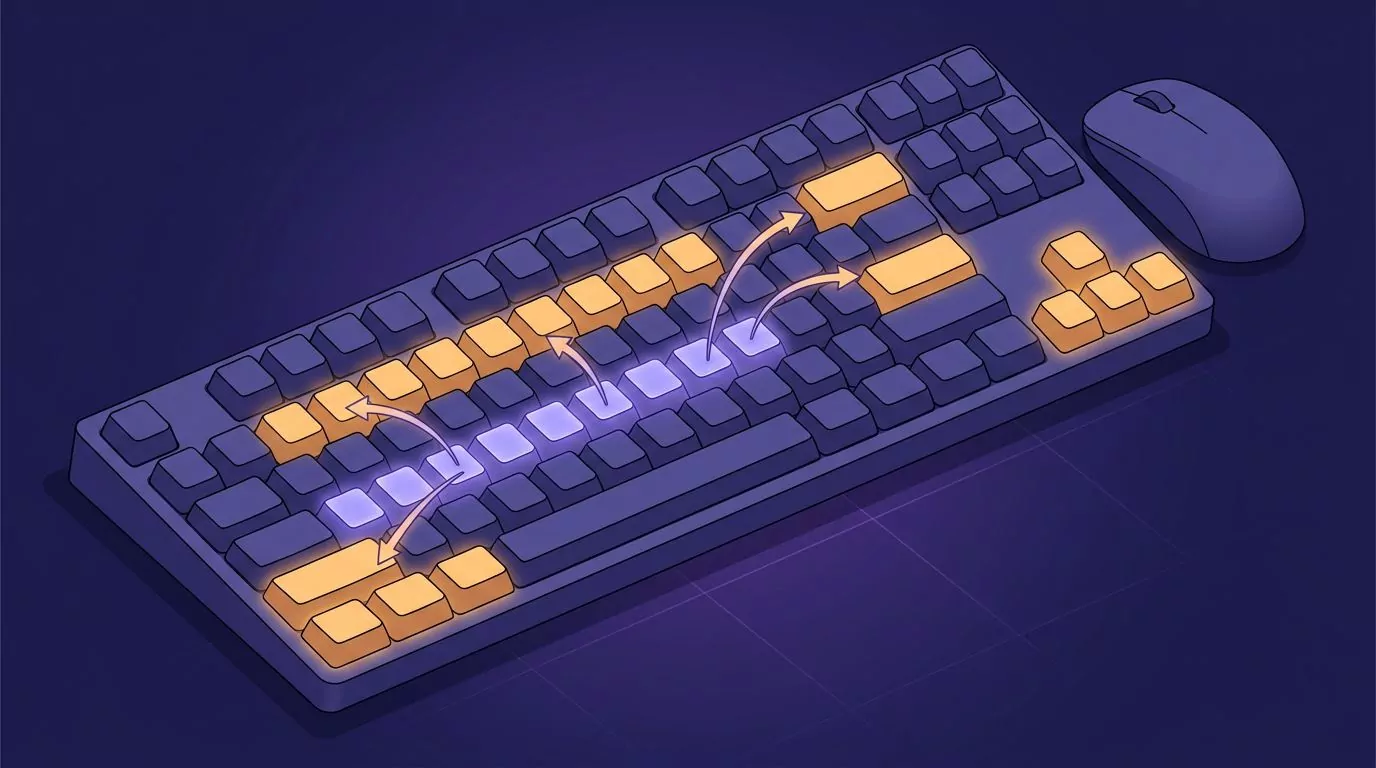
Posture rarely breaks while you sit still. It breaks on certain keys, the ones that make a hand twist, stretch or leave the home row. A light touch helps throughout, so press no harder than each key needs.
| Key or combination | What the hand does | The fix |
|---|---|---|
| Cmd or Ctrl plus a far letter, one hand | The hand twists and the wrist bends sideways | Split the chord: modifier with one hand, letter with the other |
| Backspace and Enter | The little finger stretches and the wrist bends toward it | Move the hand, not the finger, then return to the home row |
| Number row and Delete | Fingers reach up and the wrist bends back | Lift the hand from the forearm, then come back |
| Arrow keys and the mouse | The arm leaves your side and the shoulder lifts | Keep the mouse close and navigate from the keyboard |
| Hammering corrections | Fingers bottom out in long Backspace bursts | Light touch, and delete a word at a time: Option + Delete on Mac, Ctrl + Backspace on Windows |
The mouse row has backing from OSHA, which says a mouse placed close to the keyboard should cut down on repeated reaching. The rest is technique: move from the forearm, then come home.
If you write code, the list grows, since brackets and symbols sit at the edges of the keyboard. Some developers hand the prose around their code to speech; what voice coding can and cannot do covers where that works.
Change position, not just posture
Posture is not a pose to hold all day. OSHA's Computer Workstations eTool advises changing your working position often and taking frequent rest and stretch breaks. Shift in your chair, stand for a call, and rerun the checklist when you sit back down.
Posture shapes each keystroke, and the count is the other lever
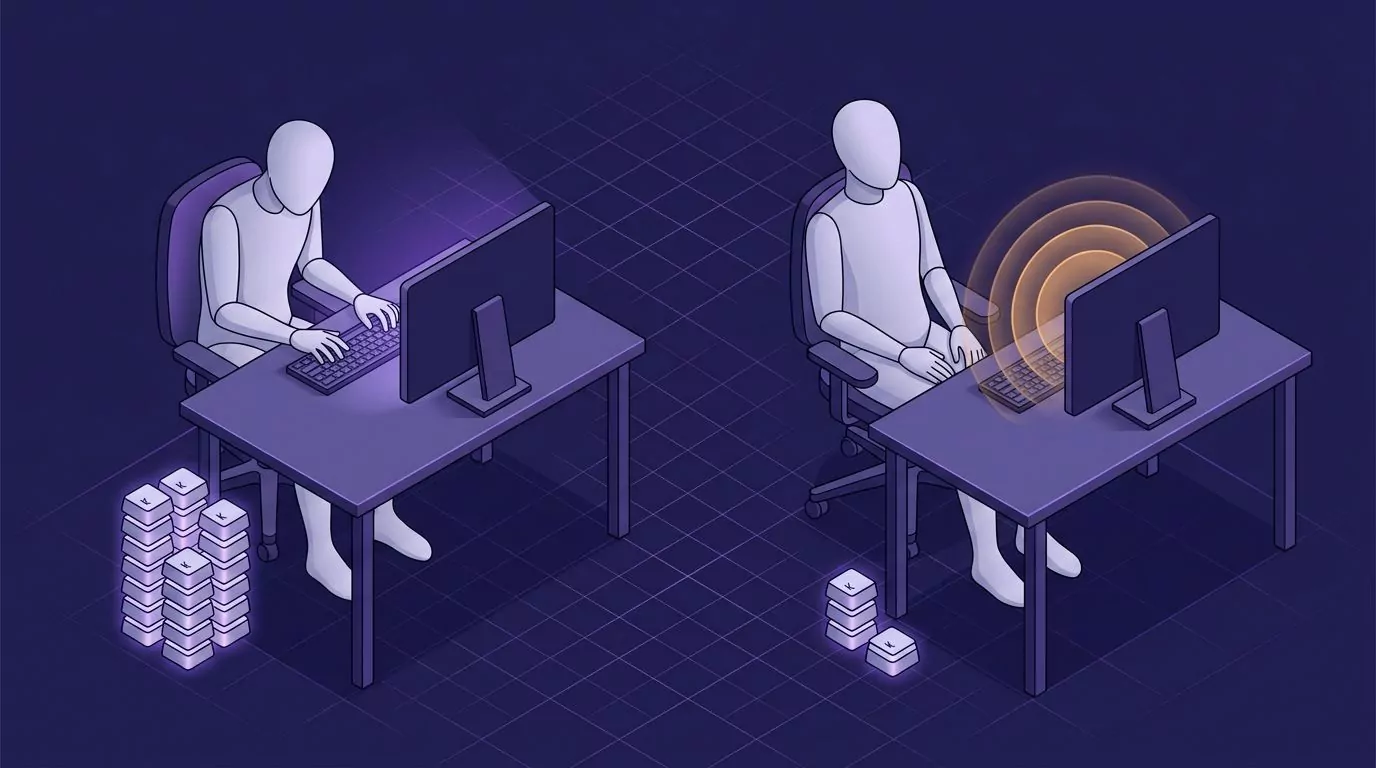
Posture changes how each keystroke lands. How many you make is a separate lever. OSHA's Computer Workstations eTool lists repetition alongside awkward postures and contact stress as keyboard hazards, and notes that "a proficient typist can easily perform more than 18,000 keystrokes per hour" (OSHA eTool, Keyboards).
To see your own rate, try the free keystrokes per hour test (roughly your words per minute times 300). For what a full day adds up to, see average typing speed and what it costs you each day.
Speaking is one way to cut the count, and it has a posture of its own. Sit back with your shoulders relaxed. For long passages, like a first draft or a brain dump by talking, use a hands-free mode so your hands rest in your lap, then edit with the keyboard afterwards.
The full desk routine is in talk to text on your computer.
Where VoiceSnap Pro fits
VoiceSnap Pro is a dictation app for Apple silicon Macs (macOS 13 or later) and Windows (10 21H2 or 11). Hold Right Option (Mac) or Right Alt (Windows), speak, and let go: punctuated text is typed at the cursor, in any app.
For long passages, press Control + Option + D (Mac) or Ctrl + Alt + D (Windows), talk with your hands in your lap, then press it again. The hold key can move to another right-hand modifier under Settings, Shortcuts.
Every new account can try every feature free with 5,000 transcribed words and 50 manual AI actions, given once with no expiry and no card required. Creating, editing and organizing notes has no free-plan cap. Pro is $9 a month for unlimited transcription and manual AI actions, subject to fair use, on up to 3 devices. Download free for Mac or Windows. Automatic AI titles, tags and reminders set by voice do not count as manual AI actions.
When posture is not enough
Posture changes are about comfort and typing fatigue. If typing hurts, or you notice numbness, tingling or pain that lasts, see a clinician such as a doctor, physical therapist or occupational therapist. This guide covers comfort, not diagnosis or treatment.
Frequently Asked Questions
What is the correct posture for typing?
The correct posture for typing keeps your shoulders relaxed and your elbows by your sides, bent about 90 to 110 degrees. Forearms stay roughly level, the keyboard sits at or just below elbow height, and wrists stay straight. Hands float over the keys with curved fingers, and you change position often.
Should elbows be at 90 degrees when typing?
Not exactly: treat 90 degrees as the low end. Most people are more comfortable with the elbows opened slightly, to about 90 to 110 degrees, and kept close to their sides. OSHA allows 90 to 120 degrees, so a bit more open is fine if your wrists stay straight.
Is it better to have my keyboard propped up or flat?
Flat, or tilted slightly away from you, suits most people better than propped up. Raising the back feet tends to bend the wrist upward as you type. Fold the feet away, set the keyboard at or just below elbow height, and change the tilt only to keep your wrists straight.
Should I rest my wrists while typing?
Not while your fingers are moving. Let your hands float above the keys as you type, then rest during pauses. When you rest, put the heel of your palm on a soft, rounded pad rather than the wrist itself, and keep your wrists off hard desk edges.
Why is posture important when typing?
Posture decides how much effort each keystroke takes. With relaxed shoulders, straight wrists and level forearms, your fingers do the work and the rest of your body stays loose. Over a long day, that means more comfort and less typing fatigue, because awkward angles repeat on every key.