Apple Dictation Alternatives: Where the Built In Mac Dictation Stops
Apple Dictation is the speech to text built into macOS. It is free and it works in most text fields. People look for an Apple Dictation alternative for three reasons: you have to say punctuation out loud, it quits when you pause to think, and it keeps no record of anything you said. A desktop app fixes all three.
This page is not a ranked list of apps. That list already exists at best dictation software for Mac. This one does the other job. It names each place the built in dictation stops, shows the macOS setting behind it, and only then says what a third party app changes.
That order matters. Most pages ranking for this query never open System Settings once. They compare monthly prices and print accuracy percentages with no test behind them. You finish reading and still do not know why your own Mac disappoints you.
What the dictation on your Mac actually is
Mac dictation is a system feature, not an app. There is no window and no icon in the Dock. It lives in one panel: the Apple menu, then System Settings, then Keyboard, then the Dictation section.
That panel holds five controls. Each one explains a limit further down this article, so it is worth knowing what they are. Apple lists them in its Keyboard settings guide.
- Dictation. Turns the whole thing on or off.
- Languages. Pick one or more. Apple notes that you can remove a language you downloaded, so each language is a download and not just a switch.
- Microphone source. Pick a mic, or leave it on Automatic and let the Mac choose for you.
- Shortcut. The key that starts and stops dictation.
- Auto-punctuation. In Apple's words, it will "automatically insert commas, periods, and question marks as you dictate".
There is also a link in that panel called About Ask Siri, Dictation and Privacy. It is worth a click, because it answers the question the comparison pages skip. Where does your voice actually go?
On device, or on Apple's servers
Mac dictation runs one of two ways. The same feature can behave differently on two Macs sitting side by side, and almost nobody explains why.
Apple says you can check Keyboard settings to see whether your voice and transcripts are processed on your device and not sent to Siri servers. If that line is missing, your audio is going to Apple to be handled there.
Apple's Ask Siri and Dictation privacy page covers what happens next. Things you dictate are processed on the server but "will not be stored unless you opt in to Improve Siri and Dictation".
Which Macs get on device processing depends on the language and the hardware. Apple keeps the current list on its macOS feature availability page. If you want the full setup walkthrough first, how to dictate on a Mac covers every step.
Where Mac dictation stops
Five limits push people to go looking. Each one traces back to a setting, or to the absence of one.
You have to say the punctuation out loud
Apple's own instruction is to say the name of the mark. So you speak "comma", "period", "question mark", "new line" and "new paragraph" as you go.
Auto-punctuation helps, but read what it covers. Commas, periods and question marks, in supported languages. Colons, quotation marks, brackets and paragraph breaks are still yours to say.
For a one line reply that is fine. For a long email it wears you down, because you are composing the sentence and narrating the typography at the same time.
It has no time limit, but it gives up when you pause
This is where most pages on this topic are simply wrong. Several state that Mac dictation cuts you off after 30 to 60 seconds.
Apple's dictation guide says the opposite. You can dictate text of any length with no timeout. Dictation then stops on its own when it hears no speech for 30 seconds.
So length is not the problem. Silence is. Stop for half a minute to work out your next sentence and the session ends, which feels exactly like being cut off and gets reported as one.
No setting fixes that. A different way of holding the key does. If you hold a key while you talk and release it when you finish, a thinking pause is just a pause.
Nothing you said is kept
Once the text lands in the field, that is the whole record. There is no dictation history panel, because dictation is not an app that could hold one.
For a quick Slack reply, who cares. For the third time this month you explained the same process to a customer, it is a real loss. A searchable record of what you said turns those repeats into something reusable.
Change windows and the words follow the focus
Dictation types into whatever has focus at that moment. Click into another window mid sentence and the rest of the sentence goes there instead.
Notifications are the usual culprit. So is a browser tab that grabs focus the moment it finishes loading.
Some fields block dictation on purpose. Password fields and a few terminals refuse it, and no setting changes that. If it works in Notes but nowhere else, voice typing not working walks the checks in order.
It does not learn your vocabulary
The Dictation panel has no custom word list. There is nowhere to teach it a client name, a product name, or a function name.
So the words specific to your job come back wrong, and they stay wrong. Every dictation is a fresh guess at the same surname.
Code is the hardest case of all. Identifiers, casing and symbols are a poor fit for any dictation engine, and voice coding covers where the real line sits.
Languages have their own edges. Each one is a separate download in that Languages list, Auto-punctuation only works in the languages Apple supports for it, and there is no switching mid sentence. If you write in two languages daily, check the feature availability page for both before you judge the tool.
The permission that makes a third party app look broken
This is the most common reason a Mac dictation app seems installed and does nothing at all. The built in dictation needs none of these permissions, so the trap is invisible until the day you switch.
macOS gates three separate abilities. A hold to talk app usually needs all three, and they are granted in different panels.
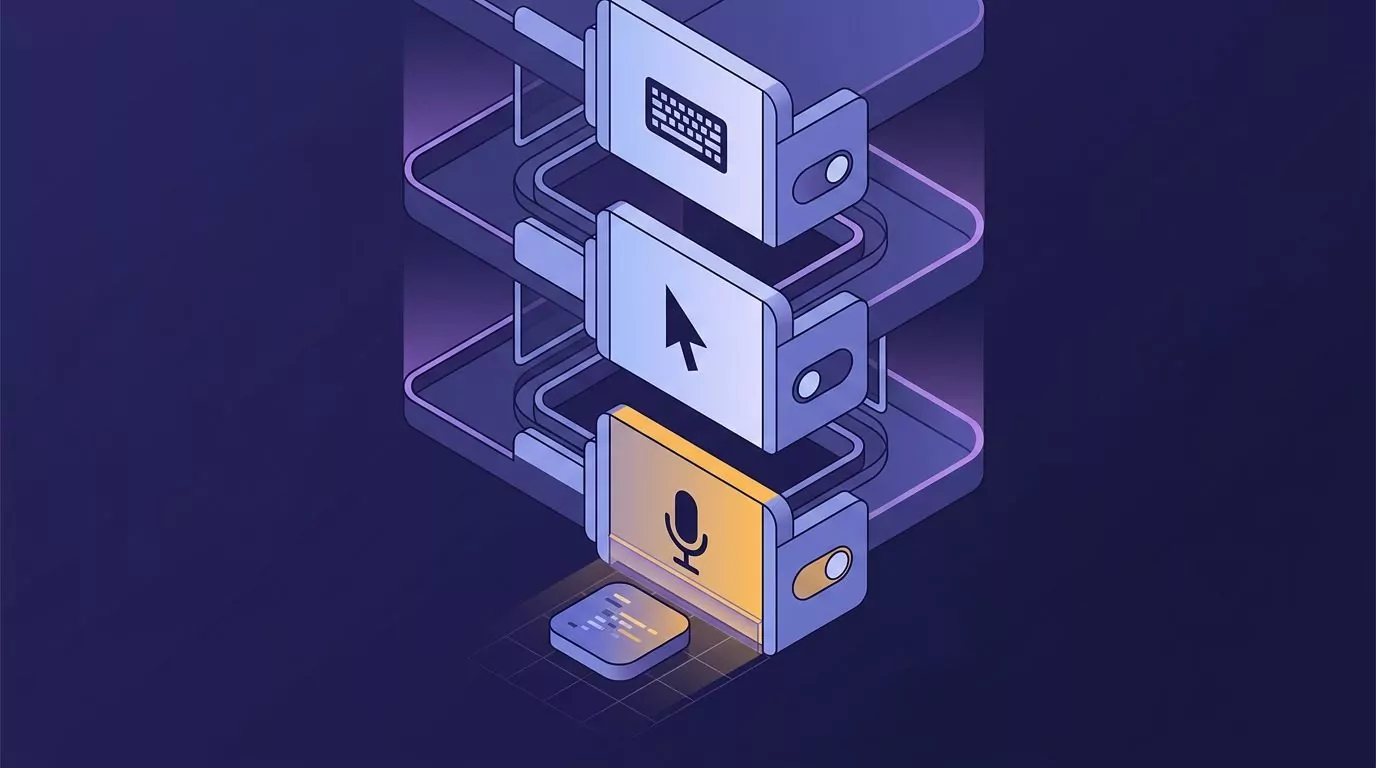
- Microphone. System Settings, then Privacy and Security, then Microphone. Without it, the app hears silence.
- Accessibility. Same path, then Accessibility. This is the one that lets an app control your Mac, which includes typing into another app's text field. Without it, the app hears you perfectly and then inserts nothing.
- Input Monitoring. Same path, then Input Monitoring. Apple describes this as letting an app watch your keyboard, mouse or trackpad even while you are using other apps. A global hold to talk key needs it. Without it, the key does nothing.
The three failures look different, which is useful. Silence means Microphone. Text that never arrives means Accessibility. A key that does absolutely nothing means Input Monitoring.
Granting all three, in order
- Open the Apple menu, then System Settings, then Privacy and Security.
- Click Accessibility. Find your dictation app in the list and switch it on. If it is not listed, click the plus button and pick it from Applications.
- Go back, then click Input Monitoring, and switch the same app on there.
- Go back once more, then click Microphone, and switch it on there too.
- Quit the app completely and open it again. macOS does not always apply a new grant to a process that is already running.
- Check Accessibility again after the app updates itself. A changed app signature can flip that toggle back off, and the app goes quiet with no warning.
One failure no toggle will fix is secure input. When a password field has focus, macOS locks keyboard access for every other app on the machine.
Some apps leave that mode switched on by mistake. The symptom is a hold to talk key that worked all morning and now does nothing anywhere. Quitting the app that grabbed it, usually a browser or a terminal, releases it.
When the built in dictation is still the right call
Do not buy anything before you have given it a fair week. Apple's version wins on several things outright, and no paid app changes that.
- It costs nothing and it is already there.
- There is no install, no account and no sign in.
- There is no permission dance, because the system is granting itself access.
- On supported Macs the audio never leaves the machine.
- It is on every Mac you touch, including a borrowed one or a managed work Mac where you cannot install software.
If you dictate a few short messages a day, and saying "comma" does not bother you, this is genuinely enough. Turn on Auto-punctuation, pick a shortcut you can reach without looking, and use it for a week before you spend anything.
What an Apple Dictation alternative actually changes
Compare on behaviour, not on a monthly price. Four things change, and they are the same four whichever app you land on.
You hold a key instead of toggling one
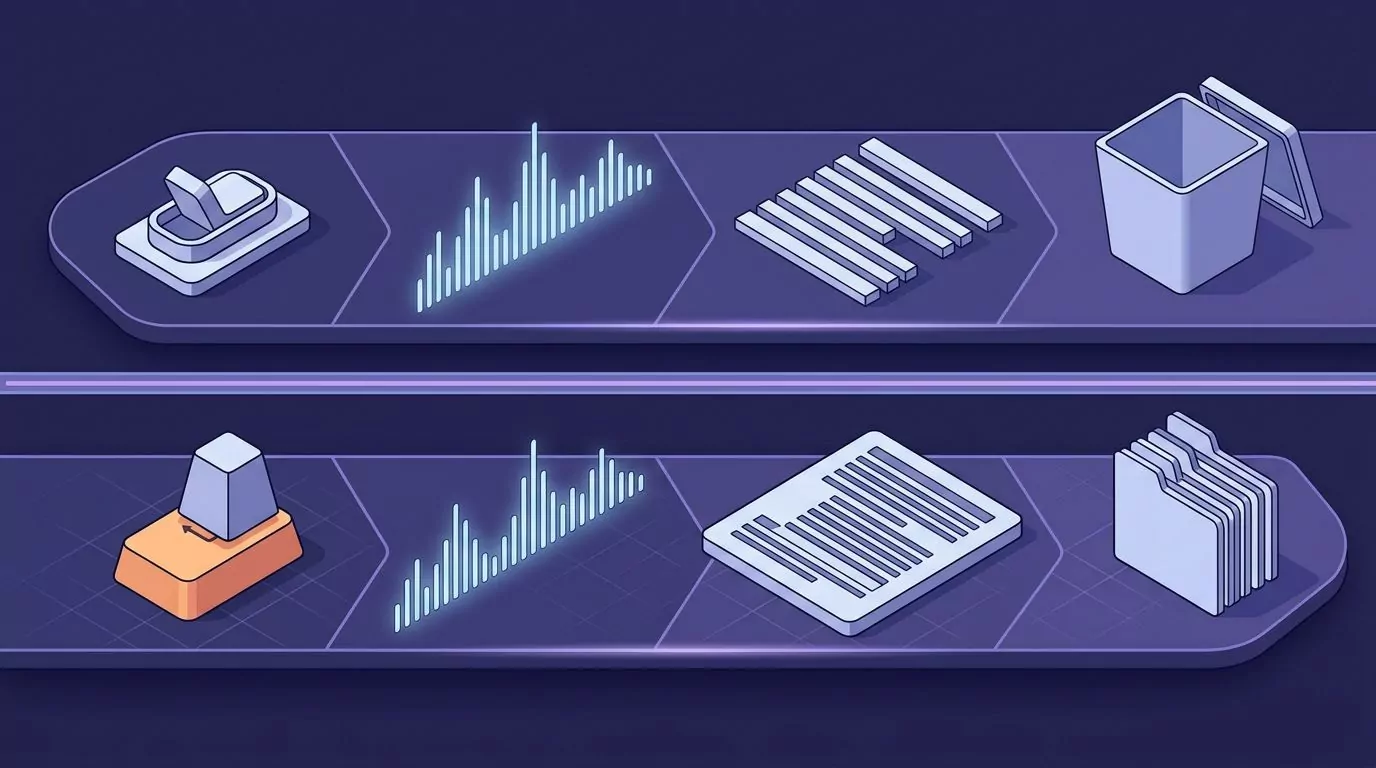
Built in dictation is a toggle. You start it, talk, and stop it. Most third party apps are push to talk instead: hold, speak, release.
That one difference removes the silence problem entirely. The session lasts exactly as long as your finger is down.
The punctuation arrives with the text
You speak in normal sentences and the app works out the commas and periods for you. Filler words like "um" get dropped on the way in.
This is the change people notice most, because it stops dictation feeling like a party trick and starts it feeling like typing.
The text lands at the cursor
Check this one carefully before you pay. Some voice tools transcribe into their own window and leave you to copy and paste, which is a different product with a similar description.
Insert at cursor means the text appears in the Slack box, the email, or the ticket field you were already looking at. Nothing else moves.
There is a record afterwards
Some apps keep what you dictated so you can find it later. That turns a throwaway message into something you can reuse next quarter.
VoiceSnap Pro is built around those four. You hold a shortcut you chose, speak, and release, and the text appears at the cursor in whatever app has focus. It arrives capitalised, punctuated and broken into paragraphs, with fillers like "um" removed.
Every dictation is also saved as a note, tagged with the app and the time, and searchable by any phrase inside it. Notes export as plain text or Markdown, one at a time, a day at a time, or the whole library.
Audio is transcribed and then discarded. There are no recordings and no playback, which zero data retention unpacks properly. It runs on macOS and Windows, and it is pre launch right now at $39 one time for early access through the waitlist.
Mac dictation options compared
Every named tool links to its own site, because prices and tiers move and the vendor page is the only current source.
| Tool | Platforms | Where the text lands | Punctuation | Keeps a record | Audio | Price |
|---|---|---|---|---|---|---|
| Apple Dictation | macOS | At the cursor, in most fields | You say most of it; auto adds commas, periods, question marks | No | On device on supported Macs, otherwise processed by Apple and not stored unless you opt in | Free with macOS |
| VoiceSnap Pro | macOS, Windows | At the cursor, in any app that takes typed text | Added for you, fillers removed | Yes, a searchable notes library | Transcribed then discarded, no playback | $39 one time early access, pre launch |
| Wispr Flow | Mac, Windows, iPhone, Android | At the cursor | Added for you | Check the vendor | Check the vendor | Free tier plus a paid subscription |
| Superwhisper | macOS, Windows, iOS | At the cursor | Added for you | Check the vendor | Local models or cloud models, your choice | Free tier, subscription, and a one time lifetime option |
| VoiceInk | Apple Silicon Macs, macOS 14.4 or later | At the cursor | Added for you | Check the vendor | Processed locally on your Mac by default | One time purchase, open source |
| Dragon | Windows only | Not applicable on a Mac | Added for you | Not applicable on a Mac | Not applicable on a Mac | Mac version discontinued in 2018 |
Two cells deserve a note. Dragon still comes up in every list like this, but Nuance discontinued Dragon Professional Individual for Mac effective 22 October 2018 and stopped shipping updates for it on the same date. On a modern Mac it is not an option, whatever the roundups say.
Where a cell says "check the vendor", the vendor's own page does not state it plainly. Filling those in with a confident guess would be the same mistake as the accuracy percentages, and there are enough of those already.
If you want the longer write up on one of these, Superwhisper alternatives compares the local model tools against each other, and talk to text on your computer covers the daily workflow on both platforms.
What none of these fix
Switching apps solves the four behaviours above. It does not solve everything, and the pages that pretend otherwise are the reason people buy twice.
Jargon and proper nouns. Every engine guesses at names, and paid ones guess too. Some apps let you add a vocabulary list, which helps but does not end the problem.
Your microphone and your room. A laptop mic in an open office is the single biggest variable here, bigger than the choice of app. A cheap headset mic improves results more than most upgrades.
Accuracy claims. You will see 90 percent, 97 percent and 99 percent quoted on the pages ranking beside this one. None of them says which audio, which microphone, which speaker, or which accent. A word error rate without its test conditions is a marketing number, not a measurement, so there is not one in this article.
It is worth being just as plain about where VoiceSnap Pro stops. It is a dictation tool, not a transcription tool. You cannot drag in an audio or video file you already have, because it only turns live speech into text.
It does not record meetings or calls, and it does not keep audio at all. That is a privacy win and a verification cost at the same time. If a word came out wrong there is no recording to check it against, so anything high stakes still needs reading before you send it.
It runs on macOS and Windows only. There is no mobile app, and it is pre launch rather than downloadable today.
Frequently Asked Questions
Is Apple Dictation free?
Yes. It is included with macOS at no cost, with no account, subscription or trial. Turn it on in System Settings, then Keyboard, then Dictation.
Does Mac dictation work offline?
Sometimes. On Macs and languages that support on device processing it works with no connection. Otherwise the audio goes to Apple and needs one. Keyboard settings tells you which case you are in.
Why does my Mac dictation stop after a while?
It is not a length limit. Apple's documentation says you can dictate text of any length, and that dictation stops when it hears no speech for 30 seconds. Long thinking pauses end the session, not long sentences.
How do I get punctuation without saying it out loud?
Switch on Auto-punctuation in System Settings, then Keyboard, then Dictation. It handles commas, periods and question marks in supported languages. For colons, quotes, brackets and paragraph breaks you either speak them or use an app that punctuates the whole thing for you.
Why is my Mac dictation not working in one app?
Usually focus or a blocked field. Password fields and some terminals refuse dictated text by design. If a third party app is the one failing, check Accessibility and Input Monitoring first, then work through voice typing not working.
Can I see what I dictated earlier?
Not with the built in dictation. It keeps no history at all, so the text field is the only copy. Apps with a notes library are the ones that keep a searchable record.
What about dictation on an iPhone?
Apple Dictation exists there too, but the settings, limits and fixes in this article are the Mac ones. Some tools in the table above do ship mobile versions, and the platform column says which. VoiceSnap Pro is desktop only, on macOS and Windows.
How to choose without switching twice
Give the built in dictation one honest week first. Turn on Auto-punctuation, set a shortcut you can hold comfortably, and notice which of the five limits actually bites you.
If it is the punctuation, almost any of these apps will do. If it is the pausing, you want push to talk. If it is losing what you said, you want the one with a searchable library, and that narrows the field fast.
Then judge on behaviour rather than on the monthly price. Where the text lands, what happens to a filler word, and whether anything survives afterwards will matter every single day. A few dollars of difference will not.
If holding one key sounds better than saying "new paragraph" out loud, you can join the VoiceSnap Pro waitlist for early access at $39 one time. If it does not, the settings at the top of this page cost nothing and work today.