One-Handed Typing on a Computer: Layouts, Sticky Keys, and When to Talk Instead
Yes: most people should keep the standard QWERTY layout and rest the working hand near the centre of the keyboard (most one-hand courses start on F G H J). Move the whole hand to far keys instead of stretching. Use Sticky Keys to press shortcuts one key at a time, and hand anything longer than a sentence to voice typing.
What one-handed typing looks like on a computer
One-handed typing is a technique on a normal keyboard. Some people need it for a while (a sprained wrist, a baby on one arm). Others type with one hand for good, because of a limb difference or after a stroke.
On a phone, turn on your keyboard's one-handed mode in its settings; this guide covers Mac and Windows computers. If you have pain or an injury, ask your clinician or occupational therapist how much to use the affected hand. This is not medical advice.
First decide how long you will be typing one-handed
| How long you expect to type one-handed | Do this | Skip this |
|---|---|---|
| Days. A baby on one arm, or a phone in the other hand. | Technique tweaks, Sticky Keys and voice typing. | A new layout. |
| Weeks. An arm in a cast or sling (go by your clinician's timeline). | Add text replacements, move the keyboard and mouse, practise one-hand QWERTY. | A new layout. |
| Long term or permanent. A limb difference, for example. | Consider Dvorak Left or Right or Half QWERTY, a course, and an assistive technology assessment. | Buying hardware before that assessment. |
How to type with one hand on a normal keyboard
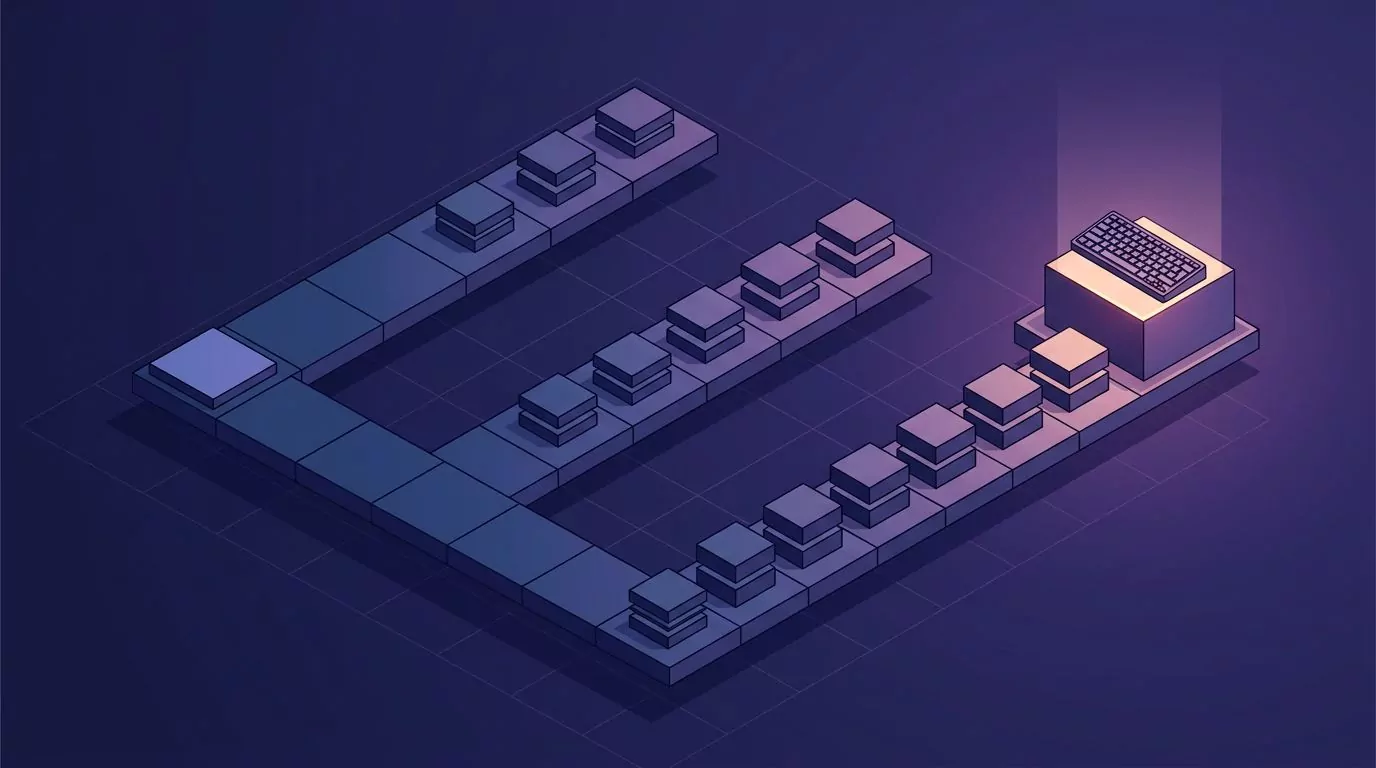
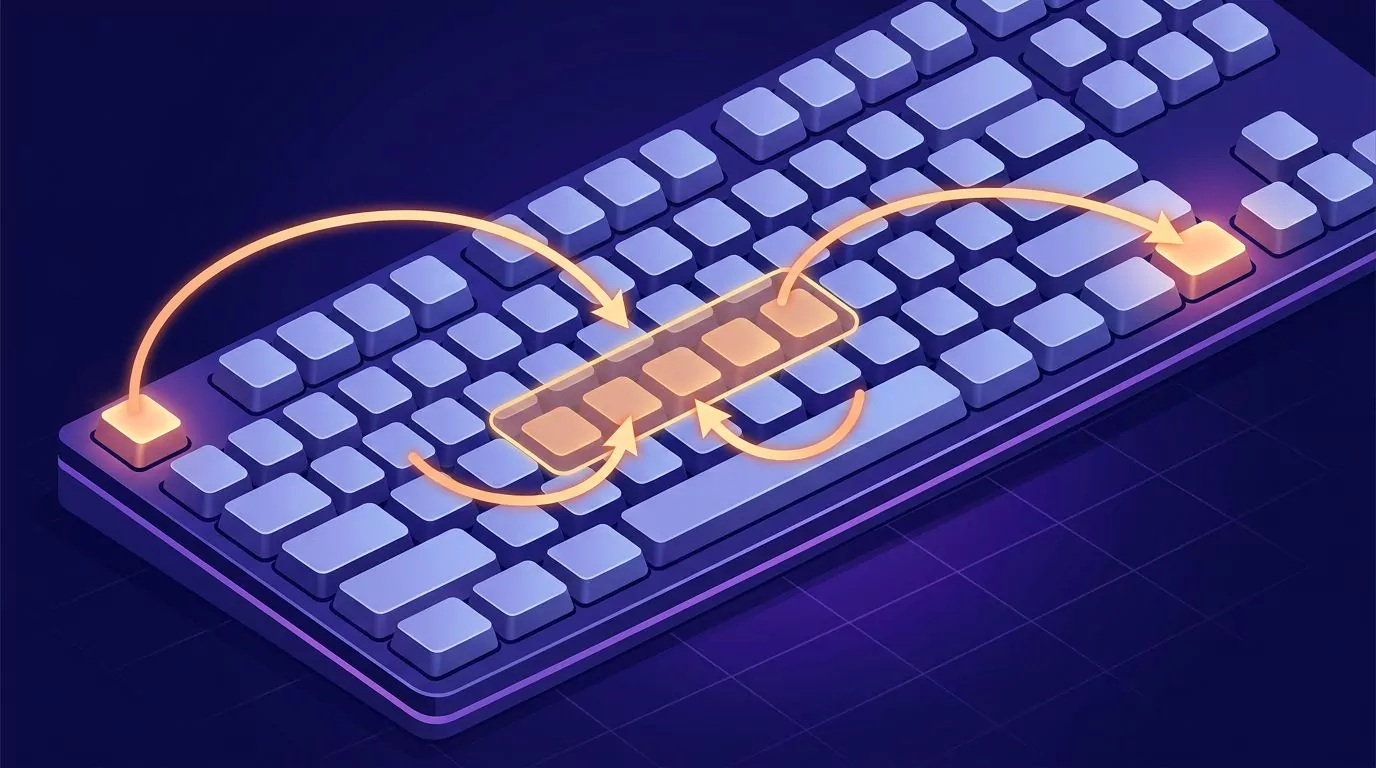
Rest the working hand near the centre, fingers over F G H J, and cover both halves from there. Touch typists can instead keep the hand on its own home keys (J K L ; or A S D F) and go across.
Either way, move the whole hand to a far key, press it, and come back. Do not stretch. Accuracy first; speed follows.
Right hand only
Enter, Backspace, the arrows and the number pad (on a full size keyboard) sit under the hand. Q W E A S D Z X C, Tab, Caps Lock and left Shift need a trip left.
Left hand only
Esc, Tab, left Shift, and Cmd or Ctrl with Z, X, C, V, A, S, W and Q sit under the hand. P, Enter, Backspace and the arrows need a trip right.
| Job | Mac | Windows | Easy for |
|---|---|---|---|
| Undo, cut, copy, paste | Cmd+Z, X, C, V | Ctrl+Z, X, C, V | Left hand. |
| Switch apps | Cmd+Tab | Alt+Tab | Left hand. |
| Select text | Shift+arrows | Shift+arrows | Right hand. |
| Ctrl+Alt+Delete | None | Ctrl+Alt+Delete | Neither. Use Sticky Keys. |
Most Mac laptops and many Windows laptops have no right Control key, so right-hand typists often need Sticky Keys for Control chords.
Placement for one hand
Centre the half you use in front of your working shoulder. A compact keyboard keeps the mouse in reach for a left hand. Right-hand users who enter many numbers can keep the number pad.
One-handed typing practice: a short daily routine
Spend five to ten minutes a day: words near your rest position, then words that force trips, then sentences you really write. TypingClub (edclub) has free right hand typing practice and left hand typing practice courses. Check progress with a one-handed typing test on Is My WPM Good?
Turn on Sticky Keys (step by step on both systems)
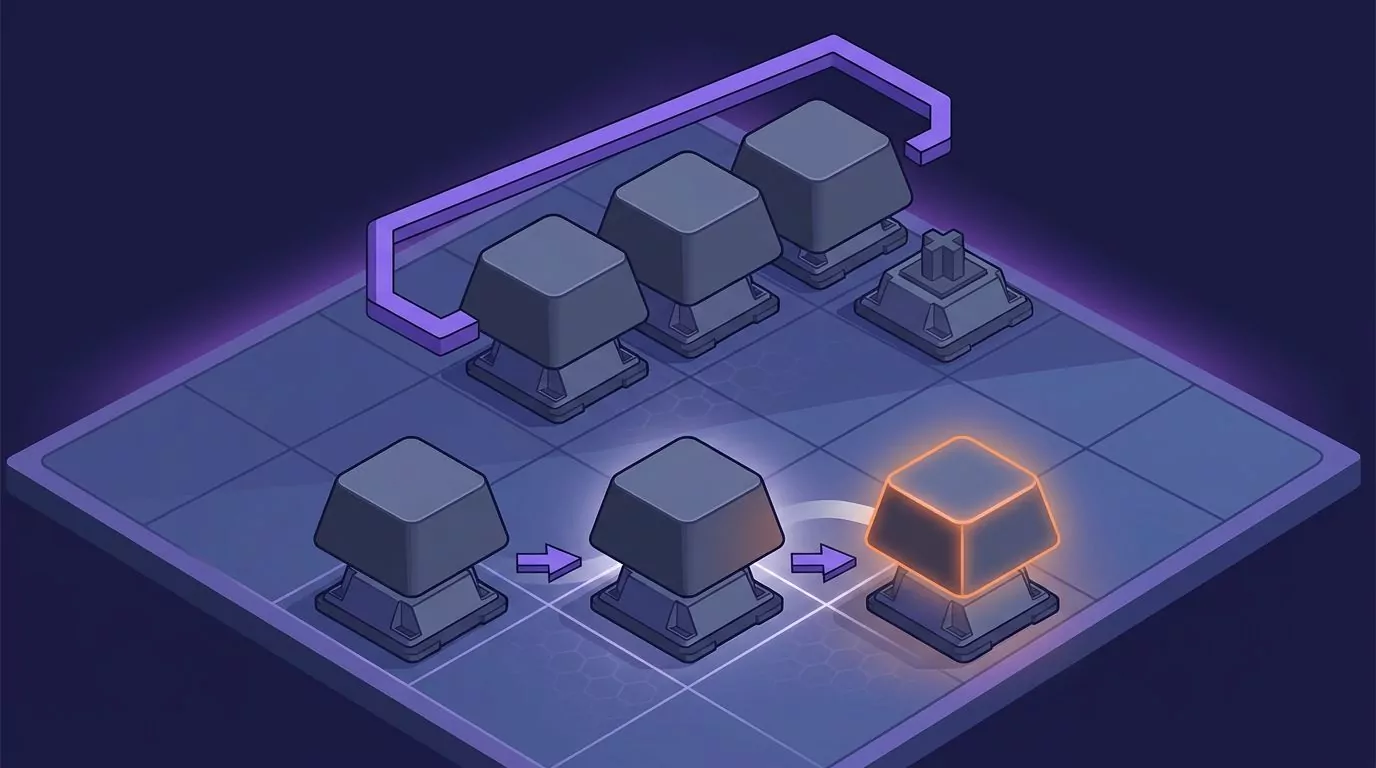
Sticky Keys lets you press a shortcut one key at a time instead of holding a chord.
Mac
- Open System Settings > Accessibility > Keyboard and turn on Sticky Keys.
- In its options, turn on "Press the Shift key five times to toggle Sticky Keys" and "Display pressed keys on screen".
Press a modifier twice to lock it and once more to release it (Apple's keyboard accessibility page).
Windows 11
- Open Settings > Accessibility > Keyboard and turn on Sticky keys.
- Open its options and turn on the Shift five times shortcut and "Lock shortcut keys when pressed twice in a row".
On Windows 10, look under Settings > Ease of Access > Keyboard (Microsoft's guide). Now Cmd, Shift, 4 (Mac) or Win, Shift, S (Windows) takes a screenshot, and Ctrl, Alt, Delete works one key at a time. Cmd, Shift, T reopens a browser tab on a Mac.
Other built-in settings that cut keystrokes
Text replacements
Each keystroke saved is a far reach avoided, so a trigger like "@@" for your email address pays off fast. The keyboard first workflow guide has the setup.
Remap a key you cannot reach
On a Mac, System Settings > Keyboard > Keyboard Shortcuts > Modifier Keys lets you swap modifier keys. On Windows, PowerToys Keyboard Manager remaps almost any key.
Slow Keys and Filter Keys
If you hit keys by accident, Slow Keys (Mac) and Filter Keys (Windows) ignore brief presses.
One-handed layouts: Dvorak Left, Dvorak Right, and Half QWERTY
One-handed Dvorak puts the most used letters under one hand, and both systems include it:
- Mac: System Settings > Keyboard > Text Input > Edit, then add "Dvorak - Left-Handed" or "Dvorak - Right-Handed" (Apple's steps).
- Windows 11: Settings > Time & language > Language & region, then Language options > Add a keyboard. Pick "United States-Dvorak for left hand" or "for right hand" (Microsoft's steps).
Add it as a second layout and switch from the Input menu on a Mac or with Win+Space on Windows, so a shared computer keeps QWERTY.
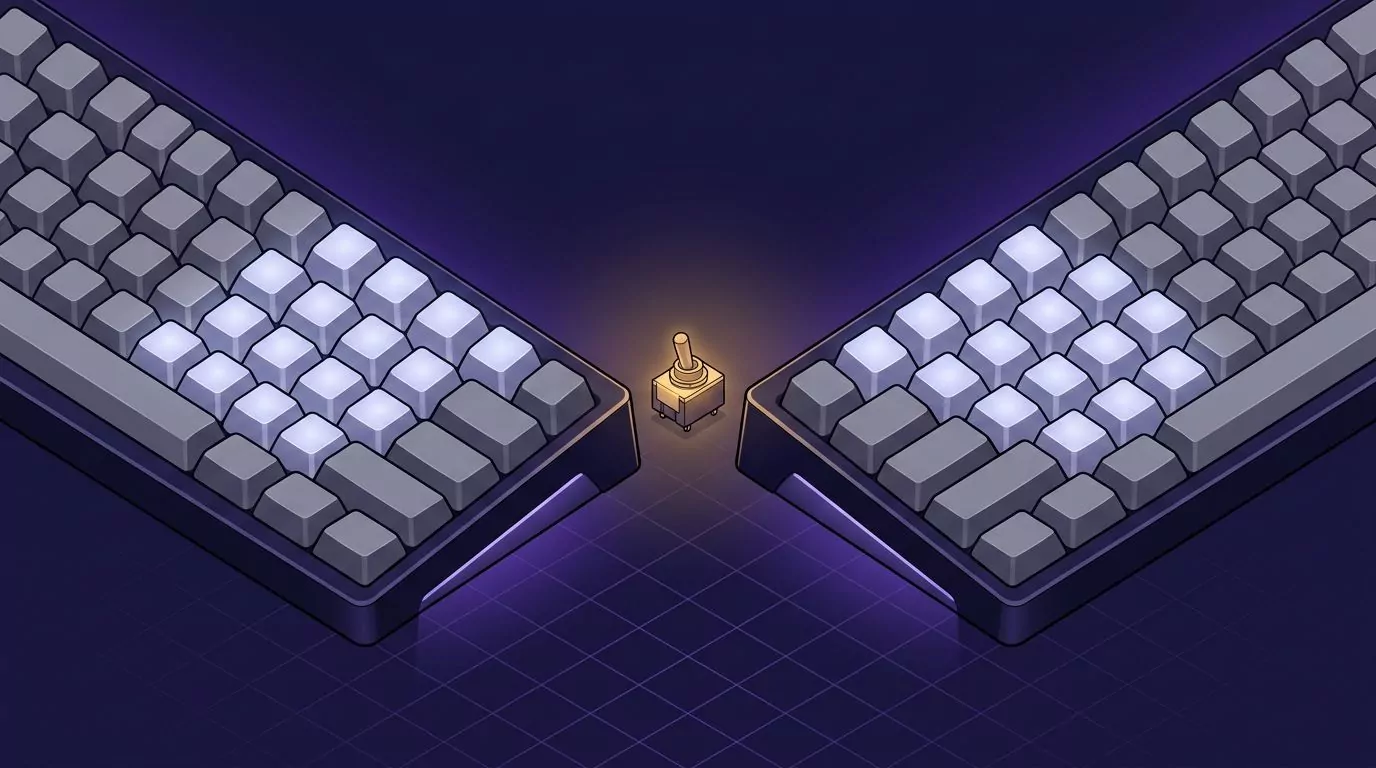
Half QWERTY works differently: hold the space bar and the other half mirrors under your hand. It is not built in; it comes as a Matias keyboard or software, and suits touch typists.
A new layout takes weeks of daily practice, so it only pays off for long term use. The same goes for one-hand, chord and wearable keyboards: try the standard keyboard first, then get an assessment. AbilityNet's factsheet gives a neutral overview.
Mouse, trackpad, and switching hands
Every mouse reach takes your only hand off the keys, so fewer switches save the most time. Keep the mouse on your working side and swap the buttons for a left hand.
On a Mac, open System Settings > Mouse and set Secondary click to the left side (Apple's guide). On Windows 11, change Primary mouse button under Settings > Bluetooth & devices > Mouse (Microsoft's guide). On a trackpad, turn on tap to click.
For Tab, Full Keyboard Access and Mouse Keys, see using a computer without a mouse. Clicking by voice is a separate job: see Voice Control in dictation on a Mac and Voice access in the Windows dictation shortcut guide.
What to type and what to say: a per-task table
| Task | One hand on the keyboard | Voice typing | Best choice |
|---|---|---|---|
| Password or PIN | Symbols need a far Shift. Autofill saves the reaches. | Never say it aloud. | Type or autofill. |
| Search box or URL | Short, but exact spelling means trips across. | Spelling and symbols are unreliable. | Type. |
| Keyboard shortcut | Chords across both halves cannot be held. | VoiceSnap Pro does not run commands. | Sticky Keys. |
| Moving between fields | The mouse takes your only hand off the keys. | Dictation does not click. | Tab and shortcuts. |
| Message over two sentences | Every far letter and capital is a trip. | One hold, punctuation added. | Voice. |
| Document or AI prompt | The same trips for minutes, so typing fatigue builds. | The strongest case for voice. | Voice. |
| Spreadsheet numbers | Right hand: number pad. Left hand: a reach to the top row. | Poor for moving between cells. | Type. |
| Code | Most symbols sit on the right half and need Shift. | Good for comments (voice coding). | Type code, say the prose. |
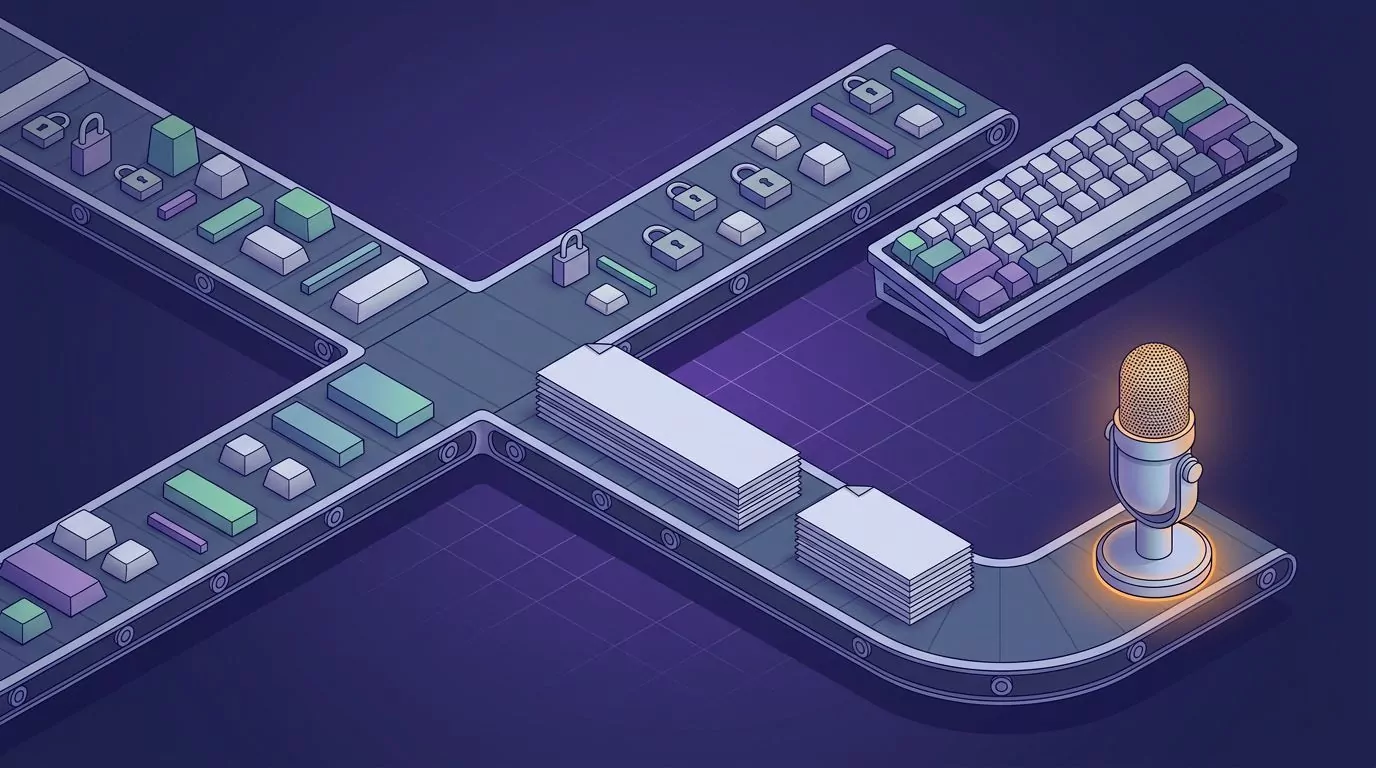
Rule of thumb: anything longer than a sentence goes to voice; fixes, shortcuts and private or exact input stay on the keys. The general figures in average typing speed put two-handed typing near 52 WPM and speech at 150 to 200. Time yourself on the voice typing test.
Voice typing with one hand: a setup that works
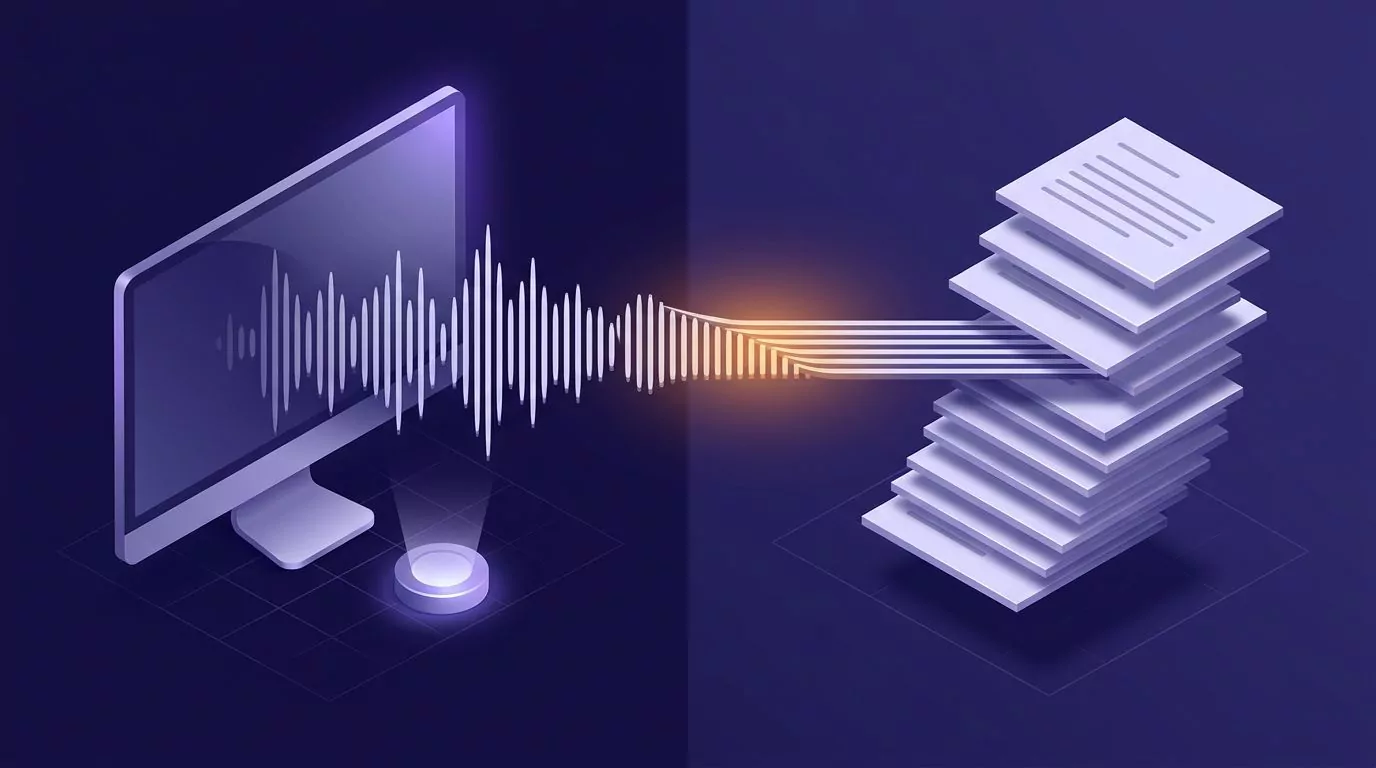
Free built-in options come first: Mac dictation and Win+H on Windows. Try voice typing in the browser now, or see talk to text on your computer for a desk routine.
VoiceSnap Pro runs on Apple silicon Macs with macOS 13 or later (Intel Macs are not supported) and Windows 10 21H2 or 11. Hold a shortcut, speak, and release: punctuated text is typed at the cursor, in any app. The hold key is Right Option (Mac) or Right Alt (Windows); only right-hand modifiers are offered, so a right-hand typist uses the thumb.
Left hand only? Use the hands-free shortcut, Control+Option+D on a Mac or Ctrl+Alt+D on Windows. Press once to start and again to stop; Escape cancels (see the keyboard shortcuts guide).
How these shortcuts behave with Sticky Keys is not documented, so try one short dictation first. If one misbehaves, press Shift five times to turn Sticky Keys off.
There are no spoken commands or line breaks, so press Return between chunks yourself. Control+Option+V (Ctrl+Alt+V) pastes the last dictation again, and personal vocabulary handles names and jargon.
Every new account can try every feature free with 5,000 transcribed words and 50 manual AI actions, given once with no expiry and no card required. Creating, editing and organizing notes has no free-plan cap. Pro is $9 a month for unlimited transcription and manual AI actions, subject to fair use, on up to 3 devices. Download free for Mac or Windows. Automatic AI titles, tags and reminders set by voice do not count as manual AI actions.
Frequently Asked Questions
Is typing with one hand possible, and is 50 WPM with one hand good?
Yes. An Aalto University and University of Cambridge study put the two-handed average near 52 WPM, so 50 WPM with one hand is very good. Shirley Ryan AbilityLab notes some chord keyboard users reach 50 WPM single-handed.
What is a good one-handed keyboard for typing?
Try your standard keyboard first. The main types are Half QWERTY style mirrored keyboards, one-hand keyboards such as TiPY, and chorded or wearable keyboards. Get an assistive technology assessment before you buy.
Should I learn one-handed Dvorak or Half QWERTY?
Only for long term or permanent use. Dvorak Left and Right are built in; Half QWERTY needs special hardware or software.
How do I press Ctrl+Alt+Delete and other shortcuts with one hand?
Turn on Sticky Keys and press them one at a time: Ctrl, then Alt, then Delete.
Are there free one-handed typing programs or exercises?
Yes. TypingClub (edclub) has free right-hand and left-hand courses, and the settings in this guide are built into your computer.