Google Docs Voice Typing on Desktop: Setup, Commands, and Which Browsers Support It
Voice typing in Google Docs is a built in dictation tool for desktop. Open a document, click Tools, then Voice typing, and click the microphone. Google says the feature works in the latest Chrome, Edge and Safari. It does not work in Firefox, and the keyboard shortcut is a Chrome only extra.
That last line is the bit most guides skip. The voice typing Google Docs ships with is not one feature with one set of rules. The menu item and the shortcut reach different browsers, and your browser, not Google, does the actual listening.

This guide is desktop only. Everything below assumes a laptop or a desktop machine, a working microphone, and a native Google Doc. For the wider picture of dictating across every app you use, the talk to text workflow for Mac and Windows covers that ground.
Here you get the setup steps, the full voice command list as tables, the four places inside Docs where dictation cannot reach, and a fix list for when the microphone goes quiet.
How to turn on the voice typing Google Docs already includes
Voice typing sits in the Tools menu. There is nothing to install and nothing to pay for. Setup takes under a minute on a machine whose microphone already works.
If you have been searching for how to dictate in Google Docs, this is the feature people mean. Four steps and you are talking.
Step 1: Open a native Google Doc
Open the file in a browser on your computer. Now look at the title. If you see .docx next to the name, you opened a Word file inside Docs.
Go to File, then Save as Google Docs, and work in the copy. Voice typing is greyed out on imported Word files. This one check clears a surprising share of "the button is dead" reports.
Step 2: Switch to Editing mode
Look at the top right of the toolbar. Docs offers three modes: Editing, Suggesting and Viewing. Voice typing only writes in Editing mode.
Step 3: Click Tools, then Voice typing
A small floating box with a microphone appears. You can drag it anywhere on the screen. In Chrome you can skip the menu and press Ctrl and Shift and S on Windows, or Command and Shift and S on a Mac.
Step 4: Click the microphone and start talking
The microphone turns red once it is listening. Speak at a normal pace and a normal volume. Text lands at the cursor while you talk.
Click the microphone again to stop, or just say "Stop listening". Google notes that you can pause and think freely, because the tool waits for you.
The first time you do this, Chrome asks for microphone access for docs.google.com. Choose the option that allows it while you visit the site. Google's Chrome help page on camera and microphone access shows the prompt and where the setting lives afterwards.
Grant it once and the prompt stops appearing. Deny it once and the feature looks permanently broken, which is the single most common false alarm with this tool.
Which browsers support voice typing in Google Docs
This is the part almost every ranking guide gets wrong, in both directions.
Google's Docs Editors help page for typing with your voice states that the feature works with the latest versions of Chrome, Edge and Safari. Firefox is not on that list. Open a Doc in Firefox and the Tools menu has no Voice typing entry at all.
So "Chrome only" is out of date. But "works everywhere except Firefox" is too generous. Two details explain why.
Your browser does the listening, not Google
Google's help page is blunt about this. When you turn voice typing on, your web browser controls the speech to text service. The browser decides how your speech is processed, then passes the finished text to Docs.
That means the accuracy you get is your browser's accuracy. Two people can say the same sentence into the same document and get different text, because Chrome, Edge and Safari do not share one speech engine.
Put plainly, voice recognition in Google Docs is really your browser's voice recognition wearing a Docs microphone box.
The keyboard shortcut is a Chrome feature
Open Google's list of Google Docs keyboard shortcuts and find the voice typing row. It carries a label that the other rows do not: available in Chrome browsers.
So the menu item and the shortcut have different reach. In Edge and Safari, plan on using Tools every time.
| Browser | Tools then Voice typing | Ctrl+Shift+S or Cmd+Shift+S |
|---|---|---|
| Chrome | Listed as supported | Yes, documented by Google |
| Edge | Listed as supported | Not documented |
| Safari | Listed as supported | Not documented |
| Firefox | Not supported, menu item absent | No |
The practical advice is simple. If you dictate in Docs more than once a week, do it in Chrome. You get the menu item, the shortcut and the engine Google built the feature around.
One more gate sits above all of this. If your Docs account comes from work or school, an administrator can switch voice typing off for everyone. Google flags this on the same help page. When that happens the menu item vanishes, and nothing you change on your own machine brings it back.
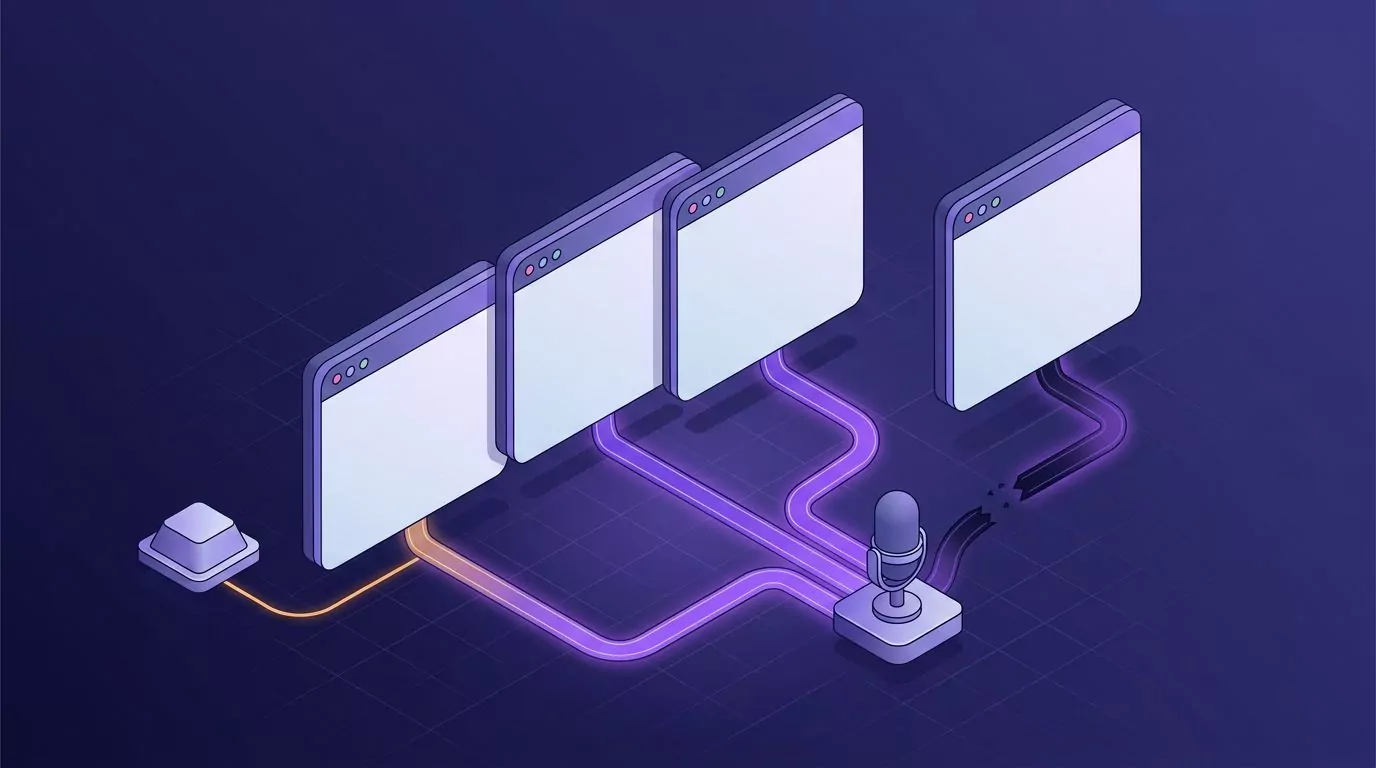
The Google Docs voice typing command cheat sheet
Voice commands are the difference between dictating and simply talking at a screen. They are also fussier than the dictation itself.
Two rules come first. Voice commands only work in English, and your account language and document language must both be English. Pause briefly before and after each command, or Docs types the words instead of running them.
Punctuation commands
The documented punctuation list is short. Six commands, and that is the whole set.
| Say this | You get |
|---|---|
| Period | A full stop |
| Comma | A comma |
| Question mark | A question mark |
| Exclamation point | An exclamation mark |
| New line | A line break |
| New paragraph | A paragraph break |
Notice what is missing. There is no documented command for a colon, a semicolon, quotation marks or brackets. If your writing leans on those, you will still reach for the keyboard.
Formatting commands
Formatting is where voice typing earns its keep. You can style text without ever touching the toolbar.
| Say this | You get |
|---|---|
| Bold, Italicize, Underline | Basic emphasis on the selection |
| Strikethrough, Superscript, Subscript | The matching text style |
| Apply heading 1 to 6 | A heading level |
| Apply title, Apply subtitle, Apply normal text | The other paragraph styles |
| Uppercase, Lowercase, Title case | A case change on the selection |
| Text color blue, Highlight yellow | Colour and highlight changes |
| Increase font size, Font size 18 | A bigger or exact size, from 6 to 400 |
| Align left, Align center, Align right | Paragraph alignment |
| Line spacing double, Line spacing single | Line spacing |
| Increase indent, Decrease indent | An indent change |
| Create bulleted list, Create numbered list | A new list |
| Apply 2 columns, Insert column break | Column layout |
| Remove formatting, Remove bold | Styling stripped back out |
Selecting and editing commands
Selection commands are what make hands free rewriting possible. Say what you want, then style or delete it.
| Say this | You get |
|---|---|
| Select [word or phrase] | That text highlighted |
| Select all, Select all matching text | A whole document or repeat selection |
| Select paragraph, Select line, Select word | The unit around the cursor |
| Select next 5 words, Select last 3 lines | A counted range in either direction |
| Deselect, Select none | The selection cleared |
| Copy, Cut, Paste | The usual clipboard actions |
| Delete, Delete last word | The word before the cursor, or the last one |
| Delete [word or phrase] | That exact text removed |
| Insert link [then say the URL] | A hyperlink on the selection |
| Insert comment [then say your comment] | A new comment on the selection |
| Insert footnote, Insert page break | The matching document element |
| Insert table 3 rows by 4 columns | A table at that size |
Moving around the document
Navigation follows one pattern. Start with "Go to" or "Move to", then name a target.
Targets include the start or end of a line, a paragraph, a column, a row, a table or the document. You can also say "Go to next heading", "Move to previous misspelling", "Go forward 10 words" or "Move down 3 lines". "Scroll up" and "Scroll down" work on their own.
Stopping, resuming and getting help
Say "Stop listening" to switch the microphone off without touching the mouse. Say "Resume" to move the cursor to the end of the paragraph and start again.
"Resume with [word or phrase]" is the sharper version. It puts the cursor at the end of that phrase, so you can pick up mid paragraph. Forgotten a command? Say "Voice typing help" or "Voice commands list" and Google prints the list inside your document.
Getting cleaner text out of it
The engine rewards steady, ordinary speech. It punishes trailing off, backtracking and thinking out loud.
Four habits do most of the work:
- Say the punctuation as you go, rather than fixing it later. "Period" and "new paragraph" are cheap while the microphone is already open.
- Speak in whole sentences. Half a thought, a pause, then a restart usually lands as two broken fragments.
- Use a headset or an external microphone. A laptop mic picks up the room, and room noise is what triggers the "trouble hearing you" message.
- Keep a normal pace. Slowing down to a crawl hurts accuracy, because the engine works on phrases and not on single words.
One thing no amount of technique fixes: it types exactly what you say. Every "um", every false start and every repeated word lands on the page. Budget a cleanup pass and stop trying to speak perfectly.
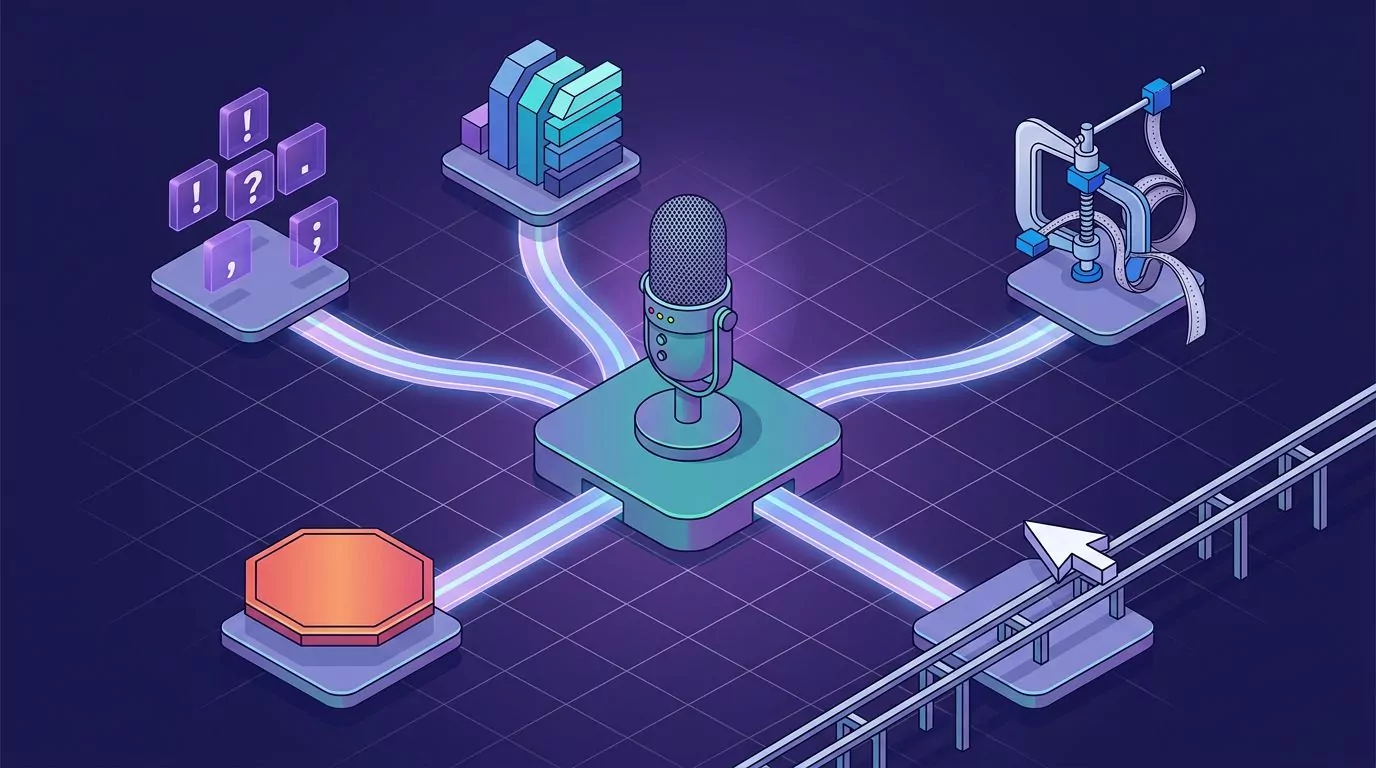
Where voice typing cannot reach inside Google Docs
The microphone box belongs to the document body. Move the cursor anywhere else and your words have nowhere to land. Four spots catch people out.
Comment threads
Google documents exactly one route here. Select some text, say "Insert comment", then say the comment itself. That creates a new comment.
There is no documented command for replying to a thread that already exists. Clicking into a reply box moves the cursor out of the document body, so dictation has nothing to write into. Comment heavy review work stays a typing job.
Headers, footers and footnotes
You can create all three by voice. "Insert header", "Insert footer" and "Insert footnote" are on Google's command list.
Filling them is a different question, and Google documents no command for dictating inside them. Treat creation as voice work and the text itself as keyboard work.
Suggesting mode
Suggesting mode is how teams leave tracked changes instead of editing directly. Voice typing needs Editing mode, so the moment you switch, dictation stops being available.
That is genuinely awkward. Suggesting mode is exactly when a reviewer wants to dump three sentences of feedback quickly.
The Explore panel and other side panels
The Explore box, the document search field and the side panels are not the document body. The microphone can stay on and your words still go nowhere useful.
Google Slides is a partial exception to the whole picture. Tools, then Dictate speaker notes, gives you the same microphone box for speaker notes. Google states that voice commands are not available there, so you get dictation without the command layer.

Why voice typing stops the moment you click another window
This one is not a bug, and it is not fixable. It is a browser privacy rule doing its job.
Chrome's own help page states it plainly. An allowed site can record while you are on it. If you are in a different Chrome tab or a different app, that site cannot start recording.
Here is how it plays out. You are dictating a paragraph. You glance at a source in a second window, keep talking, and look back to find nothing new on the page. The mic box may even still look active.
The words were never captured, so there is nothing to recover. That is the failure people describe as "voice typing randomly stopped".
It also explains a stranger version of the same complaint. People say the tool works for two minutes and then quits. Usually they checked a message, replied to it, and came back without touching the microphone again.
Three habits keep it from biting:
- Finish the sentence before you switch windows, every time.
- Keep reference material on a second screen you look at but never click.
- Glance at the microphone box after any window switch, and click it again if the red has gone.
This is the sharpest line between a browser feature and a desktop tool. A desktop dictation app holds the microphone at the system level, so it does not care which window is in front. Browser dictation is tied to one tab by design. If you work mostly from the keyboard anyway, the keyboard first workflow guide pairs well with either approach.
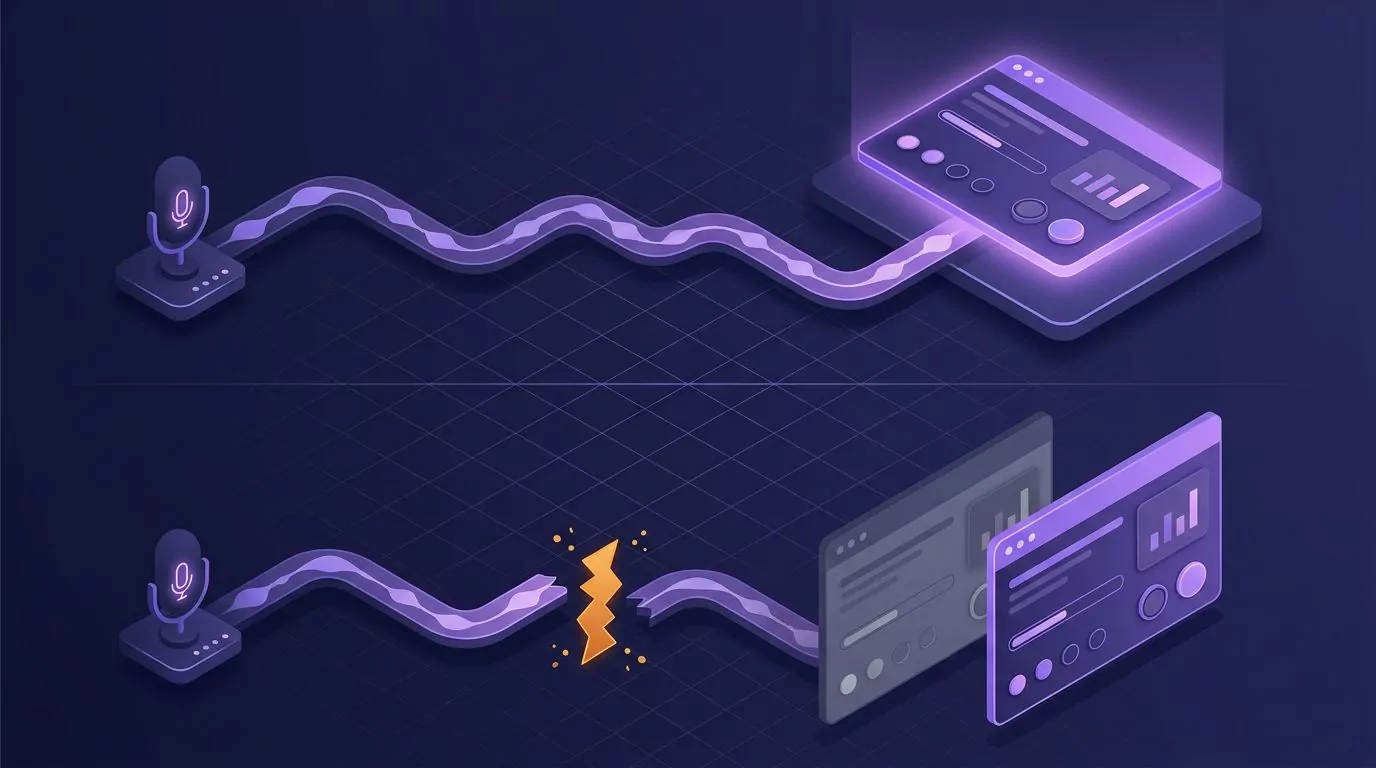
Google Docs voice typing not working? Work down this list
Almost every report of voice typing not working traces back to one of six causes. Work down this list in order.
The Tools menu has no Voice typing entry
Check the browser first. Firefox never shows it. Then check the file: a .docx opened in Docs hides the feature until you save it as a Google Doc.
If neither applies and you are on a work or school account, an administrator has probably turned it off. Ask whoever manages your Workspace domain.
The menu item is there but greyed out
You are almost certainly in Suggesting or Viewing mode. Switch the mode selector at the top right back to Editing.
Also check the cursor. It needs to be in the document body, not in a comment box, a header or a search field.
Chrome blocked the microphone for this site
Click the icon to the left of the address bar while the Doc is open. Open Site settings, find Microphone, and set it to Allow. Reload the tab afterwards, because the change does not apply to a page already loaded.
The wrong input device is selected
Your browser uses whatever the operating system calls the default microphone. A headset that got unplugged, or a webcam mic that took over, will produce silence that looks like a Docs fault.
On macOS, check System Settings, then Sound, then Input. Apple also documents how to control app access to your microphone on a Mac, and your browser needs to be on that allowed list. On Windows, check Settings, then System, then Sound, then Input. Microsoft covers the permission side in its guide to turning on microphone permissions in Windows. Both of those are operating system settings, not Docs settings.
Docs says it is having trouble hearing you
Google's advice for this message is short: move to a quiet room, plug in an external microphone, and raise the input volume. Add one more check of your own. Close any app that might be holding the microphone, such as a video call or a recorder.
Words appear but the commands do not run
Check the language pair. Commands need English on the account and English on the document, and they run in English only.
Then slow down. Pause before and after each command. You will often see the command text flash into the document for a moment before it runs, which is normal. If Docs heard it wrong, say "Undo" and try again.

Dictating into a Google Docs tab when the built in tool cannot help
Voice typing is free, decent, and already sitting in your Tools menu. It is also tied to one tab, one mode and one region of the page. When your work falls outside those lines, you need dictation that lives on the machine instead of in the page.
There are two honest options.
The dictation your operating system already ships
macOS and Windows both include dictation that types into any text field. That includes a Docs tab in Firefox and a comment reply box.
On a Mac it lives in Keyboard settings, and the full Mac dictation setup walks through the shortcut and the common fixes. On Windows it is the Windows key plus H, covered in the Windows dictation shortcut guide.
Both are free and both are already installed. Both are also weaker than Docs voice typing on punctuation, and neither keeps a copy of what you said.
A dedicated desktop dictation app
VoiceSnap Pro is a Mac and Windows app built around a single move. Put the cursor in any text field, hold a shortcut you pick, and talk. Release the key and clean, punctuated text appears at the cursor, with filler words like "um" stripped out.
Because it works at the app level rather than inside a page, a Google Docs tab in Safari, Firefox or Edge is just another text field. So is a comment reply box, and so is the Gmail window next to it, which the guide to dictating email without a browser extension gets into.
The second half matters more on long drafts. Every dictation is saved as a note, tagged with the app you dictated into and the time, and the whole library is searchable by any phrase you actually said. A paragraph you rewrote five times is still there. Audio is transcribed and then discarded, so only text remains. If that claim interests you, what zero data retention really means unpacks how to check it.
The honest limits matter too. VoiceSnap Pro is pre launch, so there is no download today, just a waitlist with $39 one time early access. It has no formatting commands, so "apply heading 2" stays a Docs job. And it is desktop only, macOS and Windows, with nothing for phones.
Which tool wins depends on the task. For a first draft typed into the document body in Chrome, Google's tool is hard to beat and costs nothing. For everything around the edges, a system wide shortcut is the one that actually reaches.
Building a dictation habit that outlives the browser tab
Most people try Google Docs dictation once, hit one of the walls above, and go back to the keyboard. That is a shame, because the speed gap is real. Typical typing sits far below speaking pace, as the numbers in this breakdown of average typing speed show.
The trick is to use dictation for the part it is genuinely better at: getting the raw thinking out. A loose spoken pass, then a keyboard edit, beats a slow perfect first draft. The method in how to brain dump by talking works well straight into a Doc.
Then keep what you said. Dictated fragments are worth far more when they are searchable later, which is the whole idea behind a commonplace book you can actually search.
If you like the idea of holding one key instead of typing every paragraph, and want it to work in every window rather than one browser tab, you can join the VoiceSnap Pro waitlist for early access at $39 one time.
Frequently Asked Questions
Does Google Docs voice typing work in Safari or Firefox?
Safari yes, Firefox no. Google lists the latest versions of Chrome, Edge and Safari as supported. Firefox is not on that list, and the Voice typing entry does not appear in its Tools menu at all.
Why is voice typing greyed out or missing from the Tools menu?
Four usual causes. You are in Firefox, the file is a .docx rather than a native Google Doc, the document is in Suggesting or Viewing mode, or a work or school administrator has turned the feature off.
What is the keyboard shortcut for voice typing in Google Docs?
Ctrl and Shift and S on Windows, or Command and Shift and S on a Mac. Google labels this shortcut as available in Chrome browsers, so use the Tools menu in Edge and Safari.
Can you use voice typing in Google Docs comments?
Partly. You can create a new comment by selecting text and saying "Insert comment", then saying the comment. Replying to an existing thread is not covered by any documented command, because the reply box sits outside the document body.
Why does Google Docs voice typing stop when I click another window?
Because Chrome blocks it. A site can only record while you are on it, so switching to another tab or app cuts the stream. Nothing you said during that gap was captured, and it cannot be recovered.
Is Google Docs voice typing accurate enough for real writing?
For clear speech in a quiet room, yes for a first draft. Treat it as a voice to text first pass rather than finished copy. Accuracy depends on your browser's speech engine rather than on Google, and it transcribes filler words and false starts exactly as you say them. Plan on an editing pass.