LilySpeech Alternatives for Windows: The Free Tier, the Shortcut, and Where the Text Goes
LilySpeech is a free dictation app for Windows only. You press Ctrl+D, speak, and your words are typed into whatever app is in front of you. There is no Mac build. Its real limit is not a word cap: it is that your words go into the text field and nowhere else.

This guide is for people who already have it installed. Every claim below was checked against lilyspeech.com on 31 August 2026, which is how we know the free-tier word limit other roundups repeat does not exist.
What LilySpeech Is, and What the Free Version Really Costs
LilySpeech is a small program that sits in your Windows system tray. Press its hotkey and it listens. Stop, and the text appears where your cursor was. It handles 51 languages and sends your audio to the cloud to be turned into text.
Here is the part other roundups get wrong. There is no free-tier word cap. The homepage calls the app "Free* and fully functional without limitations." So what does that asterisk buy?
Their free version page spells it out. The free build shows "very occasional advertising" and uses "a very small amount of your internet bandwidth and CPU to support our services." They say this does not involve gathering, storing or sharing personal data. It still borrows a slice of your machine, and that is the real price.
Premium removes it for $29.99 per year, listed on the download page as "faster snappier Ad Free dictation." One more thing: at our check, every support page carried a banner saying many users were having problems and should reinstall.
Press to Start Is Not the Same as Hold to Talk
This is the difference that decides whether you still like an app after week one. LilySpeech uses press to start: you tap Ctrl+D and dictation begins, and you can change the hotkey in its tray settings. Windows built-in voice typing works the same way. Microsoft's guide says press Windows key + H, then stop by saying "Stop listening" or clicking the mic button. Hold to talk is the other model: you hold a key while you speak and release it to insert. Your finger is the off switch.
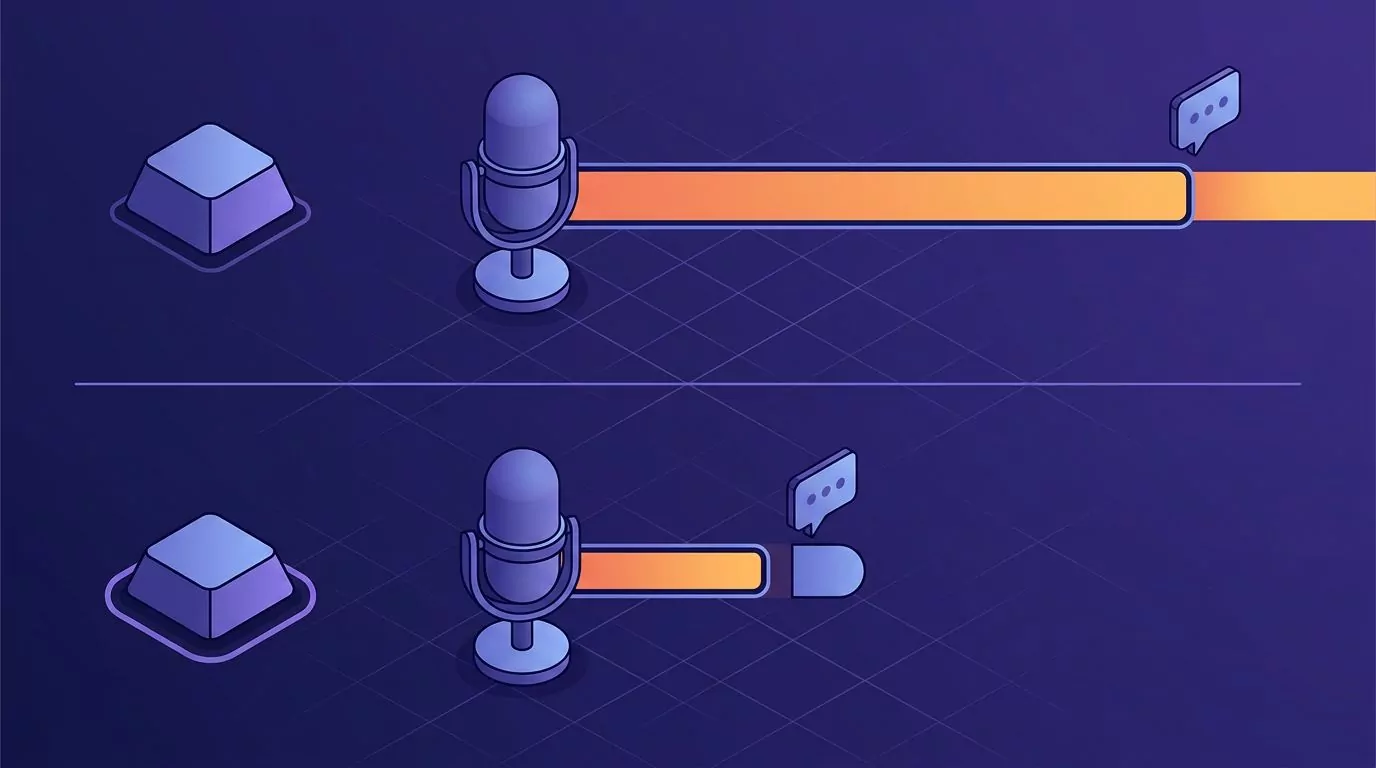
Take a two-line Slack reply. With hold to talk you hold, say the line, let go, and it is done. With press to start you tap, say the line, then have to remember to switch it off. Forget, and the mic is still open while you mutter through the next message. Those stray words land in the box too. A held key cannot make that mistake.
For long-form work the trade flips, because holding a key for two minutes is tiring. Neither model is better, but LilySpeech only offers one. Our guide to the Windows dictation shortcut goes deeper on where Win+H stops.
Where Your Words Go After They Land in the Text Field
No competing page covers this, so here it is plainly. LilySpeech inserts text at your cursor. That is the whole job. Once you press send, the words belong to Slack or Gmail, not to you.
Most days that is fine. Then Thursday comes and you want the way you phrased Tuesday's outage update. You just cannot remember which thread it went into.

A dictation app that keeps a copy changes that. VoiceSnap Pro saves every dictation as a note, tagged with the app and the time, and lets you search by any phrase you spoke. Look up "load balancer" and Tuesday's wording comes back, ready to export as text or Markdown. The same habit powers a spoken brain dump or a searchable commonplace book.
There is a punctuation gap too. LilySpeech expects you to say your punctuation. Its commands page lists "period", "comma", "new paragraph" and dozens more. That works, but you are typing with your mouth. Tools that punctuate for you let you talk like a person.
What LilySpeech Genuinely Does Better
Do not switch just because a blog told you to. LilySpeech has real strengths.
- It is free and not crippled. No word cap, no trial clock, no locked features. That is rare.
- Setup takes about a minute. Download, install, press the hotkey. No account needed.
- It works in any Windows app. Email, Word, a browser search box, a ticket form.
- Custom word replacement is built in. Right click the tray icon, open Custom Word Replacement, add spellings for names and product terms in the text file, then save to apply.
If you dictate twice a week and the results are good enough, keep it. Paying $29.99 a year to drop the ads is a smaller decision than switching apps.
LilySpeech Alternatives Compared
Five options, on the things that actually differ. Every row lists a real limitation, including ours.
| Tool | Platforms | How you trigger it | Cost | Keeps a record? | Honest limitation |
|---|---|---|---|---|---|
| LilySpeech | Windows only | Press Ctrl+D to start | Free with ads, or $29.99/year | No | You must speak your punctuation, and nothing is saved |
| VoiceSnap Pro | Mac and Windows desktop | Hold your key, release to insert | $39 one-time early access via the waitlist | Yes, searchable notes | Not shipping yet, so you join a waitlist instead of downloading |
| Voice Access and Win+H | Windows 10 and 11 | Windows key + H, say "Stop listening" | Free, built in | No | Needs an internet connection and keeps no history |
| Dragon Professional | Windows only | Hotkey or spoken command | Not published; via Nuance sales | Documents only, no log | Heaviest setup here, and no price before you contact sales |
| Voicy | Mac and Windows desktop, plus others listed on its site | Hold a shortcut | $8.49/month or $260 lifetime | No searchable library | Subscription pricing, and its accuracy figure has no published test method |
| Google Docs voice typing | Chrome, Edge or Safari | Tools, then Voice typing, then the mic | Free | Only inside the document | Works in Docs and Slides speaker notes only |
One note on accuracy. LilySpeech advertises 99.5%, crediting Google's Chrome speech service. Voicy advertises 99%+. Neither publishes a test set, an audio condition, or a scoring method, so neither number is checkable. Treat vendor accuracy claims here as marketing until someone shows their working. For how newer tools differ, see our Superwhisper alternatives comparison.
Setup, and the Four Ways Windows Dictation Fails
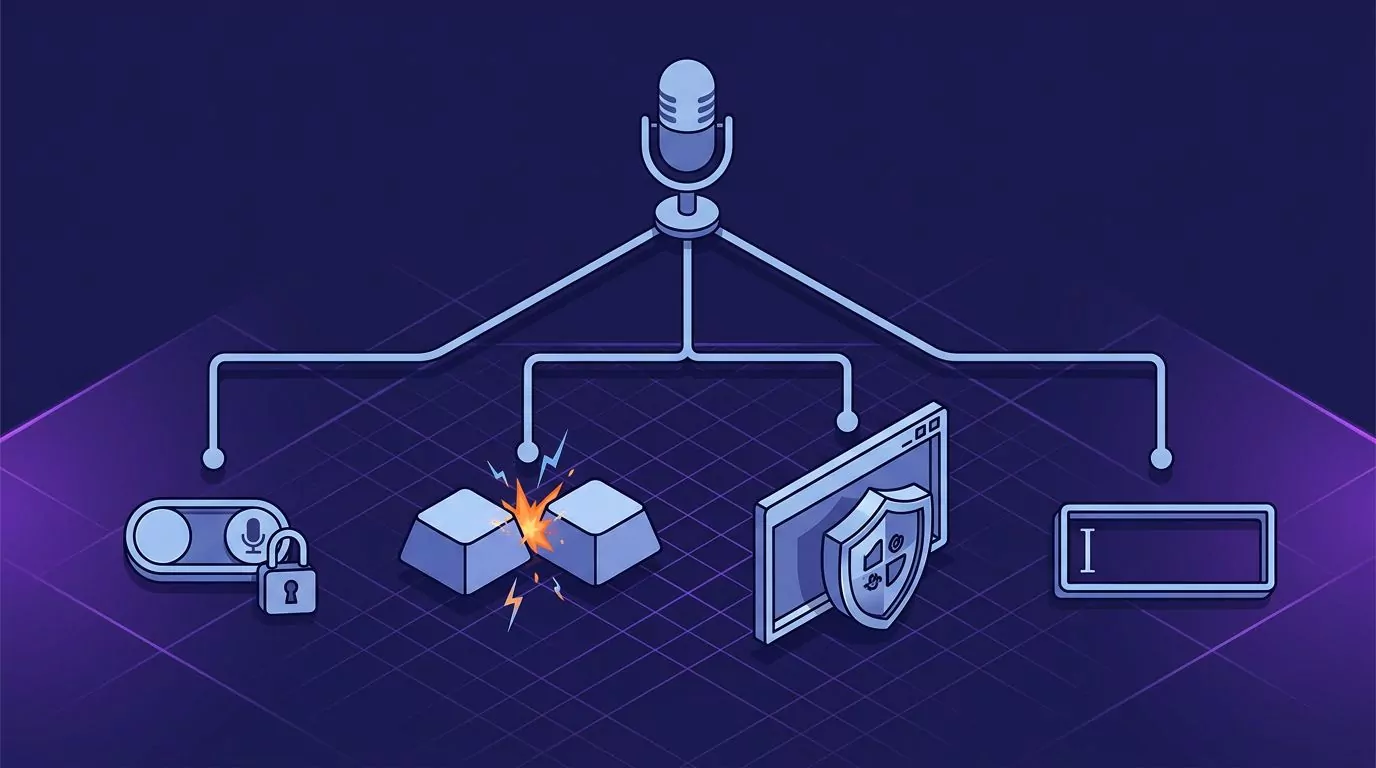
1. Windows is blocking the microphone. Open Settings, then Privacy and security, then Microphone. Turn on "Microphone access", then "Let apps access your microphone". Scroll down and confirm "Let desktop apps access your microphone" is on too, because a tray app lives in that lower list. Microsoft's guide walks the same path.
2. Your hotkey belongs to another app. Ctrl+D is a busy one. In a browser it bookmarks the page; in many editors it duplicates a line. The focused app wins, so dictation never starts. Test by opening Notepad and pressing the hotkey there. If it works in Notepad, the clash is in the other app, so pick something unused like Ctrl+Alt+D.
3. The target window is running as administrator. A normal app cannot send keystrokes into an elevated window, so dictation looks like it is listening and no text arrives. Either dictate into a normal window and paste across, or run the dictation app as administrator too.
4. Your cursor is not in a real text field. Microsoft lists this as a requirement for voice typing. A page heading, a canvas, or a read-only panel will not take text. Click into the field and check the caret is blinking before you speak. Our voice typing triage guide covers driver and headset cases.
Who Should Switch, and Who Should Stay
Stay on LilySpeech if you:
- Dictate a few times a week and like the output
- Only ever work on one Windows machine
- Do not mind saying "comma" and "period" out loud
- Want to spend nothing, or $29.99 a year at most
Move to something else if you:
- Also use a Mac, since there is no build for it
- Dictate short replies all day and keep leaving the mic on
- Want punctuation handled for you
- Keep wishing you could find something you dictated last week
That last one is why most people move. If you want to hold one key, get clean punctuated text in any text field, and keep every dictation as a searchable note, you can join the VoiceSnap Pro waitlist for $39 one-time early access. Worth saying what it does not do: it is not a meeting recorder, it does not transcribe audio files you already have, and it keeps no audio, because speech becomes text and the audio is discarded. If you need a recording to play back, this is the wrong tool. Our piece on zero data retention voice apps explains that trade.
Frequently Asked Questions
Is LilySpeech free, and is there a word limit?
It is free, and there is no word limit. LilySpeech calls the free version "fully functional without limitations". The cost is indirect: it shows occasional ads and uses a little of your bandwidth and CPU. Premium removes that for $29.99 per year.
Does LilySpeech work on a Mac?
No. LilySpeech is Windows only and the site mentions no macOS build. If you move between a Mac and a PC you need a tool that runs on both. Our talk to text workflow guide covers both.
Is LilySpeech safe to install?
It is a normal installer from the vendor's own site, and their troubleshooting page notes that antivirus software sometimes flags it because the app is not widely known. Download only from lilyspeech.com. Do note the free build deliberately uses some of your CPU and bandwidth.
What is the difference between LilySpeech and the Windows dictation shortcut?
Both start with a key press and both need internet. Win+H is built into Windows 10 and 11, so there is nothing to install, and it can insert punctuation automatically. LilySpeech is a separate download with its own hotkey, 51 languages, and custom word replacement. Neither keeps a record.
Does LilySpeech save what you dictated?
No. Text is inserted at your cursor and that is the end of it. If you want a copy you have to save it yourself, or use a tool that keeps a notes library. The same is true when you dictate in Microsoft Word with its built-in button.