Windows Dictation Software: What to Use When Win+H Is Not Enough
Windows dictation software is any app that turns speech into typed text on a PC. Windows gives you two of them free, voice typing on Win+H and Voice Access, and both stop short in ways that most guides never name. This article shows where they stop, and what to use when they do.
If Win+H felt promising for a week and then quietly annoying, that is a normal path. The built-in tools are good at a narrow job. The moment your work gets wider than that job, you feel the edges.
One thing is worth ruling out first. Plenty of people who give up on voice typing were pressing the wrong Windows dictation shortcut for the app they were in. Fixing that alone solves a fair share of complaints.
If that is not it, read on. This guide names the exact failure modes of Win+H dictation, shows the apps where it does nothing at all, gives you a rule for when to switch, and then compares the paid and free options on the two questions nobody else asks about.
Windows ships two dictation systems, and they are not the same thing
Most articles treat Windows dictation as one feature. It is two features, built by different teams, on different speech engines, with different rules.
Voice typing is the one behind Win+H. Put your cursor in a text box, press the keys, and talk.
Microsoft's page on voice typing lists three requirements: an internet connection, a working microphone, and a cursor sitting in a text field. Your speech travels to Microsoft's online speech service and comes back as text.
Voice Access is the accessibility tool, and it is not just a typewriter. It clicks buttons, opens apps, scrolls pages, and puts a number on every control so you can say "click 7". Microsoft's Voice Access guide notes that it runs speech recognition on the device itself, so it keeps working with the network off.
That difference matters more than it sounds. One tool needs the cloud. The other does not.
If your laptop loses Wi-Fi on a train, Win+H stops mid sentence and Windows 11 Voice Access carries on.
There is a third name you may remember. Windows Speech Recognition, the old control panel feature, was retired on Windows 11 version 22H2 and later, and Microsoft now points those users to Voice Access instead. If a guide tells you to open Windows Speech Recognition on a current build, the guide is out of date.

The two built-in systems split at the operating system and never rejoin. Voice typing sends audio to a cloud service and writes into one text box. Voice Access runs on the device and drives the whole screen.
Where Win+H voice typing runs out of road
None of what follows makes voice typing bad. It makes it narrow. Here are the four edges you hit in order.
It stops listening the moment you stop talking
Microsoft documents one way to end a session. You say "stop listening", or you press the microphone button.
In daily use there is a second way, and you did not choose it. Pause to think, and the session closes on its own.
For a one-line reply, that is fine. For a first draft, it is a problem. Thinking in the middle of a sentence is most of writing, and the tool reads thinking as "finished".
The workaround people invent is to talk faster and keep talking. That is a strange way to write, and it pushes you toward filler.
Punctuation is guessed or spoken, never adjusted
Voice typing has an automatic punctuation setting. Switch it on and the service guesses your commas. Switch it off and you say the marks out loud: "comma", "period", "new line".
Neither route gives you a dial. You cannot ask for shorter sentences, or for paragraph breaks where you paused. You get the house style, or you narrate it yourself.
Saying "period" a hundred times a day also breaks the thing that makes dictation fast. Speaking runs well ahead of the average typing speed for most people, but only while you are speaking normally. Narrating punctuation pulls you back toward keyboard pace.
It keeps no record of anything you dictated
Voice typing writes into a box. That is the entire story. Once you send the message or close the form, the words are out of your reach.
This is the gap almost nobody names, and it is the one that costs the most.
You explain a decision well in a Slack thread on Tuesday. On Friday you need that explanation for a document. It exists only inside Slack, if you can find it.
People who talk their thinking out loud feel this hardest. A brain dump by talking is only useful if the dump lands somewhere you can search later. Otherwise you did the thinking and kept none of it.
There is a workaround, and it is worse than it sounds. You dictate into Notepad first, then copy the text where it belongs. That adds two steps to every message, and it defeats the point of typing straight into the field.
It behaves differently inside Microsoft 365
Word has its own Dictate button, and it is not Win+H. Microsoft's guide to dictating documents in Word covers a different set of commands and options.
So the same sentence, spoken into Word and into a browser form, can come out with different capitalisation and different punctuation. If you have wondered why dictation software for Microsoft Word "feels better", that is why. You were using a different tool.
The Windows apps where dictation stops working entirely
Falling short is one thing. Doing nothing at all is another, and it happens in predictable places.
Windows running as administrator. Open an app with "Run as administrator" and it sits behind a higher privilege boundary. Ordinary user level tools cannot reach into it.
Dictation is an ordinary user level tool. The mic light may come on while no text appears.
Console windows. Windows Terminal, PowerShell and the older console host do not present a normal text box. They present a console buffer. Insertion often fails or lands garbled, which is why people who dictate commands end up looking at what actually works for voice coding rather than at the built-in tools.
Custom drawn text fields. Some apps paint their own text areas instead of using standard Windows controls. Older Java tools, a few Electron apps, game launchers and installers all do this. To the operating system there is no text field there, so there is nothing to type into.
You can test any app in about thirty seconds. Put the cursor in the field, press Win+H, say a short sentence, and watch. If the panel listens and the field stays empty, that app is outside the fence, and no amount of setting changes will bring it inside.
The reason is the same in all three cases. Dictation does not type keystrokes at the hardware level.
It hands text to the app through the accessibility layer, and that layer only works when the app plays along and sits at the same privilege level. When either condition fails, the text has nowhere to land.
This matters beyond dictation. If you are moving toward keyboard and voice driven work in general, the same boundaries show up when you try to use a computer without a mouse. The apps that block one usually block the other.

Built-in dictation covers standard text fields inside the dome. Elevated windows, console windows and custom drawn fields sit outside it, and the text simply never arrives.
A simple rule for staying on Win+H or switching
No ranking page gives you a rule, so here is one. Read both lists and count.
Stay on the built-in tools if most of these are true:
You dictate a few times a week, not daily.
You dictate into normal apps: a browser, Word, Outlook, Notepad.
You write in short bursts and rarely pause mid thought.
You never need to find what you said again.
You would rather spend nothing.
Switch to third party Windows dictation software if three or more of these are true:
You dictate every working day.
You dictate into a terminal, an editor, or an admin window.
You want clean punctuation without saying "comma" out loud.
You want to search what you dictated last Tuesday.
Pausing to think ends your session more than once a day.
You need it to work with no internet connection.
Three is the honest threshold. One irritation is worth living with. Three is a daily tax, and paid tools are cheap next to the time they return.
Do the arithmetic once and it settles the question. A tool at $12 a month costs about fifty cents a working day.
If a broken session or a lost note costs you five minutes a day, the paid tool pays for itself several times over. If it costs you five minutes a month, stay free.
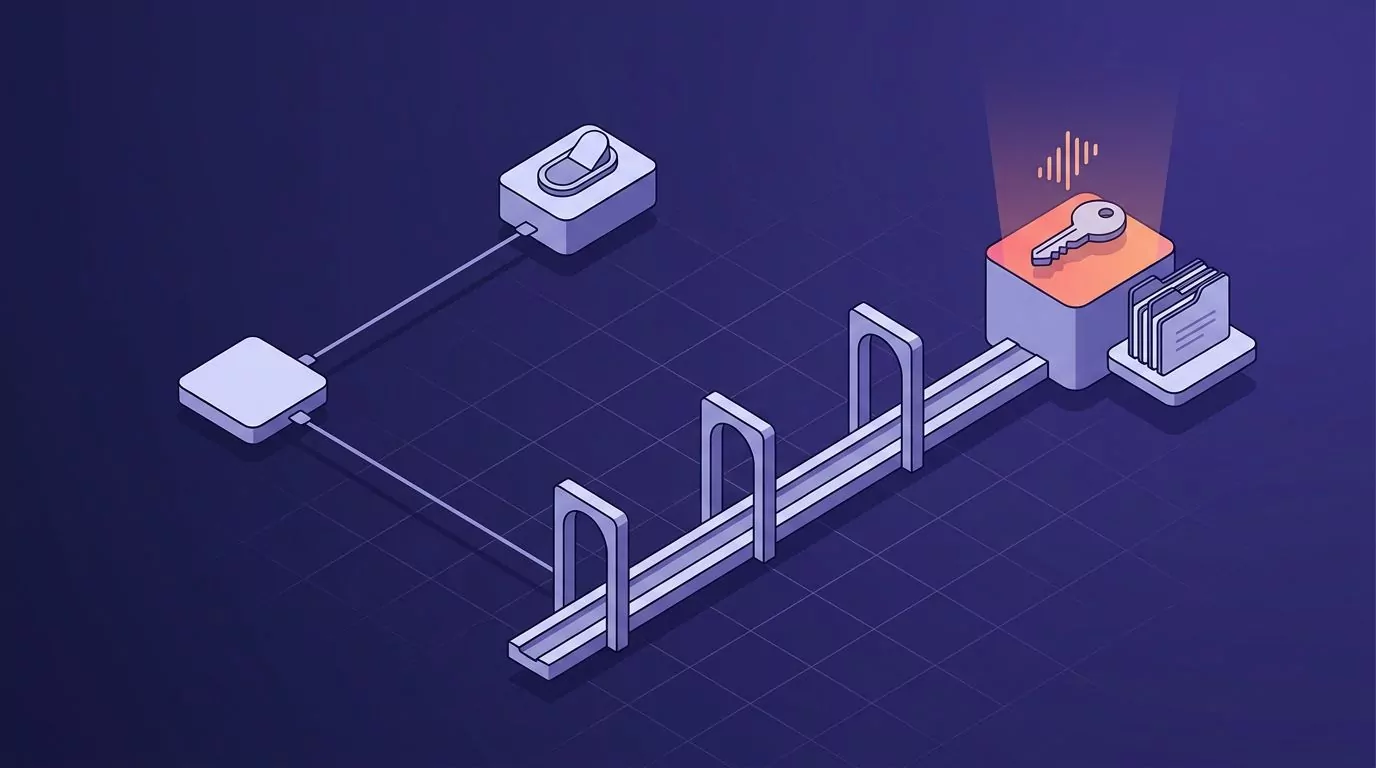
The decision splits once. Light and occasional use stays on the built-in toggle. Daily use runs through the punctuation, coverage and record keeping checks, and lands on a held key that files what you said.
Windows dictation software compared at a glance
Two columns here appear on almost no other comparison page: what happens to your audio, and whether the text survives after it leaves the box. Those are the questions that decide how a tool feels after month one.
Read the activation column first. It predicts more about daily comfort than accuracy scores do, because a toggle and a held key produce completely different writing habits.
Tool |
Activation |
Punctuation without spoken commands |
Elevated and non standard windows |
Audio kept or discarded |
Text searchable later |
Price |
|---|---|---|---|---|---|---|
Voice typing (Win+H) |
Toggle on, toggle off |
Optional setting, no control |
No |
Sent to Microsoft's cloud service |
No record kept |
Free with Windows |
Voice Access |
Toggle, plus voice commands |
Yes |
Wider, built for whole PC control |
Processed on the device |
No record kept |
Free with Windows 11 22H2 and later |
Wispr Flow |
Held or toggled shortcut |
Yes |
Yes, across desktop apps |
Cloud processing, training opt out |
Yes, in app history |
Free 2,000 words a week; Pro $12 per user a month billed annually |
Willow |
Held shortcut |
Yes |
Yes, across desktop apps |
Cloud processing |
Yes, in app history |
Free basic tier; Pro $15 a month, or $12 a month billed annually |
Dragon Professional v16 |
Microphone toggle, plus commands |
Yes |
Yes, deepest desktop coverage |
Processed on the machine |
Yes, inside its own workflow |
One-time licence, price on request |
Speechnotes |
Browser notepad or Chrome extension |
Partly, mostly manual |
No, browser only |
Handled by the browser speech service |
Yes, inside its own notepad |
Free with ads; premium $1.90 a month |
VoiceSnap Pro |
Hold to talk, release to insert |
Yes, applied on release |
Any field you can type into |
Transcribed then discarded |
Yes, every dictation saved as a note |
$39 one-time early access, pre-launch |
The alternatives, one at a time
Voice Access: the built-in you probably skipped
Before paying for anything, try the other free one. Voice Access is under Settings, Accessibility, Speech, and it needs a one-time language download.
It fixes two of the four Win+H problems on its own. Speech runs on the device, so no internet is needed. It also reaches parts of the interface that voice typing ignores, because it was designed to run the whole machine by voice.
What it does not fix: it still keeps no record, and it is still a toggle rather than a held key. It is also more talkative to use, since command mode expects you to speak in commands.
Best for: people who want free, want offline, and do not mind speaking commands.
Wispr Flow: the polished paid default
Wispr Flow is the tool most people land on when they search for a Win+H replacement. You hold a shortcut, speak, and clean text appears where your cursor is, across desktop apps.
The free tier gives 2,000 words a week on desktop, which is enough to judge it honestly. Pro is $12 per user a month billed annually, or $15 billed monthly.
Where it is genuinely better than most rivals: the text it produces needs very little cleanup, and it handles technical vocabulary well. Where it is weaker: processing happens in the cloud, so it is the wrong pick if your rule is that audio never leaves the machine.
Best for: daily dictation across many apps, when a subscription is acceptable.
Willow: strong output, priced for teams
Willow works the same way, with a held shortcut and cross-app insertion. Its paid tier is $15 a month, or $12 a month billed annually, with a business plan above that.
The free tier is real but limited. You get a lighter speech model and a weekly cap on the heavier features, which is enough for a trial and not enough for a workday.
Willow is often the better writer of the two on long, messy speech, and it puts more effort into learning your vocabulary. It also leans harder toward teams, so a solo user pays for structure they may not need.
Best for: long form dictation, and teams who want one tool across Mac and Windows.
Dragon: the old giant, now hard to buy
Dragon Professional v16 is still the most capable desktop dictation engine on Windows. It runs locally, it trains to your voice, and its command support goes deeper than anything else here.
Be honest about its state, though. Nuance is now part of Microsoft, the consumer line has gone quiet, and the product page no longer lists a price at all. It points you at a sales contact instead, which tells you who the product is for now.
It is also Windows only, heavy to install, and priced as a one-time licence that costs many times a year of any subscription here.
Best for: people who need local processing and deep voice commands, and who are comfortable buying through a sales channel.
Speechnotes: the free browser option
Speechnotes is the honest answer when someone asks for the best free dictation software with no install. It is a Chrome based notepad, plus an extension that types into other web fields.
Free means free with ads, and premium removes them for $1.90 a month. There is nothing to install and nothing to configure.
The limit is obvious once you name it: it lives in the browser. It cannot type into Word, Outlook, a terminal, or any desktop app. It is a good scratchpad and a poor system wide tool.
If your dictation is mostly email, a focused guide to dictating into Gmail may serve you better than a general browser tool.
Best for: occasional, browser only dictation at zero cost.
VoiceSnap Pro: hold the key, keep the text
VoiceSnap Pro takes the opposite shape to Win+H on the two points that annoy people most. It is hold to talk rather than a toggle, so a pause to think does not end the session. You hold your shortcut, speak, release, and punctuated text appears at the cursor with filler words like "um" removed.
The second difference is the record. Every dictation is saved as a note, tagged with the app you dictated into and the time, and all of it is searchable by any phrase you said.
That turns scattered messages into something closer to a searchable commonplace book, without any filing on your part. Notes export as plain text or Markdown.
On privacy, audio is transcribed and then discarded. There is no playback and no stored recordings, which is the behaviour to look for if you care about zero data retention in voice apps.
The honest limitations: it is pre-launch, so there is no download yet, only $39 one-time early access through the waitlist. It is desktop only, with no mobile app. It also makes no claim to control your PC by voice, so Voice Access still wins on hands-free navigation.
Best for: daily dictation where you also want to keep and search everything you said.
Dictating into Word, Outlook and a browser on Windows
The same tool behaves differently depending on the window. Here is what changes across the three apps most people use.
Word. Word gives you the smoothest ride, because it has its own Dictate feature with its own commands and formatting help. That is also the catch: results in Word do not predict results anywhere else, so do not judge a tool by testing it only here.
Outlook. Outlook shares the Microsoft 365 dictation support in the compose window, and it usually behaves. The friction is around the edges. Subject lines, search boxes and the calendar fields are ordinary controls, so you drop back to Win+H behaviour when you move out of the message body.
Browsers. Browsers are the least predictable. A plain text box is fine.
Rich editors that draw their own input surface, which covers many modern web apps, are where insertion gets lost or lands in the wrong place. This is the most common reason people conclude that speech to text on Windows is unreliable.
There is a fourth case worth naming: chat apps. Slack, Teams and most desktop messengers use custom input areas, and they are the single biggest source of dictation complaints on Windows. If chat is where your words go, test there on day one, not day ten.
If one of these three is where you spend the day, test there first. A tool that is excellent in Word and poor in your browser is the wrong tool for a browser based job, and the reverse is just as true. The broader question of how to talk to text on your computer is really a question about which windows you live in.
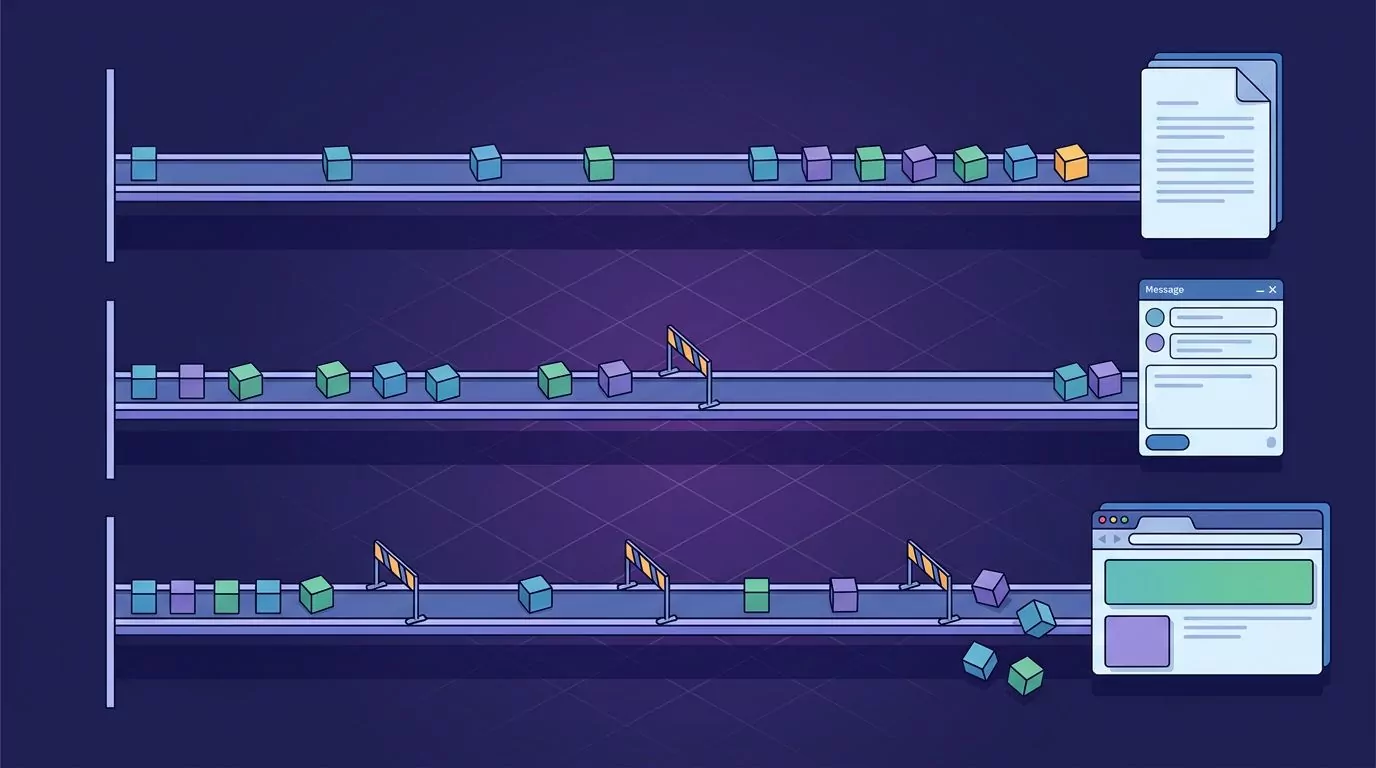
The same dictation runs into more obstacles as you move from Word to Outlook to the browser. Word has its own dictation path, Outlook mixes two behaviours, and browsers vary field by field.
Microsoft's own walkthrough of Voice Access is a useful next step if you want to see the whole PC control model before you spend anything.
Microsoft's own four minute setup walkthrough for Voice Access, worth watching before you pay for anything, since it covers the free option most people skip.
Frequently Asked Questions
What is the keyboard shortcut for dictation in Windows 11?
Press Win+H with your cursor already in a text box. That opens voice typing, and it starts listening on its own. Voice Access is separate and does not use Win+H, so you turn it on in Settings, Accessibility, Speech.
What is the difference between Win+H voice typing and Voice Access?
Voice typing only types. It needs the internet, and it writes into whatever text box holds your cursor. Voice Access controls the whole computer, including clicks and app switching, and it runs speech recognition on the device, so it works offline.
Is there free dictation software for Windows?
Yes, and two of them are already installed: voice typing and Voice Access. Beyond those, Speechnotes is free in the browser with ads, and both Wispr Flow and Willow have free tiers with weekly limits. Free tiers are enough to judge a tool, and rarely enough for daily work.
Why does Windows dictation stop after a few seconds of silence?
The session is designed to close when you stop speaking. It reads a pause as the end of your input rather than as thinking time. There is no setting that extends it, which is the main reason heavy users move to a hold to talk shortcut instead.
Does Windows keep a record of what you dictated?
No. Voice typing and Voice Access both write text into the current field and keep nothing afterwards. If you want a history, you need a tool that saves each dictation as a note.
If you also work on a Mac, the same gap exists there, and the fixes are covered in this guide to dictating on a Mac.
Where to go from here
Try Voice Access first, because it is free and it solves the offline problem in an afternoon. If you come back to this page a week later because pausing still ends your sentence and nothing you said is findable, those are the two problems a held key and an automatic notes library exist to solve.
If holding one key instead of typing every reply sounds like the right shape, you can join the VoiceSnap Pro waitlist for early access at $39 one-time and get told when it ships.