Best Dictation Software in 2026: Insert-at-Cursor Tools vs Upload-a-File Transcription
The best dictation software for you comes down to one question. Where do you want the words to end up? Some tools type straight into the app you are already using. Others take an audio file and hand you a transcript later. Those are two different jobs, and mixing them up is how people buy the wrong tool.
Almost every ranking list puts both kinds in one column and sorts them by accuracy. That is why someone hunting for a hold to talk shortcut ends up paying for a meeting notetaker. This guide splits the field in half first, then compares fifteen tools on the same short list of points.
If you have never tried this at the desk, our guide to talk to text on your computer covers the basic workflow. This page is about picking the tool.
Two Different Jobs Hiding Under One Category Name
Insert at cursor dictation works like a keyboard. You click into a Slack reply, an email box, a ticket field, or a terminal. You hold a key, you speak, you let go. Clean text appears where the cursor already was. Nothing opens, nothing gets copied, nothing gets pasted.
Upload a file transcription works like a service. You hand it a recording or let it sit in on a call. Later you open its website or app and read the transcript. The words live in that product, not in your document.
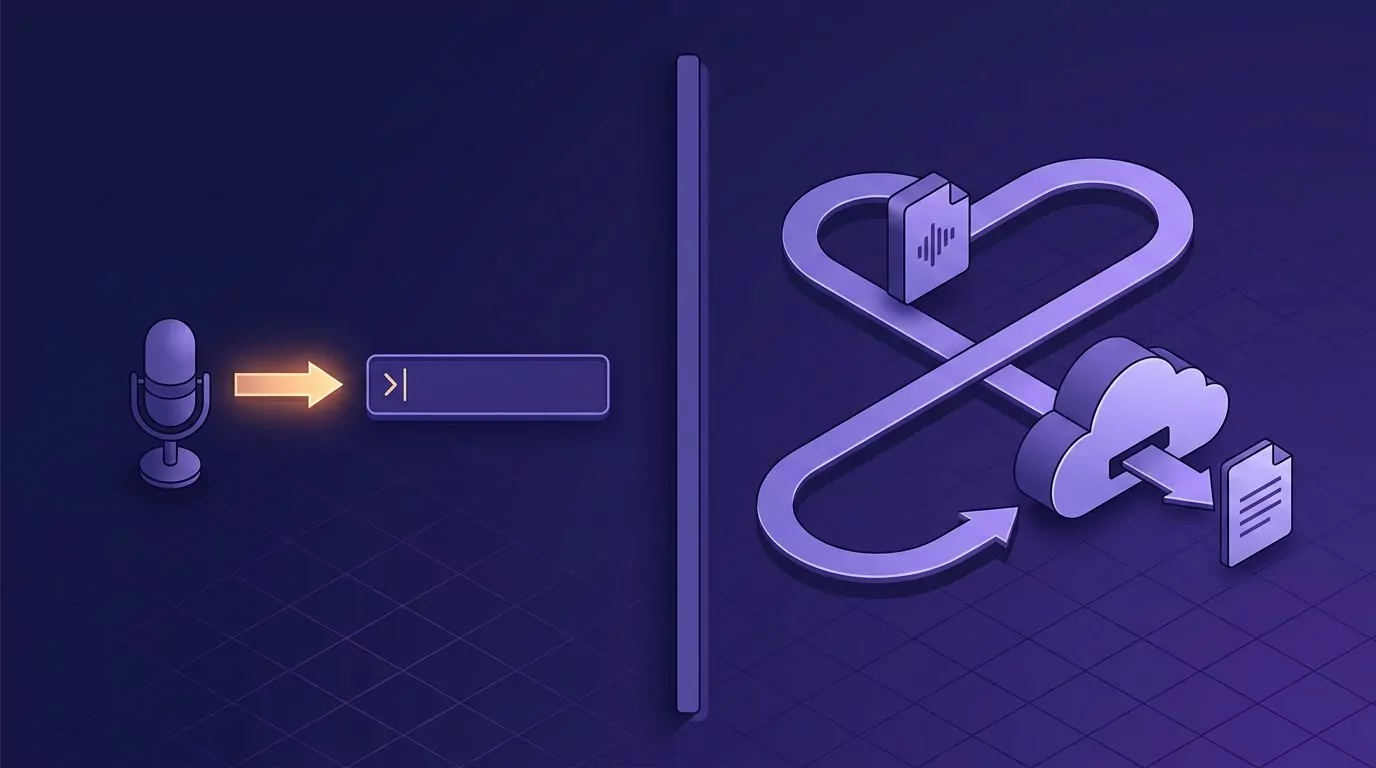
Both are useful. They are just not swappable. A meeting notetaker cannot write your Jira ticket for you. A hold to talk shortcut cannot sit in on a call you are not attending.
So the first question is not which app scores highest. It is which of the two jobs you actually have. Most people who search for a dictation app want the first one and end up reading about the second.
How We Compared the Best Dictation Software
Every list out there ranks on accuracy, speed, price, and platform. Those matter, but they are also the four things every vendor already claims to win. We used seven points instead, and three of them rarely show up anywhere.
- Platforms. Mac, Windows, or both. Mobile only where it is relevant.
- Activation model. Do you hold a key, tap a toggle, or leave the mic open? This changes how the tool feels more than accuracy does.
- Where the text lands. At your cursor in any app, inside one document, or in the tool's own window.
- What happens to your audio. Is it thrown away after the text is made, or stored where you or someone else can play it back?
- Is the text kept anywhere. If you dictate a good paragraph into Slack and hit send, can you ever find those words again?
- Price model. One time purchase, monthly plan, or free with the operating system.
- Setup cost. How long from install to first useful sentence.
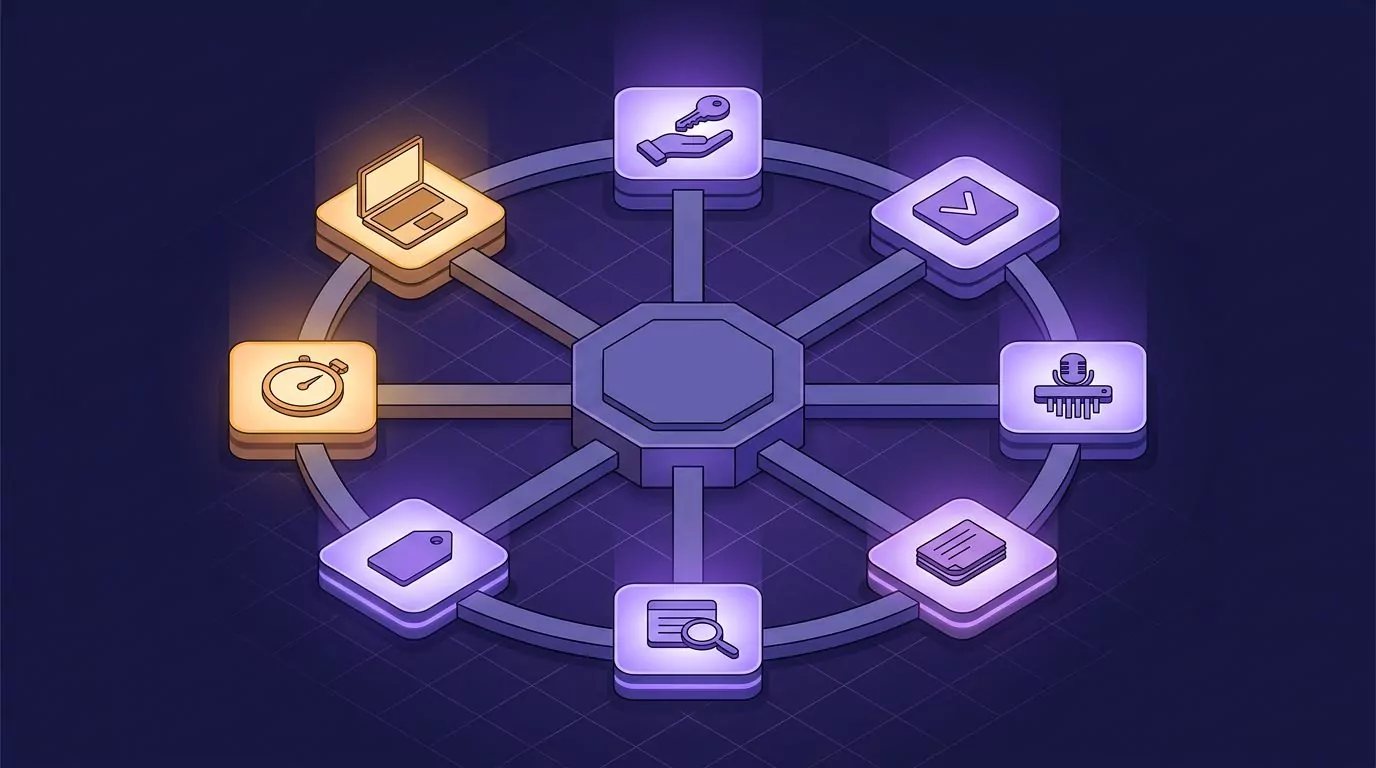
The last three are the ones that decide whether a tool sticks. Accuracy differences between the good options are small now. The difference between text you can find again and text that vanished into a sent message is not small at all. Our note on zero data retention voice apps goes deeper on the audio question.
Dictation Software Compared at a Glance
Read the "where text lands" column first. It sorts the field faster than any score.
| Tool | Platforms | Activation | Where text lands | Audio kept | Text saved | Price model |
|---|---|---|---|---|---|---|
| Wispr Flow | Mac, Windows, iOS, Android | Hold or toggle | Cursor, any app | Cloud processed | History in app | Free tier, then plan |
| Willow | Mac, Windows, iOS | Hold to talk | Cursor, any app | Vendor states none kept | History in app | Free tier, then plan |
| Superwhisper | Mac, Windows, iOS | Shortcut or push to talk | Cursor, any app | Local on Apple silicon | History in app | Free, plan, or lifetime |
| VoiceInk | Mac with Apple silicon | Shortcut | Cursor, any app | Local by default | History in app | One time, from $29 |
| VoiceSnap Pro | Mac, Windows | Hold to talk | Cursor, any app | Discarded after text | Auto saved notes | One time, $39 early access |
| Apple Dictation | Mac, iPhone, iPad | Shortcut toggle | Cursor, any app | On device on newer Macs | No | Free with macOS |
| Windows Voice Typing | Windows 10 and 11 | Win+H toggle | Cursor, any app | Cloud processed | No | Free with Windows |
| Word Dictate | Word on Mac, Windows, web | Button toggle | The Word document | Cloud processed | In the document | With Microsoft 365 |
| Dragon Professional | Windows | Voice or button | Cursor, most apps | Local profile | No | One time, costly |
| Otter.ai | Web, mobile, meeting bot | Record or join a call | Its own workspace | Stored and playable | Full transcripts | Free tier, then plan |
| Notta | Web, mobile, desktop | Record or upload | Its own workspace | Stored and playable | Full transcripts | Free tier, then plan |
| Rev | Web, mobile | Upload a file | Its own workspace | Stored and playable | Full transcripts | Per minute or plan |
| MacWhisper | Mac | Drop a file or shortcut | Own window, or cursor | Local, you keep it | Files you keep | Free, Pro one time |
| Speechnotes | Browser | Toggle on the page | Its own notepad | Deleted after use | Local to the browser | Free, small plan |
| Google Docs Voice Typing | Chrome | Toggle in the doc | The open Google Doc | Cloud processed | In the document | Free |
Insert at Cursor Dictation Tools
These are the ones that behave like a second keyboard. You keep working in your own apps. The tool stays out of sight until you hold the key.
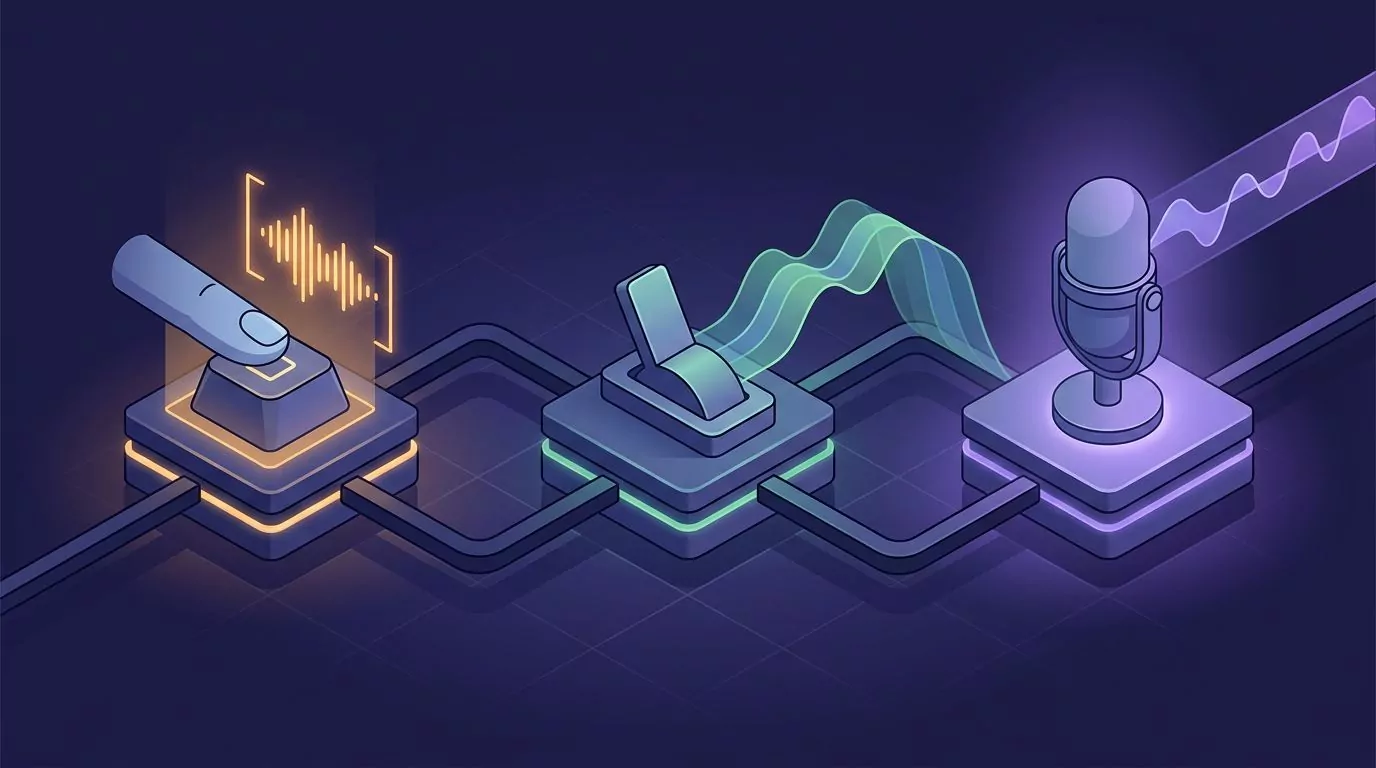
Hold to talk has one quiet advantage. The mic is open only while your finger is down, so there is no state to forget about. A toggle is easier on long passages but leaves you guessing whether it is still on.
Wispr Flow
Wispr Flow is the closest thing this category has to a default. It runs on Mac, Windows, iOS, and Android, so your habit follows you between machines. Text lands at the cursor with punctuation and filler words trimmed.
The free plan gives you 2,000 words a week on desktop. Flow Pro is $15 a month, or $12 a month billed yearly. That is the widest platform coverage on this list.
The tradeoff is that processing runs in the cloud, and some users have asked for clearer answers on how that audio is handled. If your work is sensitive, read the current policy before you commit.
Willow
Willow is the privacy pitch in this group. It states a zero data retention policy and lists SOC 2 Type II and HIPAA compliance, which matters if you dictate anything covered by those rules.
It runs on Mac, Windows, and iOS. The Basic plan is free but uses a weaker model and caps some features. Pro is $15 a month, or $12 billed yearly.
Willow is a strong pick for regulated work. It is also the tool most likely to rank itself first in its own comparison posts, so read those with that in mind.
Superwhisper
Superwhisper is the flexible one. It runs on Mac, Windows, and iOS, and it can use either local models or cloud models. On an Apple silicon Mac the local models run well enough to work offline.
You can trigger it with a keyboard shortcut or with push to talk. It also transcribes files, which few of the cursor tools do. Pricing has a free tier, a Pro plan, and a lifetime option, so you are not forced into a subscription.
The catch is that local models lean on Apple silicon. On other hardware you are back to the cloud, and the setup has more knobs than most people want on day one.
VoiceInk
VoiceInk is the open source answer. The code is public, transcription runs on your Mac by default, and the pricing is a one time payment: $29 for one device, $49 for two, $69 for three.
It needs Apple silicon and macOS 14.4 or later. There is no Windows build. If you work across both systems, this one drops out immediately.
For a Mac only user who dislikes subscriptions and wants to audit the code, it is hard to beat. That is a narrow group, but it is a real one.
VoiceSnap Pro
VoiceSnap Pro runs on macOS and Windows. You pick a shortcut, hold it, and speak. On release, punctuated text appears at the cursor in whatever field you were in, whether that is an email, a Slack thread, a commit message, or a terminal prompt.
Two things set it apart on our seven points. Audio is turned into text and then discarded, with no playback and no stored recordings. And every dictation is saved as a note, tagged with the app you were in and the time, so you can search later by any phrase you said.
That second part answers a question the rest of this list mostly ignores. A good paragraph you dictated into a chat box on Tuesday is normally gone. Here it stays searchable, and you can export a note, a day, or the whole library as text or Markdown. If you keep a running record of your own thinking, the same idea powers a searchable commonplace book.
The honest limits are real. It is pre-launch, so there is no downloadable build yet, only a waitlist at $39 one time for early access. There are no mobile apps, no team or sharing features, and no published accuracy figures. Because audio is discarded, there is also nothing to replay if a line comes out wrong.
Apple Dictation
Apple Dictation is free, already installed, and works in any text field on a Mac. You turn it on in System Settings, then press your chosen key twice. On newer Macs much of the work happens on the device.
It is the right first stop because it costs nothing to try. Punctuation is the usual complaint: you often have to say "comma" and "period" out loud, and long passages need cleanup.
Our full walkthrough of how to dictate on a Mac covers the setup and the common fixes. Try it for a week before you pay for anything.
Windows Voice Typing
On Windows, voice typing is built in. Press Win+H in any text box and a small bar appears. Speak, and the words go in at the cursor.
It needs an internet connection because recognition happens on Microsoft servers. It is a toggle, not a hold, so it keeps listening until you stop it. Automatic punctuation is a setting you have to switch on.
Windows also ships Voice Access, which does dictation plus full voice control of the machine. If you want the keyboard side only, our guide to the Windows dictation shortcut explains where Win+H stops and what to do about it.
Microsoft Word Dictate
Dictate in Word is a button on the Home tab. It handles punctuation well and understands spoken commands like "new line". For long form writing inside Word, it is genuinely good.
The limit is in the name. The text lands in the Word document and nowhere else. It will not help you answer email, file a ticket, or write a chat reply.
It comes with a Microsoft 365 subscription, so if you already pay for Office you have it. Treat it as a writing tool, not a system wide one.
Dragon Professional
Dragon Professional is the old guard. It is Windows only, it builds a voice profile that adapts to you, and it handles specialist vocabulary better than anything else here. Legal and medical users still swear by it.
It is also expensive, heavy to install, and sold as a licence rather than a small monthly fee. Most knowledge workers do not need what it does.
Its command set is the real draw. If you want to run the machine by voice rather than just type by voice, that overlaps with our guide on how to use your computer without a mouse.
Upload a File and Meeting Transcription Tools
If you came here for one of these, take the recommendation and go. They are good at their job. They are just not dictation in the sense above.
Otter.ai
Otter.ai is a meeting notetaker first. It joins Zoom, Teams, and Google Meet, writes live notes, and shares them with the room. The free plan covers 300 minutes a month and three file imports for the life of the account.
Pro is $8.33 per user a month billed yearly. It stores your audio so you can play back any line. That is a feature here, not a flaw, because you often need to check what someone actually said.
Notta
Notta covers the same ground with a strong file upload side. The free plan gives 120 minutes a month, capped at three minutes per item, plus 50 uploads. Pro is $8.17 a month billed yearly.
It records web meetings, screen sessions, and uploaded files. Pick it over Otter if uploads matter more to you than live meeting bots.
Rev
Rev is the one to use when accuracy has to be near perfect. Human transcription is $1.99 a minute with a stated 99 percent plus accuracy and a twelve hour turnaround. AI transcription comes as monthly minute allowances instead.
Nothing on this page beats a human for a court exhibit or a research interview. Nothing on this page is slower, either.
MacWhisper
MacWhisper sits between the halves. It transcribes files locally on a Mac, records meetings, and also offers system wide dictation. The base version is free and the Pro licence is a one time purchase with lifetime updates.
Because it runs local models, files never leave the machine. If you have a folder of recordings and a privacy rule, start here.
Browser Notepads Are a Third Thing
There is a small third group that behaves like neither half. These live in a browser tab and write into their own editor.
Speechnotes
Speechnotes is a free online notepad you dictate into. Nothing to install, notes are held in your browser storage, and the ad free tier is about $1.90 a month. There is also a Chrome extension that types into web forms.
The text stays in the tab unless you copy it out. That is fine for drafting and awkward for anything else.
Google Docs Voice Typing
Google Docs voice typing is free and surprisingly capable, with editing commands as well as dictation. It only works in Chrome, and only inside a Google Doc.
If your writing already lives in Docs, this costs nothing and needs no setup. If it does not, you are copying and pasting all day.
One Time Purchase or Subscription
The money split in this field is unusually clean. The built in options are free. The venture backed apps are monthly. The independent apps are one time.
Wispr Flow, Willow, Otter, and Notta all run on plans in the $8 to $15 a month range. Over three years that is roughly $300 to $540 per tool. Superwhisper offers both a plan and a lifetime option, which is rare.
VoiceInk starts at $29 once. VoiceSnap Pro is $39 once for early access. MacWhisper Pro is a single payment with updates included. Dragon is also a licence, just a much larger one.
There is no universal right answer. A subscription pays for a model that keeps improving. A one time price protects you from a tool you use daily getting more expensive every year.
What Happens to Your Audio After You Speak
This is the column nobody publishes, and it is the one people ask about most. Three things can happen to your voice after the words come out.
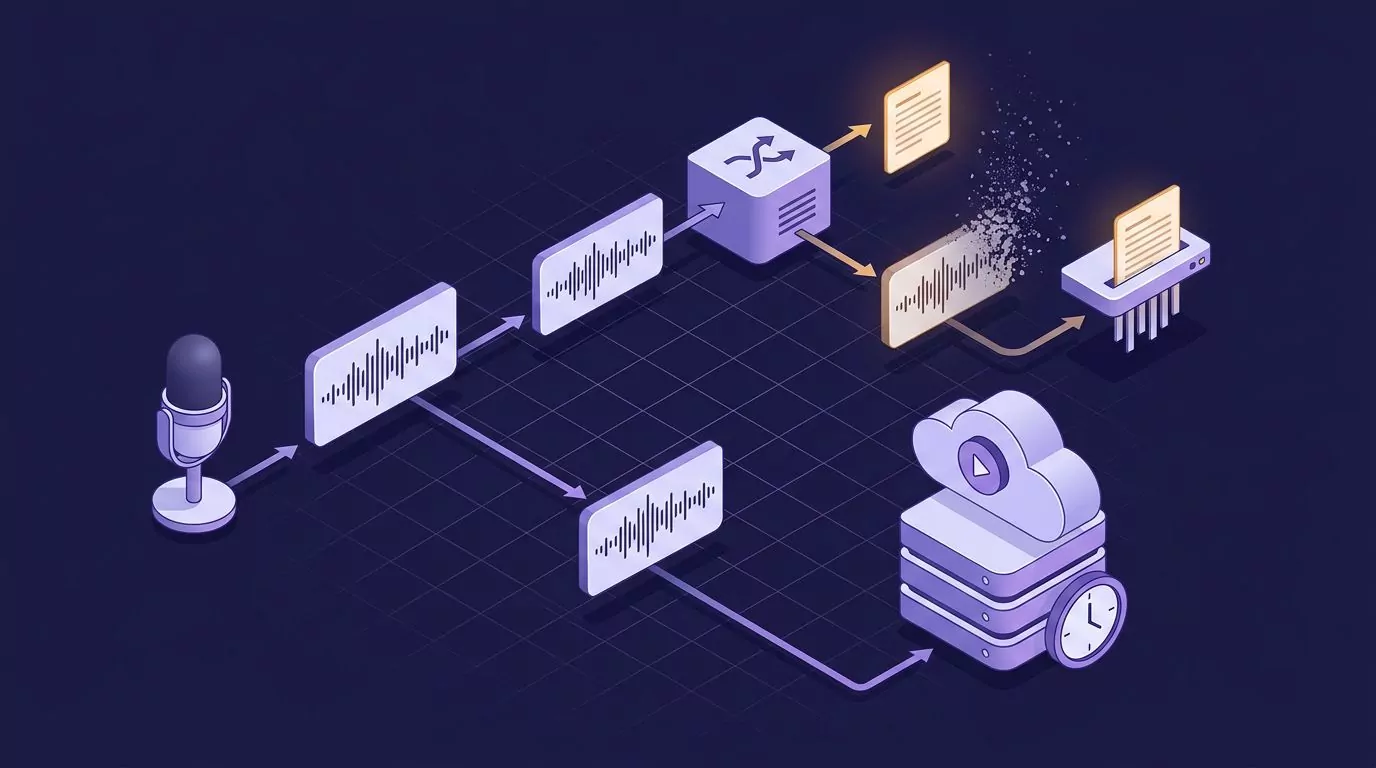
It can never leave your machine. VoiceInk, MacWhisper, Superwhisper on Apple silicon, Dragon, and Apple Dictation on newer Macs all keep the work local, at least in their default modes.
It can go to a server, get turned into text, and be thrown away. Willow states a zero retention policy. VoiceSnap Pro discards audio once the text exists, which also means there is no recording to play back. Speechnotes says recordings are deleted once the job finishes.
Or it can be stored on purpose. Otter, Notta, and Rev all keep the audio, because playback is the point of a transcript you might have to check.
None of these is wrong. They are different promises. Just make sure the promise matches what you plan to say out loud.
How to Choose in 60 Seconds
Skip the scores. Answer these in order and stop at the first yes.
- Do you have a recording or a meeting? Go to Otter, Notta, Rev, or MacWhisper. You are done.
- Do you only write inside one app? Word Dictate for Word, Google Docs voice typing for Docs.
- Have you tried the free built in tool yet? Apple Dictation on a Mac, Win+H on Windows. Spend a week there first.
- Do you need it on Mac and Windows both? Wispr Flow, Willow, Superwhisper, or VoiceSnap Pro.
- Do you want to find what you said later? VoiceSnap Pro saves every dictation as a searchable note.
- Do you refuse subscriptions? VoiceInk, MacWhisper Pro, Superwhisper lifetime, or VoiceSnap Pro.
One more note on expectations. Most people type somewhere between 40 and 45 words a minute, while comfortable speech runs closer to 130 or 150. Our piece on average typing speed puts real numbers on what that gap costs you in a day.
The gain is real but it is not the whole story. Editing still takes time, and speaking a paragraph well is a skill. If you want to feel the upside quickly, try a brain dump by talking before you judge any tool on polish.
Frequently Asked Questions
What is the best free dictation tool?
The one already on your computer. Apple Dictation on a Mac and Win+H voice typing on Windows both work in any text field and cost nothing. If you write in a browser, Google Docs voice typing and Speechnotes are free too. Start there before you pay.
What is the most accurate dictation app?
For everyday work the good cloud tools are close enough that accuracy rarely decides it. For heavy specialist vocabulary on Windows, Dragon still leads because it learns your voice profile. For a transcript that has to be right, a human service like Rev beats every app here.
What is the difference between dictation software and transcription software?
Dictation software types for you in real time, into the field where your cursor is. Transcription software takes audio you already have and returns a document later. One replaces your keyboard, the other processes a recording. Buying one when you needed the other is the most common mistake in this category.
Does dictation software work in any app or only in a document?
It depends on the tool. Wispr Flow, Willow, Superwhisper, VoiceInk, VoiceSnap Pro, Apple Dictation, and Win+H all insert text wherever your cursor is, including chat apps and code editors. Word Dictate and Google Docs voice typing only work inside their own documents. Developers can read more in our notes on voice coding and what actually works.
Do dictation apps keep a copy of what I said?
Some do and some do not, and very few say so on the pricing page. Local tools such as VoiceInk and MacWhisper keep everything on your machine. Willow and VoiceSnap Pro state that audio is not retained after the text is made. Meeting tools like Otter, Notta, and Rev store the audio on purpose so you can play it back.
Pick the Job First, Then the Tool
The category name hides a fork. Decide whether you want words at your cursor or a transcript to read later, and thirteen of these fifteen options rule themselves out in a second.
If your answer is the cursor, and you also want a searchable copy of everything you dictate rather than text that disappears into a sent message, VoiceSnap Pro is built around exactly that pair. It is $39 one time for early access while it is pre-launch, and the waitlist is how you get in when it ships.