Dragon NaturallySpeaking Alternatives in 2026: What You Actually Lose When You Switch
Dragon NaturallySpeaking, often typed as Dragon Naturally Speaking, is not dead. Most of it is gone, though. One Windows product survives: Dragon Professional v16. The Mac version ended in 2018. The cheap home editions stopped selling in 2023. What replaces Dragon depends on which of its three jobs you actually used.
Dragon did three jobs, and most alternative lists replace only one
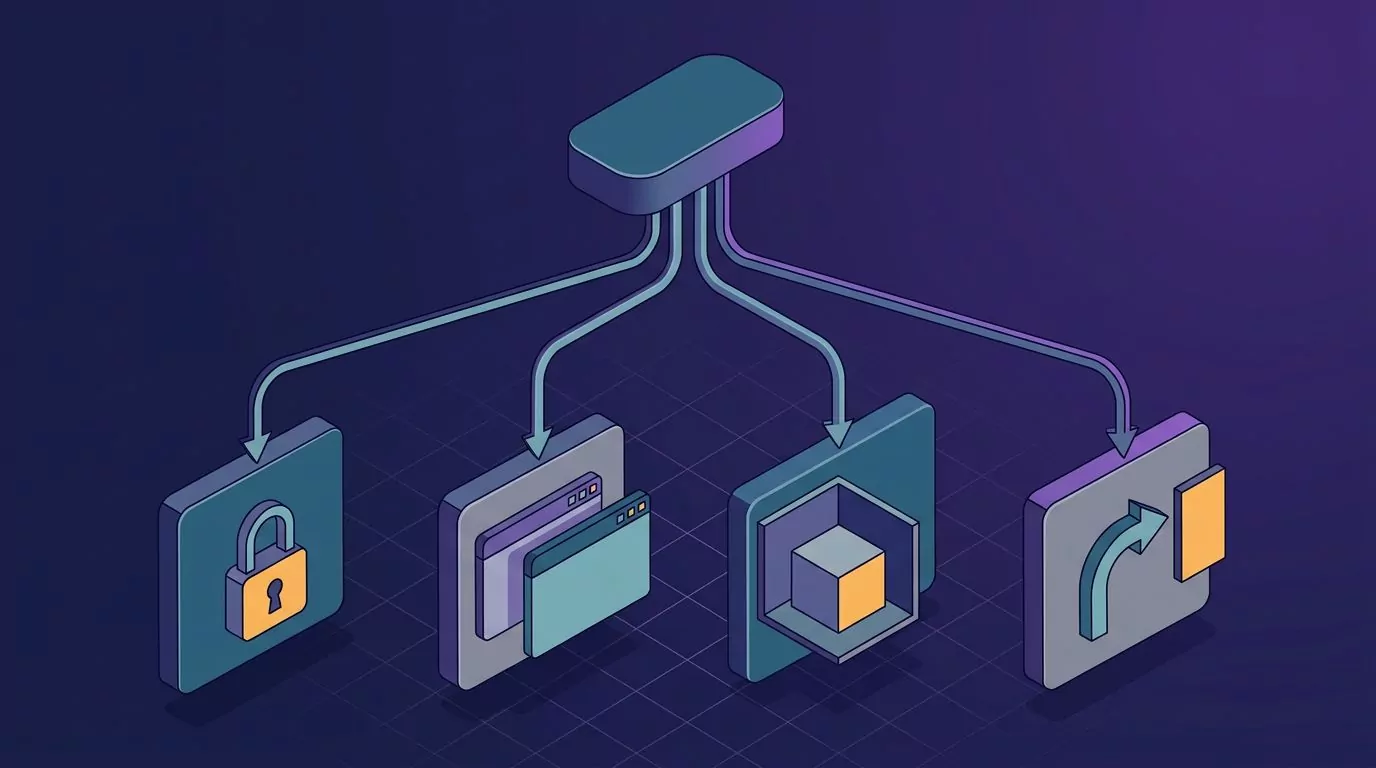
This is the thing almost every roundup skips. Dragon was never one feature. It was three, bundled into a single Windows install. Search for Dragon speech to text and you get lists that compare only the first of them.
- Dictation. You spoke, and text appeared in your document.
- Computer control. You said "open Outlook" or "click Send", and it happened.
- Correction by voice. You said "scratch that" or "correct that", and Dragon edited the text you had just spoken.
Now look at what the popular lists actually compare. Otter.ai records meetings and writes transcripts on its own web page. It never types into your email draft. File transcription services do the same job. They are useful, but they replace none of Dragon's three jobs.
Modern hold-to-talk apps sit at the other end. They do job one very well and job three partly. They do not do job two at all. If you used Dragon to run your whole machine, no dictation app is a swap for it. Say that out loud before you buy anything.
So the honest first question is not "what is the best Dragon alternative". It is "which of the three jobs did I use". If you are still working that out, our guide to talk to text on your computer walks through what desktop dictation feels like day to day.
What happened to Dragon Naturally Speaking, by SKU and date
The Nuance Dragon story is usually told as one vague sentence about Microsoft buying the company. The real timeline is more specific, and the dates matter when you are deciding whether to stay.
| Date | What changed | Source |
|---|---|---|
| April 1997 | Dragon NaturallySpeaking 1.0 ships. | Version history |
| 22 October 2018 | Dragon Professional Individual for Mac is discontinued. Nuance stops selling it and stops shipping updates from that date. Perpetual licences keep working. | Nuance end of life notice |
| 12 April 2021 | Microsoft announces its plan to buy Nuance. | Microsoft announcement |
| 4 March 2022 | The deal closes at 19.7 billion dollars. Microsoft frames it around healthcare and industry cloud, not consumer desktop software. | Microsoft completion notice |
| 27 February 2023 | Dragon Home 15, Dragon Professional Individual 15, Dragon Legal 15 and Dragon Law Enforcement 15 stop being sold in English and German. | Nuance product advisory |
| 28 February 2023 | Dragon Professional v16 ships. It is the current and only Windows desktop line. | Nuance product page |
| 1 September 2023 | Support ends for Dragon v14. | Nuance product advisory |
| March 2025 | Microsoft launches Dragon Copilot. It is a clinical assistant for care teams, not a desktop app you can buy for your own writing. | Microsoft product page |
| October 2025 | Nuance says v15 and v16 stay supported on Windows 10, but any issue traced to the OS means you must move to Windows 11 and v16. | Nuance support notice |
Read that list again and the pattern is clear. The consumer end of Dragon was closed. The professional Windows line was kept. The money went to healthcare.
TODO: confirm the exact end of sale date for the older Dragon Premium consumer edition. Nuance's own advisories name Dragon Home 15 but do not name Premium, so we are not going to invent a date for it.
What Dragon actually costs, and why nobody quotes it the same way
You will see "699 dollars, one time" repeated across the web with no SKU attached. That number is real, but it is a retail number, not a published list price.
Checked in August 2026, Nuance's own Dragon Professional page shows no price at all. It shows a contact form. The price you find comes from resellers. Staples lists the single user download, SKU SN-DP09A-G00-16.0, at 699.00 dollars, also checked in August 2026. Other resellers sit lower.
That distinction matters. If a page tells you Dragon is a flat 699 dollars without naming the seller or the SKU, it did not check.
The three things you actually give up when you leave
This is the part the sales pages skip. Leaving Dragon costs you something real. Here is the honest inventory.
The profile you spent years training
A Dragon user profile is not a word list. It holds your added words, their spoken forms, their capitalisation rules, and an acoustic model shaped by your voice over time. Ten years of "correct that" went into it.
No other vendor can read that profile. You can export the word list, and we show you how further down. The trained part does not travel. It never will, because it is tied to Dragon's own engine.
Driving the computer by voice
Dragon's command grammar is the deepest of any consumer speech product. You can open apps, click named buttons, move between fields, and script your own macros. People with limited hand use have built entire working days on it.
Hold-to-talk dictation apps do not replace this. Not partly, not nearly. They turn speech into text and stop. If job two was why you used Dragon, skip to the section on voice computer control below, because the answer for you is a different category of tool.
Correcting text by voice
"Scratch that." "Select the last three words." "Correct that." These commands let you fix a sentence without touching the keyboard. Dragon knows which words it just inserted, so it can revise them.
Most modern dictation apps have no memory of what they typed. Once the text lands, it is just text in someone else's app. You fix it with the keyboard. Some tools let you re-speak a phrase and swap it, but nothing matches Dragon's full correction set.
Offline processing, which you may or may not lose
Dragon runs on your machine. No audio leaves it. That is a genuine feature and it is why many regulated workplaces bought it.
You do not have to give this up. Several replacements run models locally. Several do not. It is now a choice you make per tool, not a category rule, and we sort the options in the table below. If retention rules are what drives your decision, our piece on what zero data retention actually means unpacks the vocabulary vendors use.
Where the text lands: Dragon alternatives compared
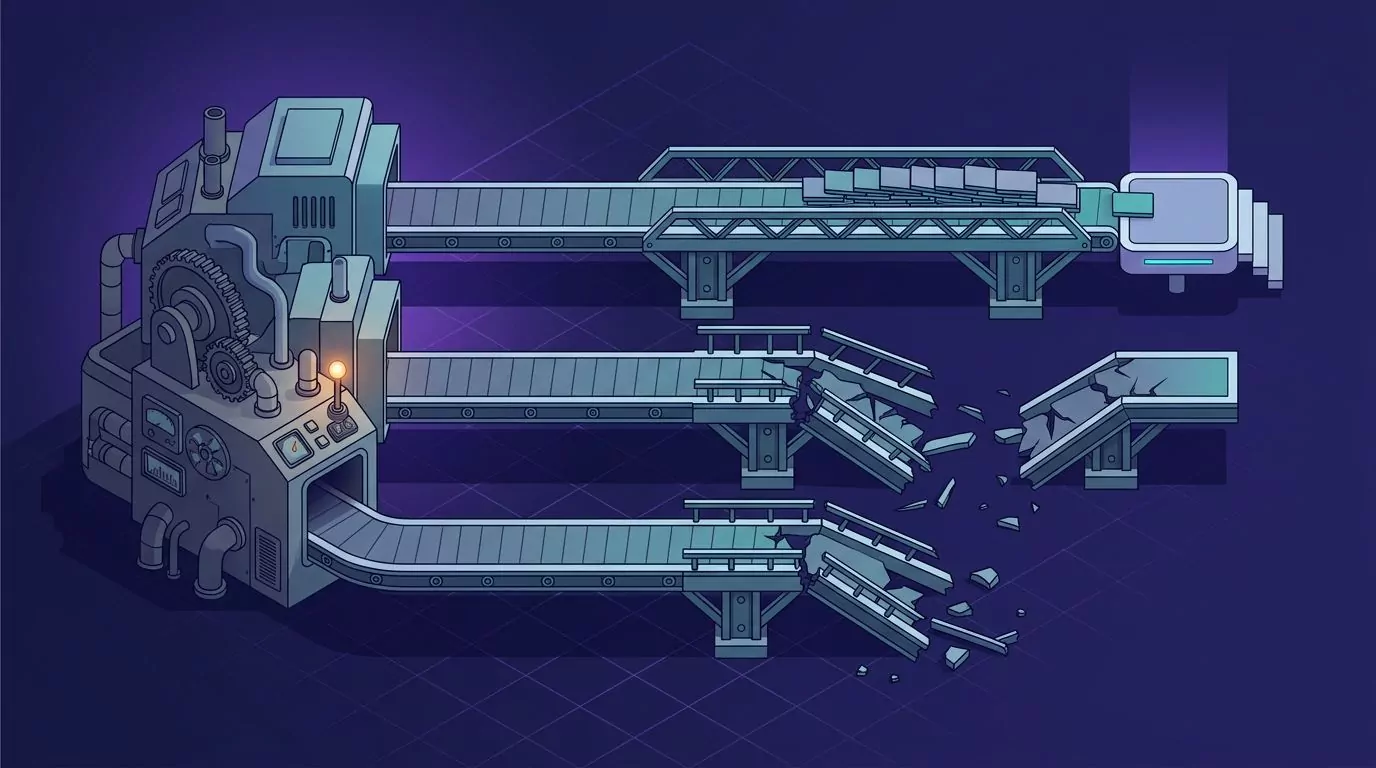
Price is the wrong first column. The question that decides whether you like a tool is simpler: after you stop speaking, where does the text go, and what state is it in?
The table covers macOS and Windows only, since those are the two systems this article is about. Prices were checked in August 2026 and change often.
| Tool | Platforms | Where the text lands | Processing | Custom vocabulary | Controls the computer | Price |
|---|---|---|---|---|---|---|
| Dragon Professional v16 | Windows | At the cursor, in Word, Outlook and many other apps | On device | Yes, with a trained profile | Yes, full command set | No list price published. 699.00 dollars at one reseller |
| Windows Voice Access | Windows 11, version 22H2 and later | At the cursor | On device, after a one time language download | Limited | Yes | Included with Windows |
| macOS Voice Control | macOS | At the cursor | On device, after a one time download | Yes, words and custom commands | Yes | Included with macOS |
| Apple Dictation | macOS | At the cursor | On device for many languages | No user dictionary | No | Included with macOS |
| Windows voice typing | Windows 10 and 11 | At the cursor | Cloud | No | No | Included with Windows |
| Superwhisper | macOS and Windows | Pasted into the app you are using | Local or cloud models | Yes | No | Free tier. Pro from 8.49 dollars a month |
| Wispr Flow | macOS and Windows | At the cursor | Cloud | Yes, dictionary and snippets | No | Free tier of 2,000 words a week. Pro 15 dollars per user a month |
| VoiceInk | macOS on Apple silicon | At the cursor | Local by default, cloud optional | Yes | No | One time, 25 to 49 dollars |
| MacWhisper | macOS | Mostly a transcript in its own window, plus a dictation mode | Local | Yes | No | Free version plus a paid licence |
| OpenAI Whisper | Wherever you run it | Nowhere. It is a model, not an app | Local | No | No | Free and open source |
| Talon Voice | macOS and Windows | At the cursor, plus commands you script | On device | Yes, written by you | Yes | Free download. Optional paid supporter tiers |
| Otter.ai | Web and mobile | Its own transcript page | Cloud | Yes | No | Free tier. Pro 16.99 dollars per user a month |
| VoiceSnap Pro | macOS and Windows | At the cursor, in any text field | Not published | Not listed | No | 39 dollars one time, early access before launch |
TODO: confirm whether VoiceSnap Pro transcribes on device or in the cloud, and whether it will offer a custom word list. Neither is documented yet, so both cells say so rather than guessing.
What the columns actually mean in daily use
"At the cursor" and "pasted" sound like the same thing. They are not. A tool that types at the cursor leaves your clipboard alone. A tool that pastes overwrites whatever you had copied, which stings the first time you lose a link you were about to share.
"Its own window" is a bigger gap. Otter and file transcription tools give you a transcript you then copy somewhere. That is fine for a meeting. It is a poor fit for a Slack reply, because you have added two steps to a ten second task.
Punctuation is the other invisible column. Dragon expects you to say "comma" and "new paragraph". Most current tools add punctuation for you from the shape of your speech. Some also strip filler. VoiceSnap Pro, for example, removes an "um" before the text lands. Long time Dragon users often find this the strangest part of the switch, because a habit they spent years building suddenly produces the literal word "period" on screen.
The same sentence, three different results
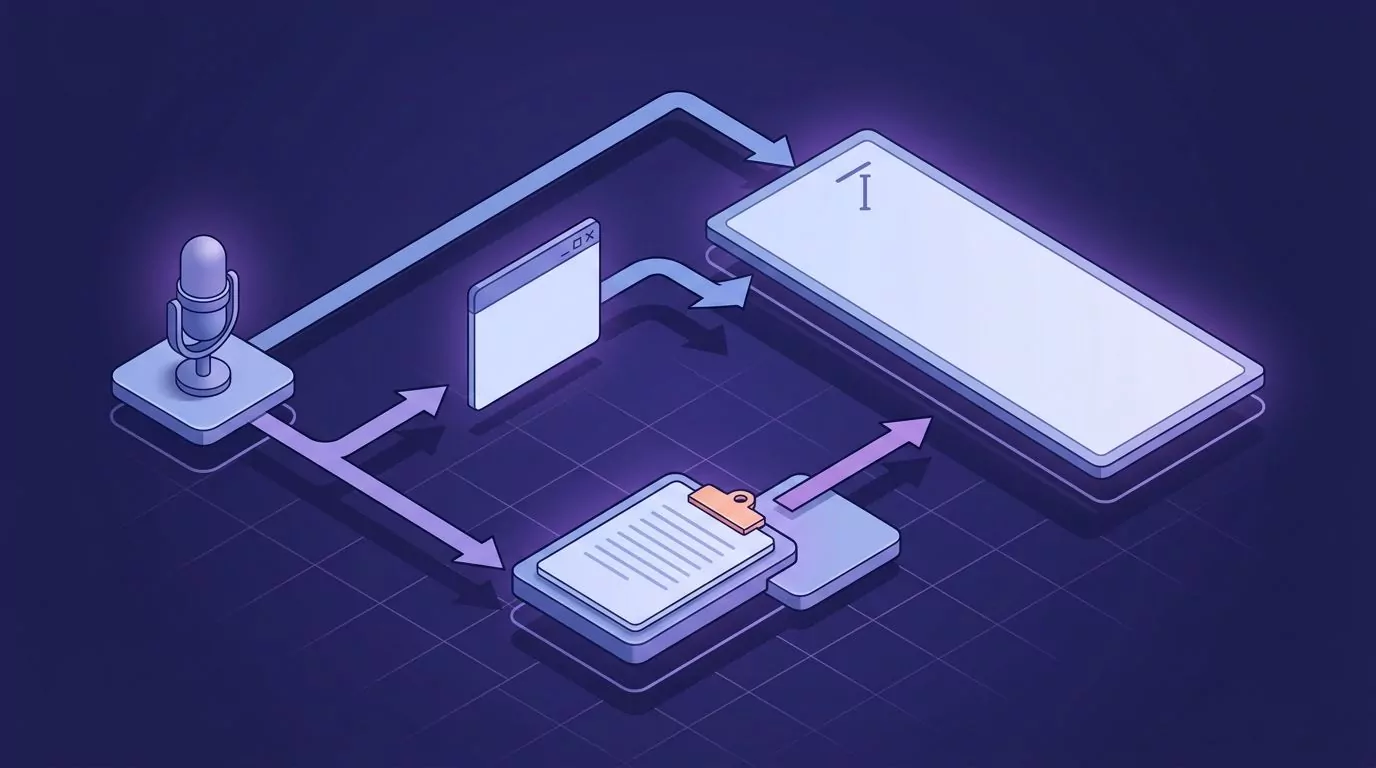
This is the clearest way to see the gap. Imagine you say one sentence out loud, with a stumble in it, and no spoken punctuation:
"send the revised contract to um Priya before Friday and cc legal"
What you get back depends entirely on what the tool was designed to do.
| Category | Designed behaviour | What you do next |
|---|---|---|
| Dragon and older voice recognition software | Expects you to speak punctuation. Say "comma" and you get a comma. Say nothing and you get one long line. Filler words are transcribed as spoken unless you have trained them out. | Say "scratch that" and redo the sentence, or fix it with voice commands. |
| Built in dictation on Windows and macOS | Adds basic punctuation automatically in recent versions, but it is inconsistent on long or fast speech. Filler words usually survive. | Fix the capitals and the stray "um" with the keyboard. |
| Current AI dictation apps | Punctuate and capitalise from the shape of the sentence, and most drop filler words before inserting. VoiceSnap Pro removes an "um" so it never reaches the text field. | Usually nothing. Read it and send. |
These are design behaviours taken from each vendor's own documentation, not measured accuracy scores. Nobody here has published a head to head benchmark on identical audio, so treat any page that quotes a precise accuracy percentage without naming its test conditions with suspicion.
The practical effect is a habit change. Dragon rewarded people who learned to speak punctuation. Modern tools punish it, because saying "period" now often produces the word "period".
Which replacement fits which kind of Dragon user
There is no single answer here, and any page that gives you one is selling something. There are three honest paths.
Path one: you drove the whole computer by voice
If Dragon was how you opened apps, clicked buttons and moved around the screen, then dictation apps are not your category. You need voice computer control, which is a different thing.
On Windows, the built in answer is Voice Access. It arrived in Windows 11 version 22H2. After a one time language download it runs on device, so it keeps working without a network. On macOS, the answer is Voice Control in Accessibility settings, which also supports custom commands and a custom vocabulary.
Neither is as deep as Dragon's grammar. Both are free and actively maintained, which Dragon's consumer line no longer is. If you want scriptable power closer to Dragon's macros, Talon Voice is the serious option, though it expects you to write Python.
Keyboard driven habits help here too. Many former Dragon users end up mixing voice commands with shortcuts, and our guide to using your computer without a mouse covers that half of the workflow.
Path two: nothing may leave your machine
If offline processing is the reason you bought Dragon, your shortlist is short. On Mac, VoiceInk runs models locally on Apple silicon and is open source, so you can read what it does. MacWhisper also runs locally. Superwhisper lets you pick a local model, though it also offers cloud models, so check which one is selected.
Windows Voice Access and macOS Voice Control both work without a network once their language files are downloaded. Windows voice typing on Win+H does not. It sends audio to a service, which is the single most common surprise for people switching from Dragon on Windows. Our breakdown of what Win+H actually does covers the limits in detail.
Path three: you only ever dictated prose into a text box
This is most people. You never wrote a macro. You never said "click Send". You opened a document or a reply, spoke a few paragraphs, and cleaned them up by hand.
If that was you, the switch is genuinely easy, and the modern tools are better at this specific job than Dragon was. They punctuate without being told. They work in any text field, including chat apps and browser forms that Dragon handled badly. And they cost a fraction of a Dragon licence.
VoiceSnap Pro fits this path. You hold a shortcut, speak, and release. Punctuated text appears at the cursor in whatever app you were already in. Every dictation is also kept as a searchable note, tagged with the app and the time, which is useful when you want the wording of a message you sent last Tuesday. It is a Mac and Windows desktop app, currently pre launch, with early access at 39 dollars one time through the waitlist. It replaces the dictation half of Dragon and none of the computer control half.
For a wider view of this category, we compare the current crop in our roundups of Superwhisper alternatives and the best dictation software for Mac.
Moving your word list off Dragon when there is no import path
Here is the blunt version: no vendor can import a Dragon user profile. None. Anyone who implies otherwise is guessing.
What you can do is rescue the part that matters most, which is the list of words you added. Do this before you uninstall Dragon, because the export lives inside the app.
- Open the profile you want to rescue. On the DragonBar, choose Profile, then Open User Profile. Pick your profile and click Open. If you have several profiles, repeat this whole process for each one.
- Open the export dialog. On the DragonBar, choose Vocabulary, then Export custom word and phrase list. On Professional Group and Anywhere builds the same command sits under Tools, then Vocabulary Center, then Export custom word and phrase list. Nuance documents both routes in its export and import article.
- Choose XML, not TXT. Both formats are offered. TXT gives you the spellings alone. XML also carries word properties, including the spoken form and capitalisation, which is exactly the detail you will want later. Nuance's vocabulary help page confirms the format difference. Export a TXT copy as well, since it is easier to read.
- Back up the whole profile too. On the DragonBar, choose Profile, then Manage User Profiles, then Advanced, then Export. Pick an empty folder. This does not help another vendor, but it lets you reinstall Dragon later if the switch does not work out. Nuance's profile export guide has the full walkthrough.
- Cut the list down to what you actually say. Open the TXT file. Most exported lists are padded with one off corrections and typos you fixed once in 2019. Keep client names, product names, acronyms, part numbers, and colleagues' surnames. Fifty real terms beat eight hundred stale ones.
- Paste the survivors into the new tool. Superwhisper, Wispr Flow, VoiceInk and Talon all accept a user dictionary, though each has its own screen for it. Add the terms once. Where a tool has no dictionary, keep the file anyway and use find and replace after long dictations.
Why does the trained part not transfer? Because a Dragon profile stores adaptation to your voice inside Dragon's own acoustic and language models. A different vendor runs a different model. There is no common format, and there is no commercial reason for one to appear.

The practical upside is that modern models need far less of this. They were trained on a much wider slice of human speech than a 2010 Dragon profile ever saw. Most people find they need a handful of custom terms rather than hundreds.
Setup and the failure modes nobody warns you about
Dragon users are used to a heavy install and a training session. The new tools install in a minute, then fail in ways Dragon never did. These are the four that catch people.
Grant the exact permissions, not just the microphone
On macOS, open System Settings, then Privacy and Security. You need Microphone so the app can hear you. You also need Accessibility so it can type into other apps. Miss the second one and the app looks like it is working while nothing appears on screen. Some apps also ask for Input Monitoring to detect a held key.
On Windows, open Settings, then Privacy and security, then Microphone. Check that the app is listed and turned on, and that "Let desktop apps access your microphone" is on. That second switch is separate and easy to miss.
Restart the app after granting anything. macOS in particular does not always apply a new Accessibility grant to a running process.
When the target app steals focus
Hold-to-talk apps type into whatever window has focus when you release the key. If a notification, a Teams call or an updater pops to the front mid sentence, your text lands there instead.
The fix is boring and effective. Turn on Do Not Disturb or Focus Assist while you dictate long passages. Click into the field first, then hold your key, and do not click anywhere else until you release it.
Electron apps, terminals and remote sessions
Slack, VS Code, Notion and Discord are Electron apps. They usually accept dictated text fine, but they are slower to receive it, so a long paragraph can arrive with the first few words clipped. Speak, pause half a second, then release.
Terminals are stricter. Many refuse simulated keystrokes at the shell prompt for security reasons, and some paste into the wrong pane in tmux or a split. Dictate into your editor and copy across. If you write code by voice, our honest look at what voice coding actually gets you is worth ten minutes before you commit to a setup.
Remote desktop and virtual machine sessions are the hardest case. The dictation app runs on your local machine, so the remote window often receives nothing. Run the dictation tool inside the remote session where you can, or dictate locally and paste.
When the text lands in the wrong window
If this happens more than once, work through it in order. Check the app still has Accessibility permission. Check nothing else grabbed focus. Check you are not in a remote session. Then check whether the tool pastes rather than types, because a paste into a field that does not accept paste silently does nothing.
Our triage guide for voice typing that stops working runs the same checks in more depth, on both systems.
How to test a replacement in twenty minutes
Most people switch by installing something, dictating one sentence, and deciding. That tells you almost nothing. Here is a short test that surfaces the problems you would otherwise hit in week three.
- Dictate your own jargon first, not a sample sentence. Take five real terms from the word list you exported. Speak a sentence containing all five. Whatever fails here is what you will be fixing every day.
- Dictate the same paragraph into four different apps. Use your email client, a browser text box, a chat app, and your editor. Tools that behave well in one often break in another. This is where paste based tools reveal themselves, because your clipboard will have been replaced.
- Speak for ninety seconds without stopping. Short bursts flatter every tool. A long passage exposes where punctuation collapses, where paragraph breaks go missing, and whether the app truncates.
- Turn off your network and try again. This settles the offline question in ten seconds, regardless of what the marketing page says. Do it before you rely on it in a meeting room with bad wifi.
- Count the corrections, not the errors. The number that matters is how many times your hands left the keys to fix something. A tool with slightly worse raw accuracy but better punctuation often wins on this measure.
Run that on two tools, not five. Comparing five at once means you compare none of them properly, and every candidate on the list above has a free tier or a trial.
What Dragon still does better
An honest comparison has to include this section, and most do not.
Dragon's command grammar is still the richest available in a shipping consumer product. Nothing on the list above matches its range of built in commands or its macro editor. Talon comes closest, and it asks you to write code to get there.
A decade old Dragon profile is also genuinely valuable. If you have an unusual accent, a speech difference, or a vocabulary full of rare proper nouns, that trained profile may still beat a general model. Test before you decide, not after.
Dragon also handles long documents better. It knows what it typed, so it can revise it by voice. And it runs entirely offline by default, without you needing to check which model is selected.
The replacements have real gaps too, and it is worth stating them plainly. Free built in dictation on both systems still punctuates less reliably than a paid tool. Cloud tools stop working on a plane. Local models are slower on older hardware. And VoiceSnap Pro, specifically, does not control your computer, does not record or transcribe meetings, calls or audio files, and does not keep audio, so there is nothing to play back later. It is also pre launch, which means a waitlist rather than a download today.
If your work depends on voice computer control, keep Dragon Professional v16 on a Windows 11 machine and add a dictation app for everything else. That combination is allowed, and for some people it is the right answer.
Frequently Asked Questions
Is Dragon NaturallySpeaking discontinued?
Partly. The consumer editions are gone. Nuance stopped selling Dragon Home 15 and the other v15 products after 27 February 2023. Dragon Professional v16 is still sold and still supported on Windows. So the brand lives, but the version most home users owned does not.
Can I still buy Dragon in 2026?
Yes, on Windows. Dragon Professional v16 is the current product. Nuance's own page does not list a price and routes you to a contact form, so most people buy through a reseller. Prices vary, so compare two or three before ordering.
Does Dragon work on a Mac?
No. Dragon Professional Individual for Mac was discontinued on 22 October 2018 and never returned. Existing perpetual licences were allowed to keep running, but there have been no updates since, and it does not support current macOS releases.
What replaced Dragon for Mac?
Nothing from Nuance. Apple's own tools took over two of Dragon's jobs: Dictation for typing by voice, and Voice Control in Accessibility settings for running the machine by voice. Third party apps such as VoiceInk, Superwhisper and VoiceSnap Pro cover the dictation half with better punctuation. Our guide to dictating on a Mac covers the setup.
Can any alternative import my Dragon custom vocabulary?
Not directly. No vendor can read a Dragon user profile. You can export your added words from Dragon as XML or TXT and retype or paste them into the new tool's dictionary. The trained voice model does not transfer to anyone.
Do the alternatives work offline?
Some do. VoiceInk, MacWhisper and Talon run models on your machine. Windows Voice Access and macOS Voice Control work offline once their language files are downloaded. Superwhisper can go either way depending on the model you pick. Windows voice typing on Win+H, Wispr Flow and Otter need a connection.
Is built in Windows or macOS dictation good enough now?
For short messages, often yes, and it costs nothing. Both have improved a lot. The usual reasons people still pay are punctuation quality on long passages, a single shortcut that behaves the same in every app, and keeping a searchable record of what they dictated. Try the free option for a week first. If you are on Windows, start with our Win+H walkthrough, and if you write in Word, see how to dictate in Word.
Where to start
Work out which of Dragon's three jobs you used. If it was computer control, go to Voice Access or macOS Voice Control today, for free. If it was offline processing, start with a local model tool. If it was plain dictation into a text box, almost anything modern will feel faster than what you had, and typing speed is a low bar to beat once you have seen what average typing speed really costs you.
If holding one key and watching punctuated text appear in your current app sounds like the workflow you want, you can join the VoiceSnap Pro waitlist for early access at 39 dollars one time.