Aqua Voice Alternatives: Hold to Talk Dictation Compared on Price, Platform and Where the Words End Up
The best Aqua Voice alternative depends on one question the review pages skip: what happens to your words after they land. Wispr Flow, Superwhisper and VoiceInk all keep a searchable history. The built in dictation on Windows and macOS keeps nothing, and Willow does not document an answer either way. Price and platform come second.

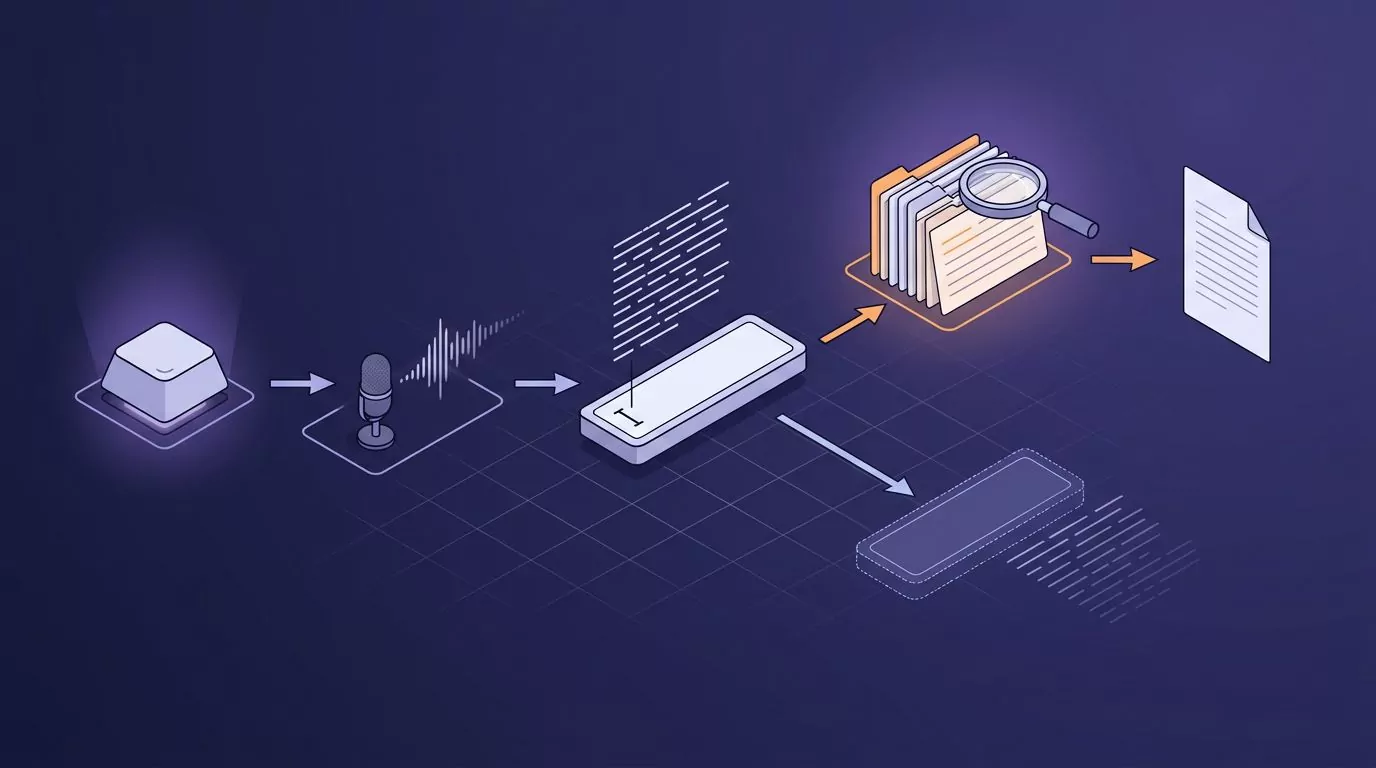
Aqua Voice is a hold to talk dictation app. You put the cursor in a text field, hold a key, speak, and cleaned up text appears where the cursor was. It is not a meeting recorder and not a file transcription tool. Every app below does that same core job, so the interesting differences are elsewhere.
Most comparison pages rank these tools by monthly price. That tells you almost nothing after week two. This one compares behaviour: does the app keep a copy of what you said, can you find it again by a phrase you remember, can you get it out, and what happens to the audio. For the Mac side in more depth, see the best dictation software for Mac.
What Aqua Voice actually gets right
Aqua Voice is a real desktop app on Mac and Windows, with an iPhone app as well. That matters. Many of the tools it gets compared to are Mac only, so a Windows user has a much shorter shortlist than the search results suggest.
Its Max plan adds a realtime mode that shows words as you speak instead of at the end. Most hold to talk apps insert the whole block on key release. Aqua also handles spoken edits well: say a correction out loud and it revises the text rather than typing your instruction.
It does keep your past transcripts, and the site says you can reach them any time. What it does not publish is whether you can search them by phrase or export them in bulk. That gap is what this article is about.
Why people go looking for something else
- Subscription fatigue. Pro is $8 per month on annual billing, or $10 month to month. Max is $24 per month annual, $30 monthly. Daily users still balk at a recurring bill for a keyboard shortcut.
- The transcript question. You dictate a good paragraph into Slack, the thread scrolls away, and the words are gone.
- Cloud versus local. Aqua processes in the cloud by default, with a Privacy Mode that stops anything being stored on its servers. Some people want the audio never to leave the machine.
- Platform. Half the popular alternatives are macOS only. If you move between a Mac and a Windows box, that halves the field again.
If storage is what is driving your search, our explainer on what zero data retention actually means is worth ten minutes first.
Nine dictation tools compared on where the words end up
Prices were checked on the official sites at the time of writing. Where a vendor publishes no answer, the cell says so rather than guessing.
| Tool | Platform | Price at time of writing | Transcript kept? | Search by phrase? | Export | Audio retained? |
|---|---|---|---|---|---|---|
| Aqua Voice | Mac, Windows, iPhone | Free 1,000 words; Pro $8/mo annual; Max $24/mo annual | Yes | Not documented | Not documented | Privacy Mode stores nothing on their servers |
| Wispr Flow | Mac, Windows, iOS, Android | Free 2,000 words weekly on desktop; Pro $12/mo annual, $15 monthly | Yes, grouped by day, per device | Yes | Not documented | Yes, kept per entry for replay |
| Superwhisper | macOS, Windows, iOS | Free tier; Pro $8.49/mo, $84.99/yr, $249.99 lifetime | Yes, a History panel | Raw dictation only | Not documented | Yes, until you delete it |
| VoiceInk | macOS only, Apple silicon | $25, $39 or $49 one time by device count | Yes, local database | Yes, raw and cleaned text | CSV | Optional, auto delete after 1 to 30 days |
| Willow | Mac, Windows, iPhone | Free tier; Pro $15/mo, $12 annual; Business $35/mo | Not documented | Not documented | Not documented | Markets zero data retention |
| MacWhisper | macOS only | Free tier; Pro 65 euros one time | File transcripts, not dictation history | Within one transcript | Text, SRT, VTT | Your own file, kept on your Mac |
| Windows voice typing | Windows | Free, built in | No | No | No | Handled by Windows |
| macOS Dictation | macOS | Free, built in | No | No | No | Handled by macOS |
| VoiceSnap Pro | Mac and Windows | $39 one time early access, pre launch | Yes, saved as a note | Yes, full text | Plain text or Markdown | No, discarded after transcription |
What each Aqua Voice alternative does with your text
Wispr Flow
Wispr Flow runs on Mac, Windows, iOS and Android. The free plan gives 2,000 words a week on desktop. Pro is $15 a month, or $12 billed annually.
Its history is the best documented of the paid cloud tools. Transcripts group by day, a search box sits above them, and each entry keeps its recording so you can replay a mishearing. Two catches: history lives on one device and does not sync, and there is no documented bulk export.
Honest limitation: keeping the audio is a feature if you want replay, and a problem if you never wanted audio kept.
Superwhisper
Superwhisper covers macOS, Windows and iOS. There is a free tier, and Pro is $8.49 a month, $84.99 a year, or $249.99 once. The lifetime option is why it shows up on every list.
Its History panel opens from the menu bar or settings, and you can reprocess an old recording through a different mode when the first result was poor. Nothing else here offers that.
Honest limitation: search matches your raw dictation only, so a phrase the AI rewrote will not find the note. Recordings also sit on disk until you remove them. If it is your front runner, we lined up its own rivals in Superwhisper alternatives.
VoiceInk
VoiceInk is open source, macOS only, and needs Apple silicon. Licences are one time: $25 for one Mac, $39 for two, $49 for three. Transcription runs on your machine.
The history is a local database, and the search field matches both raw and cleaned text, which beats Superwhisper here. You can select rows and export to CSV, and audio can delete itself after 1 to 30 days.
Honest limitation: no Windows build and no Intel Mac build. For many readers that ends it.
Willow
Willow runs on Mac, Windows and iPhone. There is a free tier with a weaker model, Pro at $15 a month or $12 annual, and Business at $35 a month with zero data retention enforced.
Willow leads with privacy and accuracy rather than notes. Its site does not describe a searchable history or an export path.
Honest limitation: if the transcript question is why you are switching, Willow publishes no answer. Read those blank cells as unknown, not as a no.
MacWhisper
MacWhisper keeps appearing on lists like this, and it should not. It transcribes audio and video files you already have. It is not a hold to talk app for typing into a text field.
It is Mac only. There is a free tier, and Pro is a one time 65 euro licence on Gumroad. Export covers plain text plus SRT and VTT subtitles, which is better than anything else here.
Honest limitation: wrong tool for this job. Pick it to transcribe an interview, not to answer email.
Windows voice typing and macOS Dictation
Both are free and already installed. On Windows, press Win and H in any text box. Microsoft covers the feature set on its Windows accessibility page, and we go deeper on what Win+H does and where it stops. On a Mac, turn it on in System Settings, then follow Apple's dictation guide or our walkthrough of dictating on a Mac in any app.
Honest limitation: neither keeps a history, so nothing you say is recoverable later. Punctuation is weaker too, and you often end up saying "comma" out loud.
VoiceSnap Pro
VoiceSnap Pro is a Mac and Windows app built around the column most of this table leaves blank. Hold your shortcut, speak, release, and punctuated text lands at the cursor with filler words removed. A copy is saved as a note, tagged with the app you dictated into and the time.
Those notes are searchable by any phrase from the text, grouped by day and by app, and exportable as plain text or Markdown. Audio is transcribed and then discarded.
Honest limitation: it has not shipped. Access is $39 one time through the early access waitlist, so you are buying a place in line, not a download today. Discarded audio also means no replay when a word comes out wrong.
What actually happens on first run
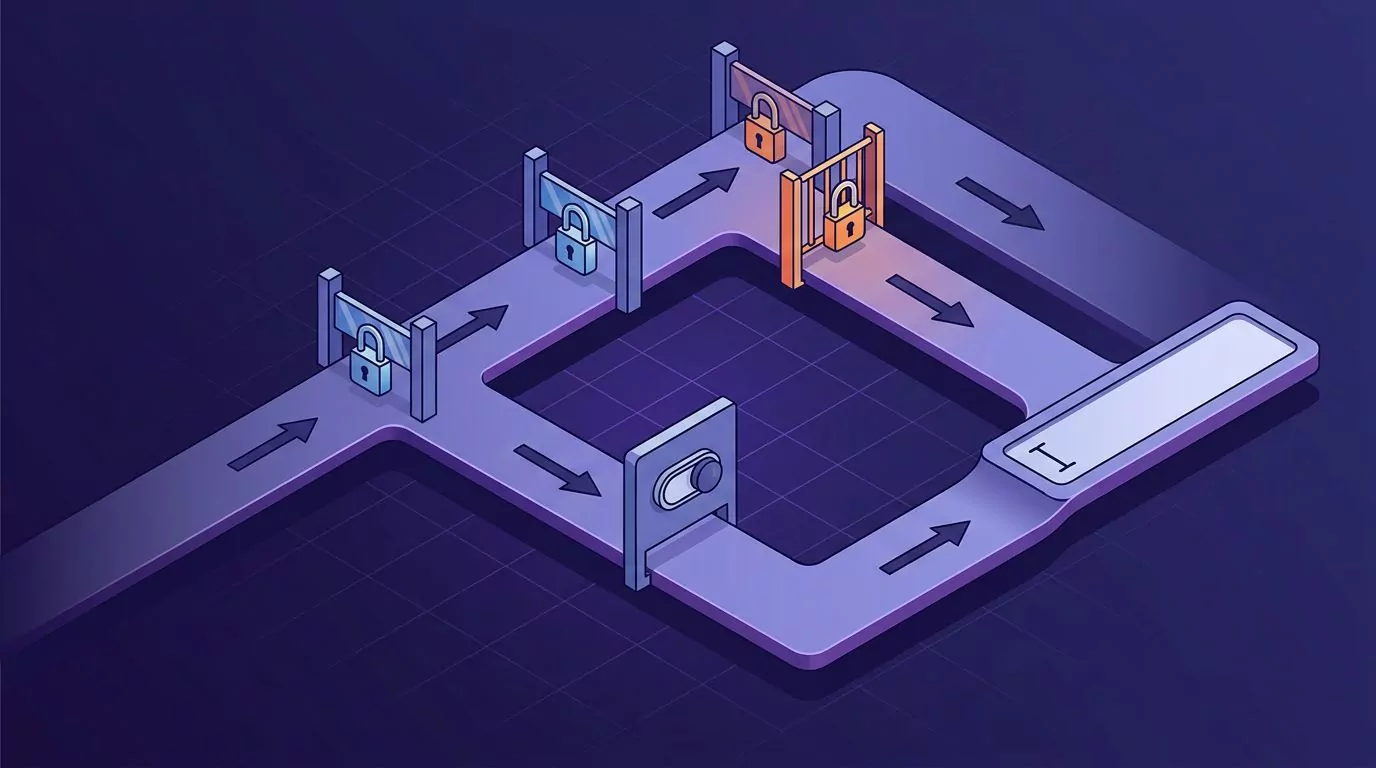
Every guide says "install and pick a shortcut". The real first five minutes are permission dialogs, and macOS asks for three. Miss any one and the app looks broken.
On macOS, in order:
- Microphone. A dialog asks if the app may use the microphone. Grant it, or check the list later under System Settings, Privacy and Security, Microphone. Apple describes the panel in its microphone access guide.
- Accessibility. This is the one people miss. Inserting text into another app counts as controlling your Mac, so the app must be ticked under Privacy and Security, Accessibility. Apple's page on allowing accessibility apps shows the list. Without it, the app hears you and nothing appears.
- Input Monitoring. Detecting a key you hold down, globally, needs its own tick under Privacy and Security, Input Monitoring. Without it the shortcut never fires.
Quit and reopen the app after granting the last two. macOS does not always apply them live.
On Windows it is one place. Open Settings, then Privacy and security, then Microphone. Turn on Microphone access, then Let apps access your microphone, then scroll to the bottom for Let desktop apps access your microphone. That last toggle catches people, because most dictation apps are desktop apps rather than Store apps.
When dictation goes wrong and what to do
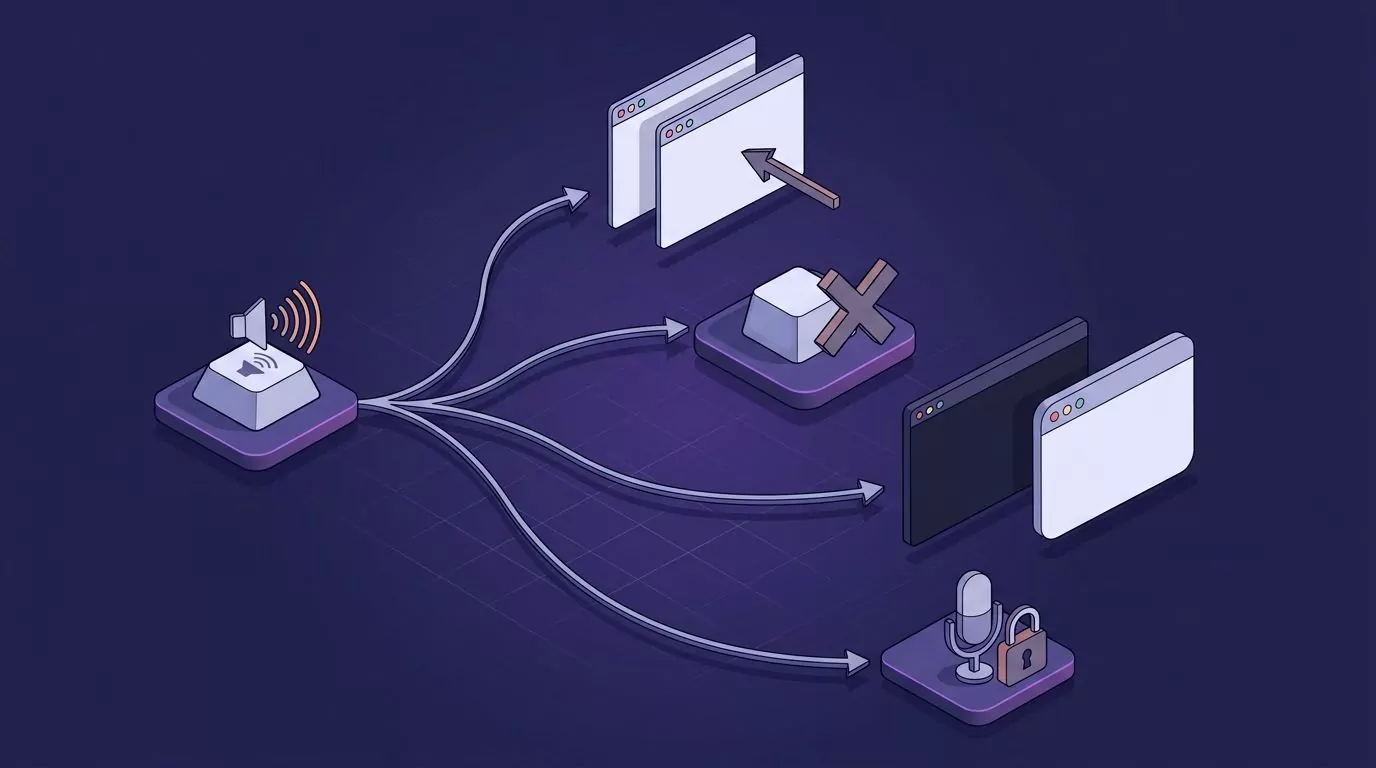
Almost no comparison page covers this, and it is where people give up. Four failures cause nearly all of it.
The text lands in the wrong window. A notification steals focus while you talk, and your paragraph arrives in Slack instead of the doc. Fix: click into the target field again before you hold the key, and mute banners while dictating. Many apps insert into whatever has focus on release, not on press.
The shortcut does nothing. Another app grabbed the same combination first. Screen recorders, window managers and remote desktop tools are the usual suspects. Fix: pick a key nothing else wants. A single held modifier, like right Option, collides far less than a two key combination.
Terminals and Electron apps behave differently. Insertion usually simulates keystrokes. Native fields accept them instantly. Electron apps such as Slack and VS Code can drop the first character or two, and terminals may reorder a fast paste. Fix: switch those apps to a slower or clipboard based insertion mode if the app offers one.
It stops working mid call. A video call app takes exclusive control of the microphone and dictation goes silent with no error. Fix: leave the call, or pick a second input device. Our guide to voice typing not working covers the rest of the checks.
What no dictation app fixes
Proper nouns are still the weak point. Names, product names and internal jargon get mangled. A custom dictionary helps and does not solve it.
Background noise still wins. An open office, a fan, or a second voice in the room costs you accuracy whichever model runs underneath.
Punctuation is inference, not instruction. These apps guess your commas from rhythm and grammar. They guess well most of the time and oddly some of the time, especially in lists.
And speaking a first draft is not speaking a finished one. Dictation gets words on the page fast. It does not make them good. That is also why a saved, searchable note beats a fast one, as we argue in the case for a commonplace book you can actually search.
Frequently Asked Questions
Is there a free Aqua Voice alternative?
Yes. Windows voice typing and macOS Dictation are free and built in, and Wispr Flow, Willow and Superwhisper all have free tiers with limits. None of the free options keep a searchable history, which is the main thing you give up.
Does Aqua Voice work on Windows?
Yes. Aqua Voice ships desktop apps for Mac and Windows, plus an iPhone app. Worth knowing, because several tools it gets compared to, including VoiceInk and MacWhisper, are macOS only.
Which alternative works offline?
VoiceInk runs transcription locally on Apple silicon Macs, and MacWhisper transcribes files on your machine. Superwhisper can run local models too, and Willow advertises an offline mode. Wispr Flow and Aqua Voice are cloud first.
Do these apps keep my dictation history?
It varies more than you would expect. Wispr Flow, Superwhisper and VoiceInk keep searchable histories on the device. Aqua Voice keeps past transcripts. Willow publishes no answer. The two built in options keep nothing.
Can I export my dictations?
Rarely, and this is the weakest column in the table. VoiceInk exports CSV, MacWhisper exports text and subtitle files, and VoiceSnap Pro exports plain text or Markdown. The others document no export path.
Is Aqua Voice or Wispr Flow better?
Aqua Voice wins on realtime streaming and voice editing. Wispr Flow wins on documented history and on reach, since it adds Android. On price they are close, at $8 and $12 a month on annual billing.
Picking one
Mac only and want to pay once: VoiceInk. History that is documented and searchable across both systems: Wispr Flow. Liked Aqua Voice and only wanted it cheaper: Superwhisper's lifetime licence. If you want the words saved as notes you can search and export, that is the axis VoiceSnap Pro is built on, and early access is $39 one time. Either way, run the free built in option for a week first, using a desk workflow that fits Mac and Windows, so you know what you are paying to improve.