The Getting Things Done Method, Explained: Capture, Clarify, Organize, Reflect, Engage
The Getting Things Done method, created by David Allen, is a five-step workflow for getting every commitment out of your head and into a trusted system. You capture what has your attention, clarify what each item means, organize it into lists, reflect in a weekly review, and engage by choosing the next action that fits your context.
If two Slack promises, an email marked "answer later" and a half-formed plan for next quarter are all living in your head right now, this is the method built for that.
This guide walks through each step with examples from a desk job, including a six-item inbox processed end to end. GTD works with any tool, from a paper notebook to a task app.
What is the Getting Things Done method?
Getting Things Done, or GTD, comes from David Allen's book Getting Things Done: The Art of Stress-Free Productivity. It was first published in 2001 and revised in 2015.
Allen's core idea is that your mind is for having ideas, not holding them. So every commitment should live in an outside system that you trust and look at often, which frees your attention for the work in front of you. He calls the calm this creates "mind like water": like a still pond after a pebble lands, you respond to each new input in proportion, then settle again.
The GTD method calls each of these commitments an open loop. An open loop is anything you have agreed to do, or want to do, that is not finished and not yet parked somewhere you trust. Open loops are why one small unfinished task can tug at you all afternoon, a pull known as the Zeigarnik effect.
The five steps at a glance
Each step answers one question:
| Step | The question it answers | What comes out |
|---|---|---|
| Capture | What has my attention? | Items in an inbox |
| Clarify | What is this, and is it actionable? | Next actions, projects, trash, reference, or someday/maybe |
| Organize | Where does it belong? | Items on the right lists and the calendar |
| Reflect | Is my system still current? | A weekly review |
| Engage | What should I do right now? | The one action you pick |

Why some guides say collect and process
The first edition of the book called the first two steps collect and process, and some older guides still use those words. The revised edition and the official GTD site use capture, clarify, organize, reflect and engage. It is the same workflow with new names.
Some guides also put Engage before Reflect. This guide follows the official order, with Reflect as the fourth step.
Step 1: Capture everything that has your attention
Capture means writing down anything that has your attention, at the moment you notice it. That includes tasks, promises to other people, ideas, worries, things you are waiting on, and "someday" wishes. If it takes up space in your head, it counts.
Two rules keep capture fast. First, capture the item, not the plan: "Send Priya the Q3 deck" is enough, and how you will build the deck can wait. Second, keep one item per line or per note, so each one can be sorted on its own.
Do one full mind sweep with the GTD trigger list
When you start GTD, do one full mind sweep. Sit down for about 30 minutes and list every open loop you can find, at work and at home.
The official GTD trigger list helps here. It is two pages of prompts, personal and professional, from projects not yet started to calls you owe, that shake loose the items you forgot. Read a prompt, write down what it reminds you of, and move on.
Many people find that saying the list out loud is faster than writing it, because talking keeps up with thinking. For the spoken version, step by step, see how to do a brain dump by talking.
Capture in seconds, one line per item
The capture habit only survives if it takes seconds and never pulls you out of the app you are in. Otherwise you keep the item in your head, and the system leaks. Here are four desk moments and the one-line capture each one needs:
- In a meeting, a teammate asks for a document: "Send Priya the Q3 pricing deck by Thursday."
- In a code review, you spot a fix for later: "Refactor the retry logic in the billing client."
- Halfway through an email, you need numbers you do not have: "Ask finance for October churn."
- At the end of a call, there is a follow-up: "Email Sam the revised timeline."
Notice the format: a verb, an object, and any name or date you already know. That is enough to make sense of the item a day later, when you clarify it.
How many inboxes you need
GTD's rule is to keep as few inboxes as you can get away with. Every extra inbox is one more place for a promise to hide.
A typical set for a desk worker has three: the email inbox, one digital capture inbox at the desk, and a notebook (or the capture tool you already carry) for when you are away. Every inbox gets emptied on a schedule. An inbox you never empty is just a pile, and you will stop trusting it.

Capturing by voice at your desk
Speaking an open loop can be quicker than typing it when you are in the middle of work in another app. With voice notes in VoiceSnap Pro, a desktop app for Mac and Windows, capture takes three steps:
- Hold Right Command (Mac) or Right Ctrl (Windows), say the open loop, and release. Or press Control-Option-N (Ctrl+Alt+N on Windows) to start hands-free, and press it again to stop.
- What you said is saved as a voice note in your account.
- Leave it in the notes list until your next processing session, then clarify it with the rest of your inbox.
The note sits in the same list as typed notes, syncs to every Mac or Windows computer you sign in on, and keeps its recording per the Keep recordings setting. It gets an AI title by default, which sends the note's text to OpenAI, and you can turn that off in Settings, AI. The FAQ covers where audio and text go, and the keyboard shortcuts guide lists every key.
The GTD point matters more than the tool. A voice note is an inbox item, not an organized task, so it still goes through Clarify.
Dictation helps at the other end. Holding Right Option (Mac) or Right Alt (Windows) types what you say at the cursor in any app, so a clarified next action can go straight into the add-task field of your task manager or spreadsheet.
Step 2: Clarify what each item means
Capture fills the inbox. Clarify empties it, one item at a time, by deciding what each item is and what you will do about it. Once you pick an item up, it never goes back into the inbox.
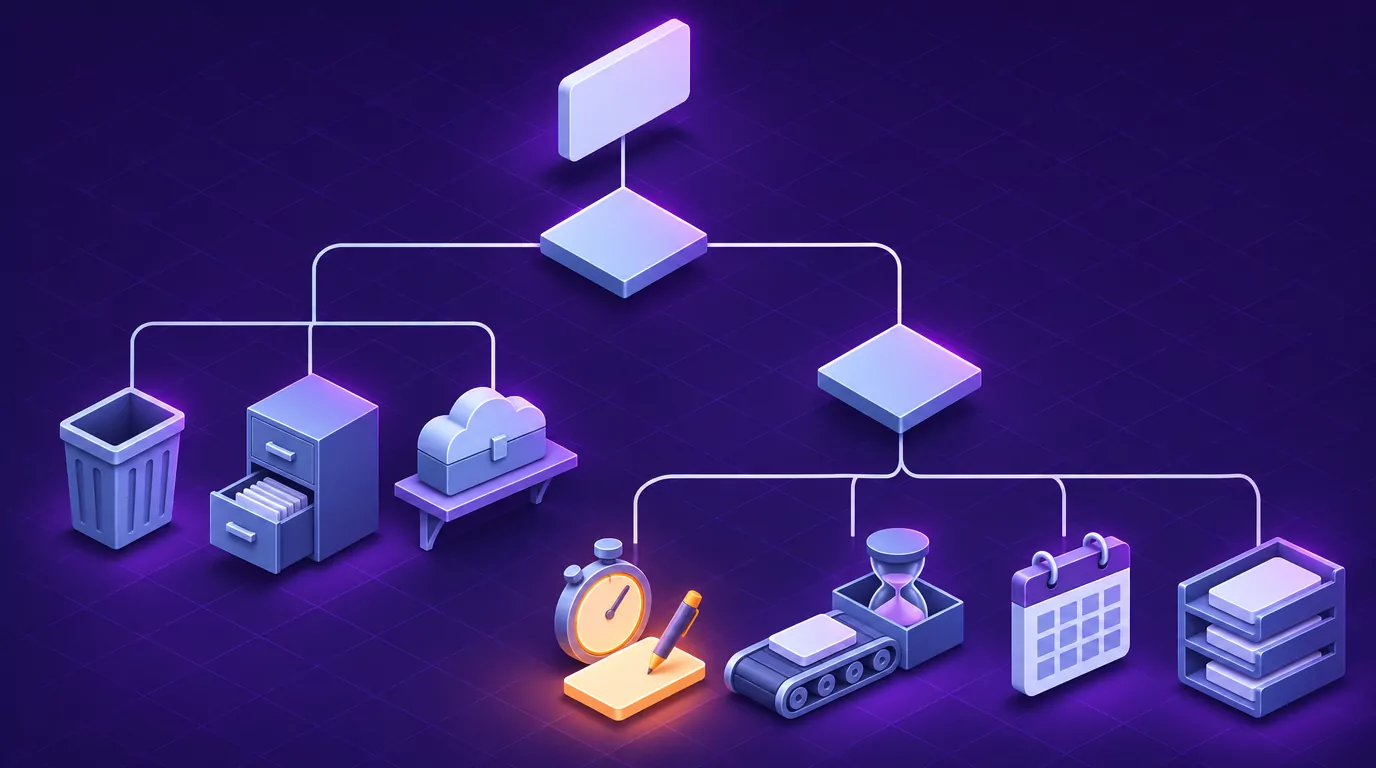
The GTD clarify flowchart, written as steps, asks these questions in order:
- What is it? Name the item in plain words.
- Is it actionable? If not, trash it, file it as reference, or put it on Someday/Maybe.
- What is the very next physical action? Name the first visible step.
- Will it take less than two minutes? Then do it now.
- Are you the right person to do it? If not, delegate it and add it to Waiting For.
- Otherwise, defer it. Put it on the calendar if it is tied to a set day or time, or on a next actions list if it is not.
- Does the outcome need more than one action? Then it is also a project, and it goes on the Projects list too.
The two-minute rule
The two-minute rule says that if an action takes less than two minutes, you do it the moment you clarify it. Tracking a tiny task costs more time than just doing it. Replying "yes, Thursday works" is faster than adding it to a list.
The rule goes wrong in two ways. A processing session can turn into a morning of "quick" tasks, or the rule stretches until 15-minute jobs count as two-minute ones. A simple fix is to timebox the session, for example to 30 minutes, and defer anything that would run long.
Worked example: clarifying six inbox items
Here is a realistic desk-job inbox, processed end to end. The six items cover every outcome the flowchart can produce except trash.
| Inbox item | Actionable? | Decision | Where it goes |
|---|---|---|---|
| "Priya wants the Q3 deck" | Yes, under two minutes | Do it now: email her the link | Done, so nowhere |
| "Team offsite" | Yes, more than one step | Project "Team offsite booked", plus a first next action | Projects list, and "Ask Sam for three date options" on a next actions list |
| "Article on pricing pages" | No | Keep it in case you need it | Reference |
| "Learn SQL window functions" | Not now | Park it | Someday/Maybe |
| "Legal is reviewing the vendor contract" | Yes, but someone else owns it | Track it, with the date you asked | Waiting For |
| "Dentist, Tuesday 3 pm" | Yes, at a fixed time | Book it in | Calendar |
Only one item turned into work right now. The other five left your head and landed in a place you will check later, which is the whole point of Clarify.
Write next actions you can do without thinking
A good next action starts with a verb and names something physical and visible. If you have to stop and think about what it means, it is not a next action yet. Compare these weak and strong versions:
| Weak | Strong |
|---|---|
| Taxes | Download the 1099 from the bank portal |
| Website | Email Dana the three pages that need new photos |
| Hiring | Draft the job post for the support lead role |
When a commitment is shared with other people and needs an owner and a date, write it as an action item. The guide to writing action items that get done covers that owner, verb and date pattern.
Step 3: Organize each item onto the right GTD list
Organize puts each clarified item where it belongs. GTD uses a small set of lists, and each one has a clear job. Mixing them up is the fastest way to build a system you stop trusting.
| List | What goes on it | What never goes on it |
|---|---|---|
| Projects | Any outcome that needs more than one action and can be finished within about a year | Single tasks |
| Next actions | Single physical actions, grouped by context | Projects |
| Waiting For | Things you delegated or are owed, with the date you asked | Your own tasks |
| Calendar | Only appointments and actions tied to a set day or time (Allen's "hard landscape") | Plans you hope to get to |
| Someday/Maybe | Things you might do later | Commitments |
| Reference | Information with no action attached | Tasks |
| Tickler file | Items you want to see again on a future date | Anything you need sooner |
The tickler file began as 43 paper folders: one for each day of the month and one for each month. Today, a dated reminder in a calendar or notes app does the same job.
One distinction is worth keeping clear: GTD organizes actions, while a second brain organizes knowledge. For a system that holds notes and ideas, see how to build a second brain.
GTD contexts: sort next actions by what you need to do them
GTD groups next actions by context: the place, tool or person you need to do them. The classic contexts are @calls, @computer, @office, @home and @errands, plus an @agenda list for each person you meet often.
For desk workers, the classic set has a problem. Nearly everything ends up on @computer, so the list stops filtering anything. These options work better:
- By tool or kind of work: @email for replies, @deep work for a strategy doc, @quick for five-minute admin.
- By energy: @low energy for tidy-up tasks, like renaming files at the end of the day.
- By time available: @15 minutes for things that fit between meetings.
- By person: an agenda list for each manager, report or client.
Keep it to five to seven contexts at most. With more, choosing a context becomes a task of its own.
Step 4: Reflect with a weekly review
Without a regular review, a GTD system dies quietly. Lists go stale, you stop trusting them, and your head goes back to holding everything. Offloading only helps if you come back to what you offloaded, as the guide to cognitive offloading explains.
The GTD weekly review checklist
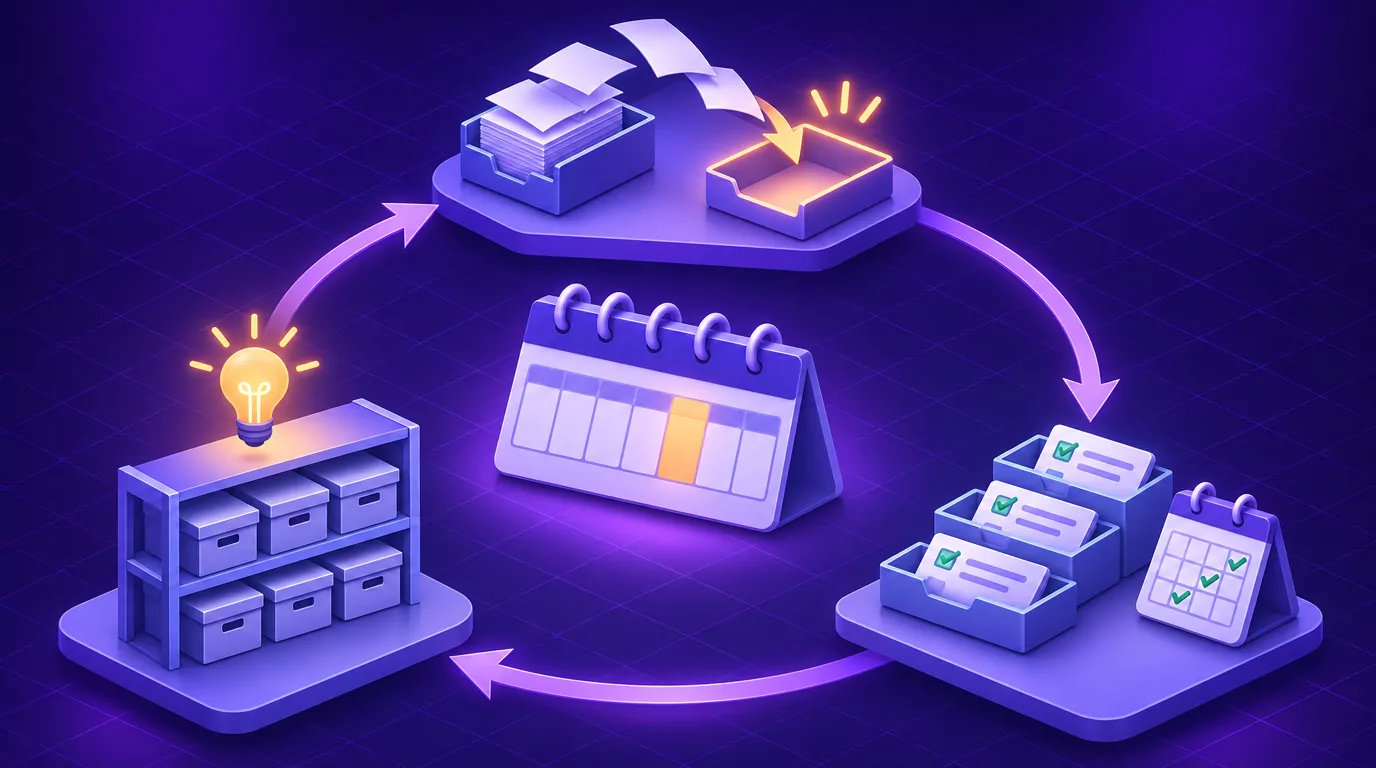
The official GTD weekly review checklist splits the review into three phases. In plain words:
- Get clear. Gather loose papers and notes into your inbox, and process every inbox to zero. Then empty your head again, writing down any new projects, actions or ideas.
- Get current. Review your next actions and mark off what is done. Look back at last week's calendar and ahead at the coming weeks, then check Waiting For. Go through every project so each has at least one next action, plus any checklists you keep.
- Get creative. Review Someday/Maybe, move anything now active to Projects, and delete what no longer interests you. Then add any new ideas.
The official checklist names dictation among the things to process to zero, next to emails, voicemails and meeting notes. So voice notes captured during the week get cleared here too.
When to do it and how long it takes
Pick a fixed slot and block it on the calendar like a meeting. Friday afternoon is a common choice, because the week is still fresh. Start with 30 to 60 minutes, and expect it to shrink as your lists stay clean.
Between reviews, a five-minute daily check of the calendar and your next actions keeps the week on track. If you only track commitments from meetings, the lighter 10-minute review in the action items guide may be all you need.
Step 5: Engage by choosing what to do right now
Engage is the payoff. With a current system, you can pick the right action with confidence instead of reacting to whatever is loudest. Allen suggests four criteria, applied in this order:
- Context: what can I do here, with the tools I have?
- Time available: how long until my next meeting?
- Energy available: how sharp am I right now?
- Priority: of what is left, what matters most?
Say you have a 20-minute gap between meetings, your energy is low, and you only have your laptop. The strategy doc is out, even though it is the top priority. You pick something from @quick and save the doc for your next focus block.

Where priorities come from
GTD sets priorities through its horizons of focus. These six levels run from purpose and vision at the top, through goals and areas of responsibility, down to projects and current actions. Looking at the higher levels now and then tells you which projects deserve your best hours.
GTD keeps the inventory, but it does not plan your day. Pair it with protected time blocks for deep work, and with fewer jumps between tasks, which the post on context switching covers. A time block is not a to-do list on the calendar. It reserves the hours, and you still pick what fills them with the four criteria above.
Why GTD works, and where it breaks
What the research supports
Masicampo and Baumeister (2011) found that making a specific plan for an unfinished goal reduced intrusive thoughts about it, which is close to what Clarify and Organize do. The post on the Zeigarnik effect covers that study in detail.
Heylighen and Vidal (2008) went further in the journal Long Range Planning, where they analyzed GTD through cognitive science. They treat GTD's lists as an outside memory that takes load off the mind. They argue that research on attention and memory supports and extends Allen's advice.
Both papers support the principles behind GTD. Neither is a trial of GTD itself.
Common failure points and how to fix them
Most criticism of GTD comes down to six problems, each with a practical fix.
| Problem | What it looks like | Fix |
|---|---|---|
| Setup takes a whole weekend | You never finish building the system, so you never use it | Start with the minimal setup below |
| Next actions fill with someday items | A list of 120 "next actions" you avoid | Move anything not due in the next few weeks to Someday/Maybe |
| The weekly review gets skipped | Lists go stale and you stop trusting them | Make it shorter and fix it to one calendar slot |
| Every action is @computer | Your contexts filter nothing | Use contexts by energy, time or kind of work |
| No built-in prioritizing or scheduling | A full list, but no sense of what to do today | Use the Engage criteria, plus time blocks |
| Capture is too slow | Loops stay in your head because writing them down is a hassle | Make capture take seconds, by keyboard, voice or paper |
Who GTD suits, and who should start smaller
GTD pays off most when commitments reach you from many directions, such as email, chat, meetings and your own ideas, and you choose when to do most of them. If a ticket queue or a manager sets most of your day, the full system can be more than you need. Start with capture, a Waiting For list and the weekly review, which still keep small promises from slipping.
A minimal GTD setup you can start today
You do not need a perfect system to start. This setup covers the whole method.
- Set up one capture inbox at the desk and one for away from it.
- Create four lists: Projects, Next actions, Waiting For, and Someday/Maybe.
- Use your calendar only for dated commitments.
- Make one reference folder.
- Do a 30-minute mind sweep.
- Process the inbox to zero once.
- Book your first weekly review.
Paper, a plain text file, a notes app or any task manager all work. The habits matter far more than the app, so pick whatever you already open every day. In a task manager, make each GTD list a separate list, and use tags or labels for contexts. On paper, give each list its own page.
If your captures live in VoiceSnap Pro, you can export your notes as Markdown files at any time, on free or Pro, so they are never held behind a subscription. An AI action such as Turn into bullet points or Summarize can turn a rambling voice note into a short list. AI actions send the note's text to OpenAI only when you choose one, and deciding what each item means is still your job.
Frequently Asked Questions
What are the 5 steps of GTD?
The five steps are capture, clarify, organize, reflect and engage. Capture collects what has your attention, and clarify decides what each item means. Organize puts items on the right lists, reflect keeps them current in a weekly review, and engage is choosing what to do next.
What is the two-minute rule in GTD?
While you process your inbox, you do any action that takes less than two minutes right away. It differs from the two-minute rule in James Clear's Atomic Habits, which says to start a new habit with a version that takes under two minutes.
How often should you do a GTD weekly review?
Once a week, in a fixed slot you protect on your calendar, plus a short daily check of the calendar and next actions. If you miss a week, do a shorter review rather than skipping again.
Is GTD still relevant?
Yes, the core habits still hold: capture outside your head, write clear next actions, and do a weekly review. What has aged is the 2001 paper setup and the place-based contexts, which this guide updates.
What is the 3-3-3 rule at work, and how is it different from GTD?
The 3-3-3 rule is a one-day plan usually credited to Oliver Burkeman: about three hours on your most important project, three shorter urgent tasks and three maintenance tasks. The guide to deep work shows how it fits a focus block. The difference is scope: 3-3-3 plans a single day, while GTD keeps the full inventory that day draws from.
Start with one capture habit
You do not need to adopt all of GTD at once. This week, do one mind sweep, process what you find, and book your first weekly review. Once capture is a habit, the other four steps have something to work with.
If you would like to capture open loops by voice at your desk, VoiceSnap Pro is free to start, with no card. Download free for Mac or Windows. Pro is $9 a month when you need unlimited transcription and manual AI actions, subject to fair use.